
2001 – Welcome to the third and final segment of this Outlook Express (OE) tutorial. We went through the most important features of OE in parts 1 and 2. To put the icing on the cake, let’s examine a bunch of convenient features available at your fingertips. They are mostly useful to personalize OE or simply to make your email handling easier.
Rewrap
 The Rewrap button is located in the toolbar in every message you open with Outlook Express. If you feel that a message’s text wrapping is messed up or just not right, click on this button, and it will take care of wrapping the text in a standard way. It will handle quotes just fine, by the way.
Message Editing
When you receive a message and decide to keep it, you may judge that only a part of it is relevant and that you want to change the subject line to make it easier to remember. Open the message and hit the Edit button in the message window’s toolbar. If the message came in HTML format, OE will alert you that it will remove the formatting. Just click on OK. Then the subject line will turn into a text field and the body text will be easy to edit. Once done, reach for the File menu and click on Save.
Attribution
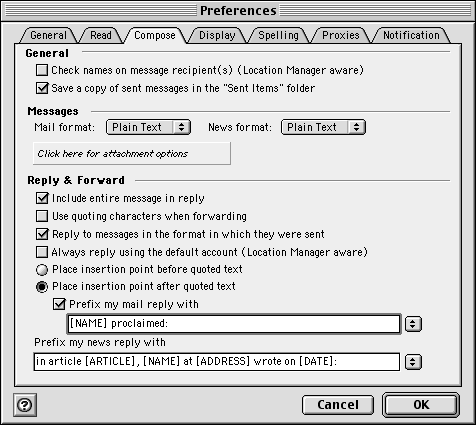
In OE, you can modify the attribution to whatever you want it to be. The standard “Joe Public wrote” can be a little boring, and it is one standard that you can avoid without doing much harm. You have to remember, however, to keep it short without impolite words. Pull down the Edit menu and select Preferences. Click on the Compose tab. Look for the text fields at the bottom of the window. Take a look at the screen shot below.
The first thing you have to notice is how the attribution line is structured for OE to display it right. The elements you can add in are in capital letters between [] signs. When you add [NAME] to the line, OE will put the name of the sender in the attribution line. The same applies to [DATE] and [ADDRESS]. The default in the preferences is on [DATE], [NAME] wrote. The most simple thing is to use [NAME] wrote: or [NAME] said: to make it short. People don’t need you to remind them of their email address and the moment when they sent you a message. They have all of that stored in their email database. Just build your attribution line with this information.
HTML
[This was written in 2001, when plain text email was still the norm.]
HTML email is rather controversial, mostly because HTML is not popular in email and you need to respect people’s wish to get plain text email unless you want them to categorize you a rude and stupid. All you need to do is to select plain text as your default. Pull down the Edit menu and select Preferences. Click on the Compose tab. The second category of composing preferences is Messages, and just under it, you see Mail format. You can see it in the screen shot above. Make sure that it is set to Plain Text. Then, go down to Reply & Forward in the window. Make sure to uncheck the checkbox for Reply to messages in the format in which they were sent. This will ensure that all the mail you send is in plain text. Plain text is an email standard that people really want to be respected, and it is a great idea to do just that.
Notification
Each time you receive or send email, you will hear a sound to indicate what happened. Don’t like the default sounds? It is time to download something more appropriate. Visit the Sound Set Central and have fun. Once you downloaded a bunch of sound sets, you need to try them out. Take the files and open the Outlook Express folder. It contains a folder named Sound Sets. Drop the sound set files in that folder. Close OE and launch it again. Go to the edit menu, hit Preferences and click on the Notification tab.
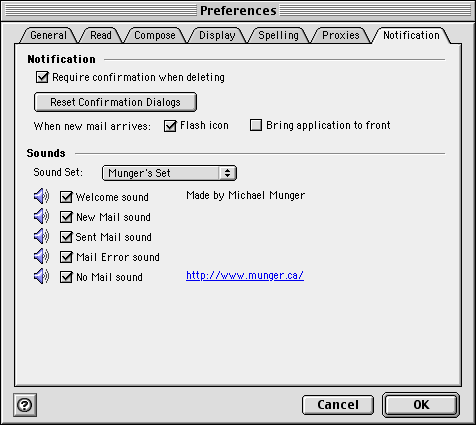
Select your sound set from the pop up menu. Click on the speaker icons to test the sounds attached to a notification. If you want to make your own sound set, you need to get Expression from the Sound Set Central and follow the instructions that come with it to build your own.
Search Your Database
Okay, you have this hot date tonight, and you can’t find the recipe that mom emailed you. You little devil. You know that it’s there, but you can’t find it. You have two choices. You report the date or search through your database. Pull down the Edit menu, and select Advanced Find. Don’t bother with the other Find.
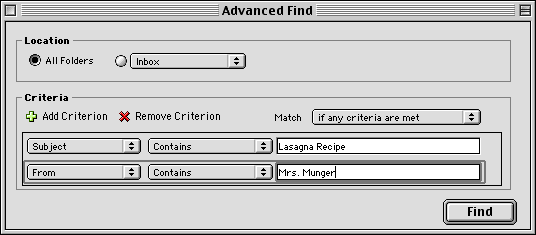
It works like the mail rules, which we studied last week. You add and remove criteria at will and make sure to check All Folders, since the message could be anywhere in your mail database. Make sure to use criteria that can be found in the message. Make sure that they are accurate or relevant. Then, click on Find. You will get a results window and you can retrieve your message from there. I recommend that you print that recipe, by the way 🙂
Address Book
 Adding entries to the address book is not complicated. Click on the Address Book icon in your folders list and click on New in the main window’s toolbar. Once there, you enter the information in the text fields and click on Save in the entry window’s toolbar.
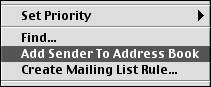
What I want to show you is how simple it is to add a contact to the address book – from a message you received. Control-click on the message and select Add Sender To Address Book. You’re done! The name and email address are now together in a contact. If you wish to edit it and add more information, go to the address book and double-click the contact to make changes, and then save everything.
AppleScript
Outlook Express is scriptable. That means you can use custom AppleScripts to perform light and complex operations on your messages and database. As this is complicated to write, I highly recommend that you visit AppleScript Central and see how you can make OE work with custom scripts. Meanwhile, look at the menu with an AppleScript icon and test the already present scripts with an open message to see what they can do.
Final Advice
After reading these three tutorials, you now know everything you need to know to take full advantage of the features in Outlook Express. All I can tell you is that you should experiment with these tips, and then come back here to read the tutorials again if you are unsure. But again, experiment! Don’t be afraid of screwing up. It’s part of learning, and it will help you to become a power user and control your email like never before.
Before you go, I recommend that you read the Netiquette Guide available at my personal site. It will tell you a bit about the dynamics of interaction via email.
Using Outlook Express 5 Index
- Part 1: The Basics
- Part 2: Import and Filter
- Part 3: Conveniences
Keywords: #outlookexpress
Short link: http://goo.gl/CUuAkf
