LA Computer Company: LA Computer Company: Specials on AppleCare, Apple Displays, MacBooks, iMac's, MacBook Pros, Laptop and iPod accessories and more. Apple A/C Adapters for laptops starting at $25.00 Call 1-800-941-7654 or Click Here.
Other World Computing: OWC Mercury Elite FW800/FW400/USB2/eSATA TOP-RATED Solutions offer High Performance, Reliable storage for all your data storage needs. Industry leading 2yr limited + up to 5yr HD Mechanism Warranty too! Up to 2.0TB(2000GB), 500GB specials from $199.99
Memory For New Intel Core2 DUO MacBooks, MacBook Pro, MacMini & iMacs" 4GB Kit $80, 3GB Kit $60, 2GB Kit $40, 1GB $20. Click to Maximize your Macs...
- 2001.03.28
The Finder is the application that gives your Mac a desktop
appearance. It displays the menu bar, your desktop background,
menus, and icons that you need to get everything done. While
double-clicking on an item to launch it and pulling down a menu is
easy enough to do, there are many things that you can learn in
order to do more. The Finder will respond to a bunch of subtle
tricks that do not appear as obvious as a "pull me down" menu.
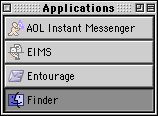
Since Mac OS 8.5, clicking and holding on the applications menu
- the one where you see the forefront application's name and icon - and then pulling on it
while still holding the mouse button, then dropping it on the
desktop will give you this.
This little application switcher can be handy. It lets you
switch applications with a single click. You can also drag and drop
files onto the application icon to open them in that program. Say
that MS Word is open and you drop a Word file on it. Word will open
it. If you want to customize its appearance, aim for the first
button to the right and use these combinations:
shift-option-click: makes the switcher horizontal
instead of vertical. Another shift-click puts it back to
horizontal.
command-click: Alternates between icons only or icons
with text.
option-click: Alternates between small icons with small
text and large icons with large text.
shift-click: Cuts the size of the buttons to take less
space. It can, however, shorten a button enough to add a ... at the
end of a long application name.
As you may have guessed, you can perform one customization after
another. If you wish to have an horizontal toolbar with small icons
and no text, you would do a shift-option-click followed by a
command-click.

Shabam!
Window navigation
Then there are little shortcuts - or simply a key combined with
a click - that can accomplish convenient tasks for you. Let's dive
into my second volume and open the Multimedia folder to give you
examples.
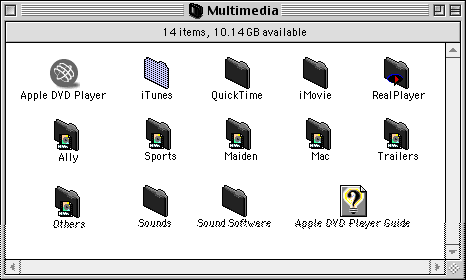
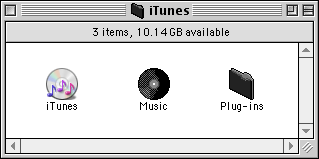
Before I took the screen shot, I opened the iTunes folder, which
is why it is grayed out. I could have used the standard
double-click or a command-o, but I felt like using a third way, a
shortcut that's easier on the hands when you use it often. I held
the command key (or Apple key, if you prefer) and added the down
arrow to the combination. As a results, here is iTunes:
Oops, I want to go back to the Multimedia window! Do I grab the
mouse and click on it? No. I want to keep my hands on the keyboard
to save time. To go back, I combine the command and up arrow key.
It brings me one level up in the folder hierarchy, thus taking me
back to my Multimedia folder. If I repeat the shortcut twice, it
will bring me back to the volume's level and then to the
desktop.
What if I want to minimize the space taken by that iTunes
folder? I can minimize it to its title bar with a click on the last
icon at the right end of the window. In the Finder or another
application, you can do an option-click on the same button to
reduce all the open windows to their title bar.

Size does matter...
You can also navigate through your drives without cluttering the
desktop with a dozen windows. Double-click on the hard disk icon
and hold the mouse button. A small magnifying glass will appear to
replace your pointer. When it appears, keep holding the mouse
button and guide the glass to the folder you want to open - and
keep doing this in your folder hierarchy until you open the folder
you want. Then release the mouse button. As you navigate through
your drive, the feature Apple calls the spring-loaded
folders will open folders for you, and it will close all the
folders but one, the one you want to keep open, when you release
the mouse button.
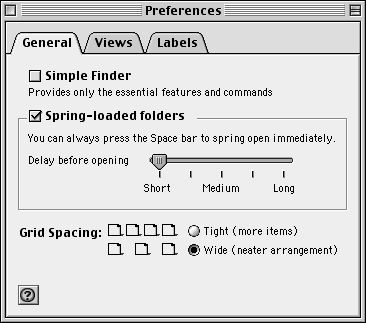
If you think that the spring-loaded folders react too quickly or
too slowly to your commands, you can adjust the speed by picking
the Edit menu in the Finder and selecting Preferences. Once there,
click on the General tab and look at the section where the
spring-loaded folders settings are available. Once there, adjust it
to your liking.
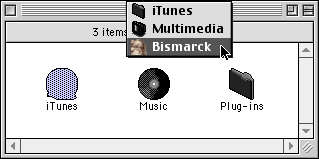
A "not very well known" function is the ability to use the title
bar to open folders that are higher in the folder hierarchy. Hold
down the command key and click on the title bar of a Finder window.
It will give you something like this.
As you can see here, I can select any folder I like or simply go
for the item called Bismarck, which is the name of the volume.
Selecting it will open it.
Here are a couple of handy shortcuts that you can also add to
your arsenal:
command-option-drag: Hold the command and option keys,
then drag an item's icon somewhere. An alias will be created where
you will drop it.
option-empty trash: Hold down the option key when you
empty the Trash. Almost any item that refused to disappear will go
away.
option-click-resize: Hold the option key down and click
on the window resizing button (the one with a little square in it)
to force a window to be resized to full screen.
Contextual Menus
This is something I will never stop talking about in iBasics:
Contextual menus are there to save you time and effort, use them!
Learn to control-click anywhere in the Finder to see what is
available. For example, control-click on the Trash icon, and you
will get an empty Trash menu item to empty the Trash. It is faster
than reaching for the Special menu just to select the same thing.
Control-click on a CD to select Eject, control-click on a drive to
make an alias.
Explore your options.
Remember that learning new behaviors takes time. You have to
force yourself to do it for a while, and everything I told you
about today will become normal. The habits will become natural. You
won't even have to think about the shortcuts and tricks; you'll use
them automatically.
Mac of the Day: PowerBook 500 Series, May 1994 - 25-33 MHz 68040 powered PowerBooks with smart batteries, grayscale and color displays.
List of the Day: G-Books is for G3 PowerBooks and iBooks.
May 16 in LEM history: 98: iMac: A second look - 00: Raised in a 6-color world - 01: The exclusivist Mac - Troubleshooting your Mac - 02: MP3 and the Mac - SE/30 catharsis - 03: Don't confuse a pretty interface for an easy OS - SCSI and OS X on a beige G3 - 05: The Apple III and Lisa era - Bigger, faster, more: Enough! - G4 upgrade for iMac A-D - 06: MacBook - PowerBook 3400: Surprisingly useful and spry - 07: MacBook value equation - 3 GB in a MacBook
Windows on Macs: Three paths for integration, Jason Packer, Macs in the Enterprise, 05.14.
Mac users have three routes for running Windows apps: Run Windows using Boot Camp or virtualization, or use a compatibility layer such as WINE.
Best iMac G4 deals, Low End Mac Deals, 05.14.
Used 15" 800 MHz Combo, $320; SuperDrive, $380; 1 GHz Combo, $400; SD, $485; 17" 1.25 GHz, $459; 20", $750.
Best Mac OS X 10.0-10.3 deals, Low End Mac Deals, 05.14.
Mac OS X 10.0.3, $40; 10.1, $49; 10.2, $60; 10.3 DVD, $50; CD, $100; 10.1 Server, unlimited users, $109; 10.3 Server, $130.
Best MacBook Air deals, Low End Mac Deals, 05.14.
1.6 GHz, 80 GB, $1,694 after rebate; 1.8 GHz, $1,994 a/r; 1.6 GHz, 64 GB SSD, $2,689 a/r; 1.8 GHz, $2,950 a/r; SuperDrive, $99.
10 cult Macs adored by collectors, Tamara Keel, Digital Fossils, 05.13.
Macs are not only noted for their longevity, but also by the passion which collectors have for some of the most interesting models ever made.
Low End Mac's Compleat Guide to the Lombard PowerBook G3, Charles W. Moore, 'Book Value, 05.13.
With the Lombard PowerBook, Apple abandoned the legacy ADB and serial ports for USB, trimmed 20% from WallStreet's weight, and hit 400 MHz.
Best PowerBook G3 deals, Low End Mac Deals, 05.13.
Used 14" WallStreet G3/266 MHz, $90; Lombard G3/400 MHz, $200; Pismo G3/400 MHz, $300; 500 MHz, $350.
Best Apple TV deals, Low End Mac Deals, 05.13.
Refurb 40 GB Apple TV, $199; new, $210; refurb 160 GB, $279; new, $319.
Best Xserve deals, Low End Mac Deals, 05.13.
Used 1 GHz dual G4, $1,399; close-out 2.0 dual-core Xeon, $1,999; refurb 2.66, $2,799; 3.0, $3,499; new 2.8 GHz quad, $2,888; 8-core, $3,299; 3.0, $4,059.
Michel Munger is a journalist who lives in Montréal. He discovered the Mac in 1994, and his work on a PC reminds him every day why he embraced Apple's platform. Munger has also authored some MacDaniel columns.
Thunderbird 2.0: A simple, powerful, free email client, Macinthoughts, 04.25.
Mozilla Thunderbird doesn't suffer from feature bloat like most commercial email programs. It puts the focus on doing what you need efficiently.
A decade of progress, Macinthoughts, 04.09.
10 years ago, Windows 95 was a mess, System 7.5 was becoming unstable, and Apple's future was in doubt. Today OS X is rock solid, Vista has learned from Apple, and Apple is a runaway success.
Mac of the Day: PowerBook 500 Series. May 1994 - 25-33 MHz 68040 powered PowerBooks with smart batteries, grayscale and color displays.
List of the Day: G-List is for Power Mac G3, G4, and G5 users.
May 16 in LEM history: 98: iMac: A second look - 00: Raised in a 6-color world - 01: The exclusivist Mac - Troubleshooting your Mac - 02: MP3 and the Mac - SE/30 catharsis - 03: Don't confuse a pretty interface for an easy OS - SCSI and OS X on a beige G3 - 05: The Apple III and Lisa era - Bigger, faster, more: Enough! - G4 upgrade for iMac A-D - 06: MacBook - PowerBook 3400: Surprisingly useful and spry - 07: MacBook value equation - 3 GB in a MacBook
Windows on Macs: Three paths for integration, Jason Packer, Macs in the Enterprise, 05.14.
Mac users have three routes for running Windows apps: Run Windows using Boot Camp or virtualization, or use a compatibility layer such as WINE.
Best iMac G4 deals, Low End Mac Deals, 05.14.
Used 15" 800 MHz Combo, $320; SuperDrive, $380; 1 GHz Combo, $400; SD, $485; 17" 1.25 GHz, $459; 20", $750.
Best Mac OS X 10.0-10.3 deals, Low End Mac Deals, 05.14.
Mac OS X 10.0.3, $40; 10.1, $49; 10.2, $60; 10.3 DVD, $50; CD, $100; 10.1 Server, unlimited users, $109; 10.3 Server, $130.
Best MacBook Air deals, Low End Mac Deals, 05.14.
1.6 GHz, 80 GB, $1,694 after rebate; 1.8 GHz, $1,994 a/r; 1.6 GHz, 64 GB SSD, $2,689 a/r; 1.8 GHz, $2,950 a/r; SuperDrive, $99.
Our advertising is handled by BackBeat Media. For detailed
price quotes and advertising information, please
contactat BackBeat Media (646-546-5194). This number
is for advertising only.