
2001 – We explored ways to increase the browsing speed of Internet Explorer (IE) a few weeks ago. As IE offers more than mere “get to the pages” browsing, we want to take advantage of all its features. With IE 5.0, Microsoft has added some great features.
- Description: Using Internet Explorer’s most powerful features
Difficulty level: Intermediate
System version: Not applicable
Auction Tracking
A gem of the Internet revolution is the ability to sell your old stuff or simply what you want to get rid of on the Net without a garage sale. You don’t even have to look at your buyer’s face anymore!
It can also work the other way around. With Internet auctions, it is easy to find stuff that doesn’t sell in retail anymore or old stuff that you want to collect.
Internet Explorer tracks auctions for you using the Auction Tracking feature. I will walk you through by going to an auction at eBay and starting to track it.

Now that’s a book I want to read!
Once you’ve found the item you want on eBay or Yahoo, you need to tell IE to track it. This is easy to do. Head to the Tools menu and select Track Auction. When you do this, Explorer grabs the Internet address of the auction you wish to bid on, and it will keep you up to date about who the high bidder is at all times. It will tell you how much time is left and let you know if someone outbids you.
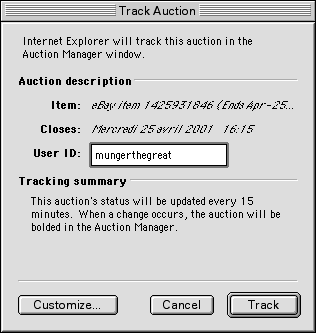
Once you decided to track the auction from the Tools menu, the above window will appear. You will have to enter your eBay user ID in order to do the tracking. If you do not have an ID yet, you can sign up on the auction site. You can also click on the Customize button in order to decide which kind of alert you wish to get – and when.
One alert I recommend is an email. If your home or work computer is tracking an auction, and you want to find out about it when you are on the road or elsewhere, this is very handy. In any case, it’s yours to customize.

Once IE is tracking an auction for you, a folder named Auction Favorites will appear in your Favorites, and you can visit the auction’s page from there any time you wish.
Download Manager
The download manager is not just some window that pops up to give you download status. It is useful for such a function, but there is more. Open it from the Tools menu. Then, once a download is going on, control-click on a downloading item. You can easily delete or stop the download or reload it. If you control-click and choose Get Info, you will get the following window.
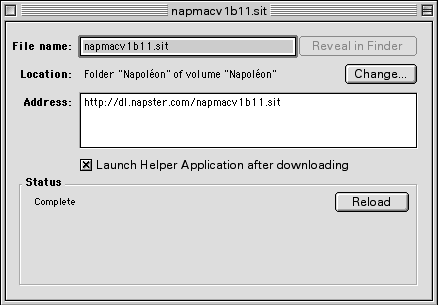
I downloaded Napster to discover the featured music. It could be good!
You can decide whether you want Stuffit Expander to decompress your file once you are finished downloading. You can click on Reveal in Finder to see where the file has landed and change the file’s location if necessary. You get the full address and the ability to reload the file. Go to Download Options in Preferences for more customization.
AutoFill
Filling forms can be tedious and repetitive. If you know how to use IE’s features, filling forms will become easier than you’ve ever experienced. Pull down the Edit menu, and select Preferences. Click on Forms AutoComplete, and click on Enabled. Then click on AutoFill Profile and fill in the text fields. Click OK.
When you need to fill a form, IE will handle it for you. To fill a form, you can pull down the Tools menu, and choose AutoFill Forms. If you have placed the AutoFill button (the big pencil) in your browser toolbar, just click on it, and it will do the job.
Toolbars
Viewing only the tools you need can save screen space and make your life easier. Go to the View menu. The first five elements are toolbars that you can keep or get rid of. The ones with a check mark appear in your browser window. Select one of them to activate it or make it disappear. Do it with all of them to decide what you want your browsing windows to have. If you rarely use the Address Bar, you can always get rid of it and go to File –> Open Location when you need to type an address.
Customize the Button Bar
Your Button Bar is the one with buttons and text that allows you to go back, forward, stop loading a page, etc. Go to the View menu and choose Customize Toolbars. From there, you will have instructions on how to add or remove a button. To choose whether you want only the icon, only the text or both in your toolbar, you have to go to the Preferences and click on Browser Display to find the toolbar settings.
Printing
You can print a Web page from Explorer, but you can also customize your printing settings. When you are about to print, go to the File menu and select Print Preview. From there, your printer drivers will offer the Page Setup options, and IE will allow you to see a preview of the final result. Also, a bunch of small options are available from that window, such as taking the images out, printing the background colors, and more.
If you use an inkjet printer, I definitely recommend that you customize some printing settings – to decide which printing quality to use, with or without colors – to select when you print a Web page. I will cover printing with Epson and HP printers in more depth in a later column.

Custom Web printing settings can be useful.
Toolbar Favorites
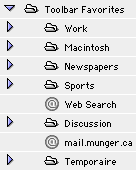 In order to really enjoy the use of your Favorites at all times, you need them to be easy to use. The best way to do this is to put folders of your favorites in your Toolbar Favorites. Since version 5, IE allows you to do this – this is one of the reasons I dumped Netscape!
Go to the Favorites menu and highlight Organize Favorites. You will note that a sub-menu will show up. Ignore it and release the mouse button on Organize Favorites anyway. You will get an organizing window that allows you do drag and drop favorites if you wish. You have to be very accurate when dragging favorites and folders around for them to end where you want them to be. From the same Organize Favorites element (in the Favorites menu), you can create new favorites, folders and separators.

A portion of my favorites bar. The folders are sorted as I want.
The most important folder here is the Toolbar Favorites folder. This one contains the favorites and folders you will see in your browser’s toolbar at all times. You can easily place your favorites in there, and group a bunch of favorites in folders. Make sure to group them in themes and name the folders appropriately. Short folder names allow you to place more folders in the same bar.
Keywords: #internetexplorer #internetexplorer5 #ie5 #classicmacos
Short link:
