
Sometimes your Mac just doesn’t seem as peppy as it used to, particularly if it’s been running for a long time. Memory and disk problems are the most common causes of routine glitches and sluggishness, especially the dreaded “Spinning Pizza of Death” (a.k.a. beachball cursor) that never seems to go away. Sometimes RAM and disk space get used up or becomes fragmented after continuous operation, so it helps to periodically reset the entire system.
Memory and Drive Problems
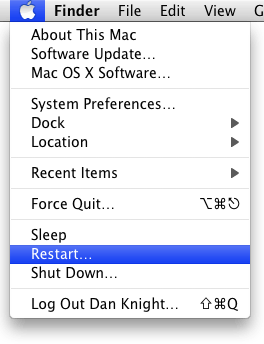 Restart
Restarting is the classic suggestion most techs give when problems appear. It’s a catch-all solution, one that experienced users do automatically and beginners always question. Why? Because it’s an effective solution a good deal of the time!
The procedure is simple, just choose Restart… under the Apple menu and confirm your intention when asked Are You Sure? Your Mac should quit any troublesome programs and resets all RAM and other storage buffers upon restart.
If there is a program that will not quit, you may need to Force Quit it – see below.
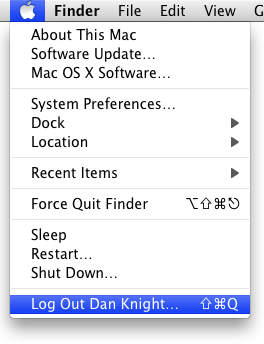 Log Out
Here’s a tip you don’t hear very often: Logging out in Mac OS X is much quicker than restarting and often just as effective. The problem is usually with a program you launched rather than the underlying OS. Choose Log Out… under the Apple menu to quit all your applications and return to the login menu, then log back in to your account. This only takes a few seconds instead of the minute or longer a restart requires, and it’s worth doing once a week or whenever you Mac acts slugglishly.
Important: you must know your account password to use logout! If you’ve forgotten it, click Restart from the login window instead of logging back in.
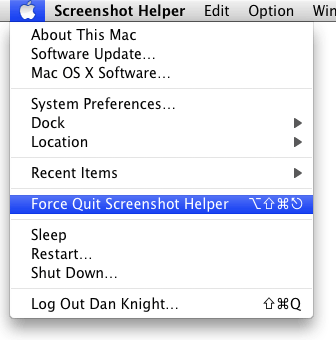 Force Quit
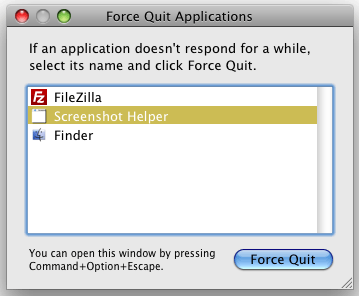 Sometimes the Restart or Log Out command doesn’t work because a program refuses to Quit. Don’t pull out the plug unless it’s your only resort!
Try doing a Force Quit to get rid of the offender: Choose Force Quit… under the Apple menu or hold down the Command (Apple), Option, and Escape keys (Cmd-Opt-Esc) simultaneously. This brings up the Force Quit window, where you can choose to end a recalcitrant program.
Force a Restart
 If Force Quit doesn’t work, more drastic measures are required. On laptops and Mac keyboards with a power button, you can force a restart: Hold down the Control, Command (Apple) and Power keys (Ctrl-Cmd-Pwr) simultaneously. Many older Macs also have a force restart button marked with a small triangle on the front or side of the case; pressing this will also force a restart.
Force a Shutdown
If neither of these is an option for you, all Macs support a forced shutdown: Press and hold down the Power button on the computer for 5+ seconds, and the Mac will shut down.
Only do this as a last resort if none of the above works: Unplug the power cable (and remove the battery, if you’re running a laptop). That will shut down the computer once and for all. Wait 30 seconds before restarting after a forced shutdown.
Got Enough RAM and Disk Space?
If your programs aren’t crashing and you’ve restarted or logged out repeatedly but things are still sluggish, make sure you have enough RAM and disk space for optimal operation. Too little of either slows things down noticeably.
 Insufficient memory (RAM) is a common cause of delays and the spinning beachball’s appearance; Apple’s stock memory amounts are low. When a shortage of RAM occurs, the operating system uses the hard drive as additional storage space, which is much slower (this is called virtual memory). Adding more RAM minimizes use of virtual memory. I recommend the following as minimum guidelines:
- Mac OS X on PowerPC: 256 MB min, 512+ MB recommended
- Mac OS X on Intel: 512 MB min, 1+ GB recommended
- Mac OS 9: 64 MB min, 192+ MB recommended
When in doubt, more is better. If you tend to run many programs simultaneously or use memory hungry applications like photo and video processing software, install the maximum RAM your computer will support.
For disk space, a good rule of thumb is to keep at least 10% of your hard drive free; the OS needs some space as temporary storage in regular operation and for virtual memory. For Mac OS X, try to make sure that 10% is also at least 3 GB; for Mac OS 9, at least 500 MB. Hard drives get cheaper all the time, so it may be time for more storage.
Routine Disk Maintenance
There is some disk maintenance you can perform monthly or when space is low. Delete old documents, downloads, and installers that you may no longer need, especially things on the desktop. Delete old email attachments; if you’re not sure where they’re located, check your email program’s Preferences for details. And once deleted, don’t forget to empty the Trash! (Just remember to backup your data first.)
Organization
Good disk organization permits easy backups and data management. Keep files and applications in their correct locations. Your personal files should be kept inside your User or Home folder, on the Desktop, or inside the Documents, Movies, Music, or Pictures folders. All programs should be in the Applications folder – Applications (Mac OS 9) for Classic. Don’t place everything on the Desktop or the root level of your hard disk; use the Home folder for organization.
Optimization
Another form of routine disk maintenance involves defragmenting or optimizing the hard drive. Like RAM, disk space becomes disorganized after continuous use with unused chunks and many files stored in little fragments across the disk. This causes the drive to work harder to find and save data, and hence makes it slower. Optimizing rearranges your data into continuous chunks to improve disk efficiently. It’s very important to backup your data before optimizing a disk, in case something goes awry during the process. TechTool Pro and Drive Genius both provide optimization routines for Mac OS X.
Backup/Clone Your Drive
With hard disks relatively inexpensive these days, I no longer optimize my drives; instead I prefer to use disk cloning as a method to both defragment and backup my hard drive in the same operation. By making a clone of my drive, I start with the backup process; the cloning (copying) operation serves to defragment my files as they’re transferred to the destination drive. Once finished, I boot off the clone, erase my source drive, then clone the (defragmented) contents back. Viola! A defragmented drive complete with a bootable backup.
This entire process is usually faster than the separate backup and optimization steps would take, and it always keeps a working copy of my data available. For more about cloning and backups, see Backup Strategies (forthcoming).
Recommended programs for cloning your drive are SuperDuper, Carbon Copy Cloner, and Data Backup. SuperDuper and Carbon Copy Cloner can create a clone for free; Data Backup must be purchased. (Also see Low End Mac’s review of SuperDuper.)
Sleep or Shut Down?
It’s a common question: Should I shut down the computer when I’m done or just let it go to sleep? Opinions vary; here’s my take on the whole affair:
Mac OS X is a Unix-based operating system designed for 24/7 operation; Unix powers things like major Internet and financial servers, which need to run reliably all the time. As such, Mac OS X contains automatic tune-up scripts that run at daily, weekly, or monthly intervals. These routines (called cron scripts) help make your system more efficient by purging RAM and cache files, quitting stalled processes, and (since Mac OS X 10.4 Tiger) automatically defragmenting important files on your hard drive. Simply put, a Mac running Mac OS X will run better when left powered on and set to sleep when not in use.
However, excess power consumption is a nontrivial issue and a real cost to you and society. You can use Energy Saver in System Preferences to adjust your Sleep settings as needed. Typically 20-30 minutes is a good starting point, which you can tweak as desired. While sleeping, your computer will use as little power as possible but keep itself tuned up.
Sometimes USB or FireWire drives prevent a system from going to sleep, so unmount and turn off external drives they’re when not in use.
Reasons to Shut Down
If you’re away for a week or more and you’re not using your Mac as a server to share files or printers, consider shutting things down. Also note that automatic system tune-up operations are for Mac OS X systems only; Mac OS 9 users can use Sleep or Shut Down as they prefer, with no change in system performance.
Another reason to shut down is thunderstorms. Not only can lightning come over an AC line to reach your computer (even possible with a surge protector), but a lightning strike can also take out power in your area, shutting down the computer. It’s much safer to do a controlled shut down than lose power, lose unsaved work, and risk damage to computer.
Maintaining Your Mac
This article was originally published on Adam’s Oakbog website. It has been adapted and reprinted here with his permission.
Keywords: #macmaintenance
Short link: http://goo.gl/ovxpxY
searchword: macmaintenance
