
This article explains how to take the skills you have as a Windows user and get the same job done on a Macintosh. It is intended as a guide for beginning users and not a comprehensive Mac vs. Windows comparison; for example, the niceties of configuring TCP/IP are not covered here.
These are the things a beginning user or a Windows user needs to know to get the job done in the Mac OS. The transition will not be difficult as the Windows GUI (Graphic User Interface) is just different enough from the Mac OS to avoid losing a lawsuit, but no more.
These tips are strictly concerned with the classic Mac OS, from System 7 to Mac OS 9.1, with an emphasis on 9.1. Mac OS X changes many of these conventions, but since Macs still ship with OS 9 as the primary operating system, most users will not yet encounter OS X.
Where’s the second mouse button?
In the Mac OS, almost everything you might need a second button for is available as a menu choice. The thinking is that well designed software is simple to use, and thus no second button is needed. However, popup menus are supported in the Finder and in some applications by pressing the Control (Ctrl) button and the mouse button at the same time. (It’s not like you’re going to continue typing one handed while mousing around, after all.) On some Macs, the entire mouse is a button; just tilt it forward to click.
How do I shut down the computer?
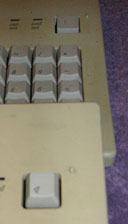
All Macs can be shut down with the Shut Down menu item under the Special menu. On Macs with a power key on the keyboard (upper right or center, marked with a small triangle – right) you can also press the power key to get the option to shut down or restart the computer.
How do I get the floppy (or CD or DVD) out of the drive?
On Macs equipped with a floppy drive, you’ll note that there is no eject button, and the eject button on the CD player seldom works. This is because the Mac OS is designed to know where the disk is at all times, avoiding the “abort, retry, fail?” or “the drive is not responding” errors Windows users see. You have to tell the computer to eject the disk by either dragging the disk icon to the Trash or clicking on the disk icon and choosing “Put Away” from the File Menu. Don’t choose “Eject” on a Mac OS older than 8.x; doing so leaves an annoying “ghost” disk that is a holdover from when Macs didn’t have hard drives (don’t ask – and thanks to everyone who pointed out that it was OS 8.x, not 9.x! ).
Where’s the “C” Drive when saving files? Where’s my floppy?
Many Mac programs either default to the last place saved or to a standard file saving location when the Save or Open command is used. To get to the root directory of the main hard drive, just click the “Desktop” button in the file selector. The main drive is not called “C” but is called whatever the user wants; to figure out what that is, look at the hard drive icon in the upper right hand corner of the desktop – that is the Mac’s “C” drive.
Floppy disks will be represented by a small floppy icon on the desktop; PC floppies will by marked with the letters “PC” in the icon and are usually called “Untitled.” The conceptual difference here is that Windows selects the drive, while the Mac OS selects the disk. Put in a different floppy and Windows still calls it the “A: drive,” but the Mac OS calls it whatever the user has named the disk.
Where is the Minimize button? How do I close a window? And what’s that other button for?
The Mac has two alternatives to the Minimize function. You can “hide” an application and all its windows by selecting “Hide Programname” under the application menu at the right end of the menu bar. You can “roll up” a window like a window shade using the  icon. Closing a window is accomplished by clicking on the square
  button in the upper left hand corner. The other button,
  , is used to zoom the window, that is, to make it as large as possible or shrink it back to its original size. Just as Windows users typically Tile or Arrange their windows so they can select one easily through the graphic interface, Mac users use the window shade function to make the window small but still visible.
Where are the menu commands such as Print and Save?
The Mac OS puts the currently active application in the foreground, just as a user who is using a drawing program causes a drawing element to “move to front.” This application covers up everything else not being used. The Mac’s ease of use is tied to the idea that menu commands are in the same place in every program, especially a core of functions like Open, Save, Cut, Paste, and so on. So the menu bar at the top of the screen changes depending on which application you are using. Most universal commands are either in the File menu or the Edit menu; most other menu items are application specific.
How do I switch between programs? Where’s the Task Bar?
The menu item at the upper right hand corner of your screen is the Application menu, and shows all currently running programs. A Windows user would see a button in the Task Bar at the bottom of the screen, which can quickly become crowded when you have many applications running. The Application menu is a list, and so can accommodate many more applications. Just pick the one you want to use off the list. If a program isn’t on the list, it isn’t running.
How do I change the name of a file?
Click on the text underneath the icon once, then wait about 1 second. The text will highlight itself, and you can edit the document title. There is no menu command for this function.
How do I delete a file?
Drag its icon to the trash can.
I started a program but nothing happened. Why can’t I type?
Odds are the program is already running but has no open windows. The only thing that changes is the item at the upper right hand corner of the menu bar and perhaps some menu titles. To get a new window to work with, most programs have a New command under the File menu.
Are there keyboard shortcuts like in Windows?
Yes, but not necessarily for every command. Many Windows shortcuts use letters which don’t make a lot of sense because the letter is already taken by another function. Usually, only the most common commands have keyboard shortcuts. Whereas a Windows user would type alt-keystroke to invoke a menu command (or something even more complex), Mac users use the command key, which old-time Apple users still call the Apple Key or (if you’re really old) the “Open Apple Key.*” This key has a curly shaped figure like this on it:  . When you pull down a menu with the mouse, the menu items with shortcuts will be labeled with the keystrokes you need to use to invoke that command.
- * The Apple IIe had two “Apple” keys on the keyboard, one which was filled in like this
 and one which was just an outline; they served different functions. The filled-in Apple key was called the “closed” Apple key; the outline version was called the “open” Apple key. When the Macintosh first came out, the closed Apple key was dropped, as it was rarely used. However, the closed Apple still appears in every Apple compatible font! Just type Shift-option-K to see this holdover from the pre-1984 days. Open Apple is still used on the keyboard with the command symbol, but all Apple documentation refers to the key as the “command” key.
Can I make shortcuts?
Yes, and in the Mac OS they’re more useful too. For example, moving a program for which you have previously made an alias doesn’t “break” the alias the way it does on a Windows machine. This is because the Mac OS treats every hard drive as unique whereas to Windows, all “C:” drives are the same. So moving an application to a new hard drive causes Windows to lose track of where the application resides and the shortcuts cease to function. To make a shortcut, just select the icon of the program, file, or server you wish to use and press command-M or choose “Make alias” from the File menu. Server aliases let you skip everything in the connection process except the password step when connecting to a remote file server.
How to I select a printer or switch printers?
The Mac OS uses a program called the Chooser which is split into several different functions in the Windows environment. Windows users would open the control panel and pick the Printer icon, or choose Port configuration, or the Network Neighborhood function and other functions to get the same collection of stuff the Chooser is responsible for. This can be one of the most confusing things for a Windows user new to the Mac to deal with. For printing, however, it’s pretty simple. Open the Chooser, pick your printer driver in the left window, then select the printer in the right window. If you’re on a network you’ll need to specify the zone as well. LaserWriter 8 will drive Postscript-compatible printers. Since Apple has stopped making their own printers, you will probably have a third-party driver installed when you ran the installation program that came with your printer. If your computer asks you if you want to set up a desktop printer, let it; it’ll generate a folder-like icon on your desktop which can be used to monitor printer progress and can, if more than one printer is set up, be used to direct printing to multiple printers simultaneously.
Why isn’t the Mac OS more like Windows?
That’s a long story, but the short version goes like this: When the Mac OS first came out, it wasn’t all that much different from what you have now (especially when System 7 debuted). Microsoft copied the essential elements of the GUI when it developed Windows. However, its first attempts were pitiful and inadequate, so much so that when Apple sued Microsoft for infringing on its “look and feel”, there were so many differences – almost all in Apple’s favor – that the courts felt that Windows wasn’t really a straightforward duplication of Apple’s work.
Having won the day in court, Microsoft proceeded to let Windows evolve to look more like a Mac – you’ll often hear Windows advocates say that Win98 or other versions are “just as easy to use as a Mac,” or “There’s really no difference now, so just use Windows.” So you see, Windows is still attempting to imitate what Apple essentially settled on way back in 1984.
Yes, there are some things that the latest version of Windows does that the Mac OS does not – but not without the added price of extra complexity. See my series on Mac Advantages to see how this continuing evolution of Windows continues to erode (but not completely) Apple’s ease-of-use superiority. So the proper question is: Why isn’t Windows more distinguished from the Mac OS than it is? Now that Windows has somewhat caught up with Apple, Apple’s next logical move was: change the OS interface to make it better. Aqua is their attempt at that in OS X. It remains to be seen if most users will prefer Aqua over Windows XP.
Summary of Tips (Hang Next to Your Mac)
| Where’s the second mouse button? | Press the Control (Ctrl) button and the mouse button at the same time. |
| How do I shut down the computer? | “Shut Down” menu item under the Special menu. |
| How do I get the floppy (or CD or DVD) out of the drive? | Drag the disk icon to the Trash. |
| Where’s the “C” Drive when saving files? Where’s my floppy? | Click the “Desktop” button in the file selector. |
| Where is the Minimize button? How do I close a window? | Upper right hand or left hand corner of a document’s title bar. |
| Where are the menu commands such as print and save? | Most universal commands are either in the File menu or the Edit menu. |
| How do I switch between programs? | Menu item at the upper right hand corner of your screen. |
| How do I change the name of a file? | Click on the text underneath the icon. |
| How do I delete a file? | Drag its icon to the Trash. |
| I started a program but nothing happened. Why can’t I type? | The program is already running but has no open windows. |
| Are there keyboard shortcuts like in Windows? | When you pull down a menu with the mouse, the menu items with shortcuts will be labeled with the keystrokes you need. |
| Can I make shortcuts? | Select the icon of the program, file, or server you wish to use and press Command-M. |
| How to I select a printer or switch printers? | Open the Chooser, pick your printer driver in the left window, then select the printer in the right window. |
| Why isn’t the Mac OS more like Windows? | Why isn’t Windows more distinguished from the Mac OS? |
| Brought to you by Low End Mac – http://www.lowendmac.com/ | |
Short link: http://goo.gl/DiHskK
searchwords: windowsusersguidetomac
