
The October release of Microsoft’s Windows 7 brought a flurry of activity on the Mac2Windows front – new versions of both of the major virtualization programs for the Mac platform: VMware Fusion and Parallels Desktop.
While both have offered relatively straightforward ways to run Windows and other PC operating systems on an Intel Mac with pretty good performance in earlier incarnations, Fusion offered higher-end features – 64-bit and multiprocessor support – while Parallels gave the user better integration with the Mac user interface.
While Parallels Desktop was the first virtualization software for Intel Macs, VMware claims that Fusion now has the most users.
With the new Fusion 3.0 and Parallels Desktop 5.0, each company has made an effort to move in on the other product’s strengths while improving the 3D performance that has limited the appeal of both products to gamers and other users needing strong 3D graphics capabilities.
While this article will be focussing on VMware Fusion and Parallels Desktop, users interested in virtualizing should also pay attention to VirtualBox;. While lacking some of the features of the VMware and Parallels products, VirtualBox has been quietly improving with each release and has one big advantage – it’s free.
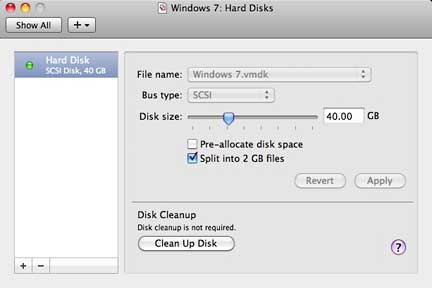
Users should note that any of these virtualization programs make high demands on their computer – you’ll need enough RAM to provide an adequate amount of memory for both the guest operating system (Windows or another PC OS) and the host operating system (Mac OS X), since both are running at the same time. As well, you’ll need enough free hard drive space for virtual hard drives for each operating system you install. (Nicely, both Fusion and Parallels default to creating expandable virtual drives – Windows may think it’s got a 30 GB hard drive, but if you’ve currently got 16 GB of files installed, the virtual drive will only take up 16 GB of space, not 30).
I upgraded my aluminum MacBook’s RAM from 2 GB to 4 GB in order to run these programs and replaced the stock 160 GB hard drive with a 500 GB model.
VMware released Fusion 3.0 (US$80) first, just a couple of days after Microsoft officially released Windows 7, while the new version of Parallels (also US$80) came out a few weeks later. Downloadable free trial versions of both are available.
What’s New?
On paper, both of these are relatively minor upgrades from the previous versions. Both offer compatibility with Mac OS X 10.6 Snow Leopard and Windows 7.
VMware’s list of what’s new includes:
- runs as a 64-bit application and supports Snow Leopard’s 64-bit kernel
- OpenGL 2.1 and Direct X 9.0c support
- better multicore support for Windows
- better integration with the Mac desktop
- Aero support in Windows Vista and 7
- Parallels promises that version 5 offers:
- 300% performance boost compared to the previous version 4
- Open GL 2.1 and Direct X 9.0e support
- Multitouch gesture support
- New Crystal Mode view and Mac Look option
- Support for up to 8 CPUs
- Aero support in Windows Vista and 7
- improved multi-monitor support
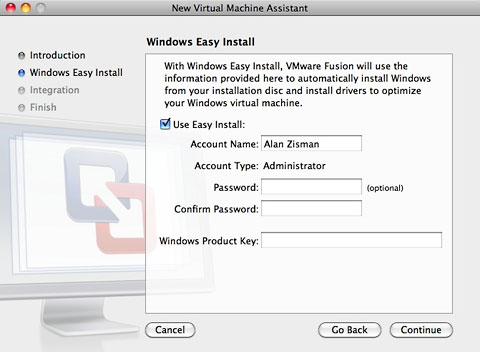 Setting up a new virtual machine using VMware Fusion 3.0.
Lots of Ways to Get Up and Running
Both programs offer users a similar variety of ways to setup Windows (or other PC operating systems) on their Macs:
- If there’s a Boot Camp partition with Windows installed, both (but not the free VirtualBox) will recognize it and allow it to run in a virtual session after installing some virtualization-specific drivers and tools. You’ll still be able to boot directly to Windows, letting it do double-duty and saving some hard drive space. Reportedly, a Boot Camp Windows installation run this way will have somewhat lower performance than one created anew by either Fusion or Parallels, although I haven’t tested this.
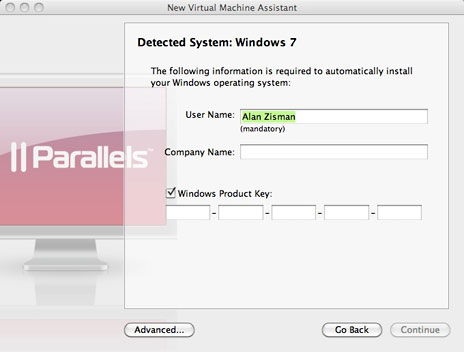 Setting up a new virtual machine using Parallels Desktop 5.0.
- A set up assistant lets you install a new copy of Windows or another PC operating system. If installing Windows, both Fusion and Parallels offer a simple installation mode – just type in your Windows serial number, and the program will take care of the rest of the details. One note: Fusion asks you to provide a log-in name and password, and it then creates a Windows account using this information. Parallels asks for user name only – after installation, you’re logged in with no password, a very insecure way to go. Bad move, Parallels!
I installed new copies of Windows 7 (using the prerelease RC1 version, which should remain usable until August 2010) and Ubuntu 9.10 under both Fusion and Parallels. Note that the default in each is to use one core of a dual-core CPU; since both now offer multiprocessor support, you may be tempted to set them to use multiple cores. However, stability and performance seems better when left at the default single-core setting. You may want to devote more RAM to your Windows Vista or 7 virtual sessions, however, which you can do now or afterwards.
 Both VMware and Parallels offer downloadable preinstalled OS images (“appliances”) – not for Windows, but for a variety of legally downloadable operating systems. VMware has a much larger range of options. Similarly, you can copy a virtual system drive image from another system.
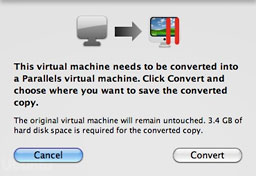
- Both offer “migration assistants” to import a physical copy of Windows from another computer, across a network, converting it to a virtual system on your Mac. (I haven’t tried this.) Each also promise the ability to convert virtual systems created with the other program.
Quickie Performance Tests
Both companies claim performance improvements in their new versions: Parallels, for example, promises version 5 is “300% faster” than version 4, along with 7x better graphics performance for games.
Virtually Identical Performance Ratings
Windows Vista and 7 offer a “performance index” – a quickie set of benchmarks. I ran it on my clean Windows 7 RC1 installations in both Fusion and Parallels virtual systems.
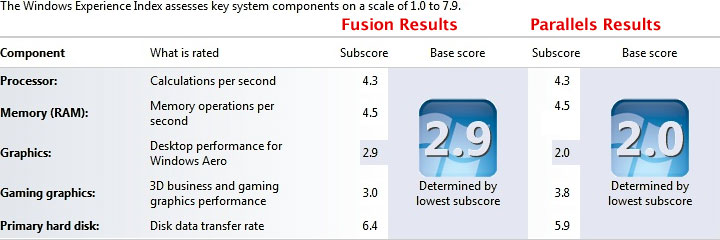 Single-core Windows 7 performance using Fusion 3.0 and Parallels 5.0.
The differences are minor. The big number Windows reports is the lowest score in any category, in this case the 2D graphics performance for each system. Parallels scored lower in that category, but it was higher in the 3D graphics performance rating and hard drive transfers; other ratings were identical.
Unlike the respective previous versions, both promise support for Aero mode in Windows Vista and 7, which offer 3D and transparency effects in the graphic interface. In my tests, both delivered this – at least after installing their respective Tools packages with customized video drivers. But a little later, Windows turned Aero off in my Parallels session and has been reluctant to restore it – the Aero Troubleshooter claims I lack an Aero-compatible video card. Even updating Parallels Desktop and installing the new version of Parallels Tools was no help in getting Aero back.
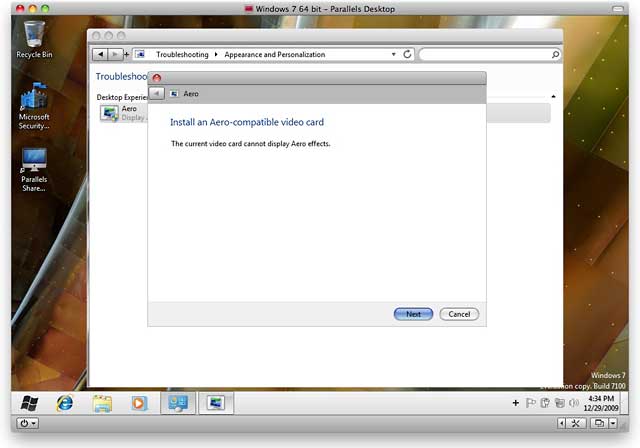 In Parallels 5.0, Windows 7 turned off Aero mode,
claiming I no longer had a compatible video card.
In any event, both Parallels and Fusion seem more responsive with Aero disabled, so maybe that isn’t too big a loss!
Parallels Desktop starts, suspends, and shuts down Windows faster than VMware Fusion.
More Views that I Can Remember
Both Fusion and Parallels offer a wide variety of ways to view and access applications in your virtualized sessions. Both let you run a virtualized operating system full screen, making it appear as if you had natively booted your Mac to that OS. (Nice Parallels touch – running fullscreen, move the mouse cursor to the top-left “hot” corner. The “page” curls up; click anywhere in the revealed black space to exit fullscreen mode).
Both let you load the OS in a window on your Mac. After loading the respective tools, both let you resize the window and your operating system’s resolution change on the fly to fit the new window size. And both – after their tools are loaded – let your cursor move from your guest operating system to the host by simply moving in or out of the window. (Prior to installing the tools, you need to press a key combination such as Control-Option to release the keyboard and mouse.)
Fusion also offers what it refers to as Unity mode. Here, the Windows desktop and window disappears, and individual running applications appear on the Mac desktop and Dock.
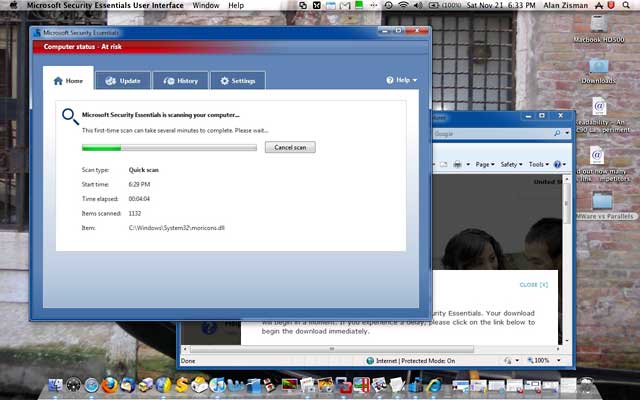 Unity mode in VMware Fusion hides the Windows desktop and virtualization window.
Parallels offers several varieties of this idea, which it calls Coherence and Crystal modes. It also offers an optional Mac Look, which applies an OS X-like skin to Windows applications, regardless of the view mode. With these, it’s possible to run Windows applications on your Mac desktop and have them appear pretty much as Mac applications.
Frankly, I find the differences between Coherence and Crystal modes fuzzy – the two modes offer similar window behaviour with different ways to get to additional Windows applications if desired.
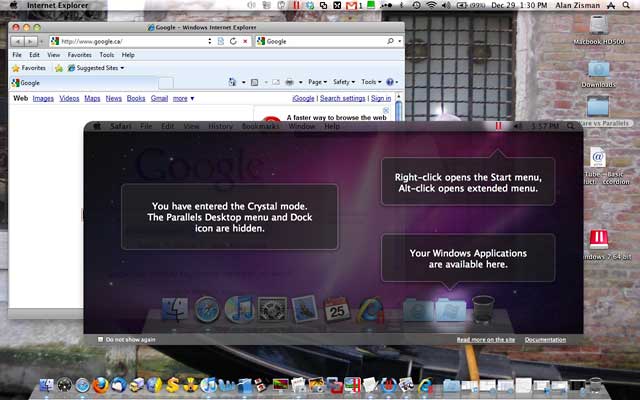 Parallels offers Crystal (above) and Coherence (below) modes to hide the Windows desktop.
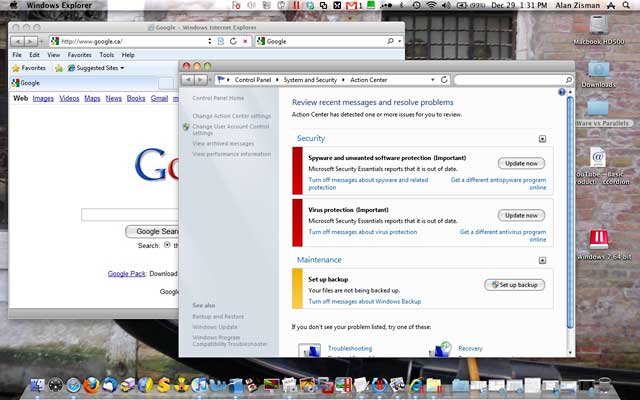
Parallels also offers an even more puzzling Modality view – choosing it gives me a tiny Windows window in the corner of my screen, complete with tiny application windows. The point?
Configuration
Both programs offer lots of configuration options. Options can be chosen during the creation of new virtual machines by manually changing default settings or after the virtual machines have been created – but not while a given virtual machine is running. At either time, you can set the amount of RAM used, video RAM available, number of processors available, and more.
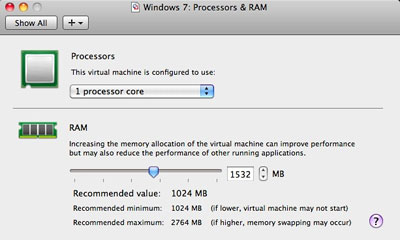
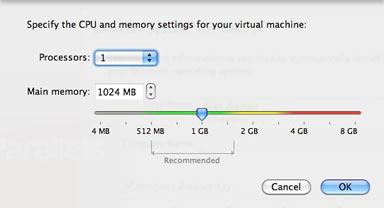
Configuration options in Fusion (left) and Parallels (right).
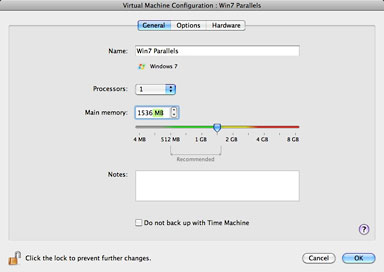 You can disable Time Machine backup with a click in Parallels 5.0.
While the number of CPUs and RAM options are similar between the two, the new Parallels version is more configurable overall than Fusion.
For instance, it’s generally a good idea to exclude your virtual systems from Time Machine backups – every time you run a virtual session, there will be tiny changes to the virtual hard drives; if Time Machine notices, you’re going to have tens of gigabytes of backups every time it runs.
Parallels lets you exclude your virtual system from Time Machine by clicking a simple checkbox. To do the same with Fusion, you need to figure out where it stores its virtual machines (in your Documents/Virtual Machines folder) and manually exclude them in your Time Machine preferences.
Parallels also offers settings like multitouch gesture support for Mac trackpads in Windows applications.
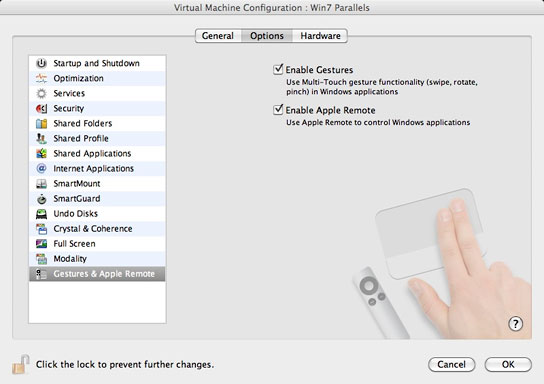 You can use multitouch gestures and the Apple Remote with Parallels.
If You Have to Pick Just One…
Both Fusion and Parallels promise better 3D graphics support compared to previous versions; still, if you’re wanting to run Windows games, your best bet remains to install Windows using Apple’s Boot Camp and boot directly to Windows* for your gaming. Any virtualization environment will remain a disappointment (though somewhat less of a disappointment than previously) to any but the most casual Windows gamer.
I really didn’t like the previous version of Parallels Desktop; Parallels Desktop 4 didn’t work properly with my Boot Camp installation and lacked support for then-current Ubuntu versions. I was so disappointed by Parallels 4.0 that I chose not to write about it all – my mother always told me that if I couldn’t find something nice to say, don’t say anything.
I find the new version much improved and especially like the depth of its configuration options. Other reviewers – including a very comprehensive review by Ars Technica – note stability issues, but so far it has worked well for me.
However, I’m a bit worried by the way in which my Parallels Windows 7 installation initially supported Aero (and Direct X 9.0) and then seemed to lose that capability. I also find the multitude of view options lacking substance.
Ever since its initial version, VMware Fusion has offered less fluff but more stability; that remains the case with version 3.0. Overall, it just works. In the end, that gets it my vote.
Your mileage may vary – download the trial versions and make up your own mind. But unless you’re looking to run a Boot Camp installation of Windows in a virtual session while booted to OS X, before rushing to buy either Fusion 3 or Parallels 5, also give the free VirtualBox a try (see VirtualBox 3.0: Free Virtualizer Is Almost Grown Up for a hands on review). You won’t be able to virtualize a Boot Camp installation and won’t get the same fancy view options, but if you just want access to Windows or other PC operating systems on your Mac, you may find that it does the trick.
* Boot Camp does not officially support Windows 7 at present, although Apple promised support for most Intel-based Macs (most 2006 models are excluded) by the end of 2009.
