
So you have a password to protect your user account, but how about passwords to protect your folders and app data as well? Here’s a neat lil’ app for PowerPC Macs called Espionage – simply Drag-N’Drop a dollar to the window, or add app data from the “+” in the main window once you setup your password.
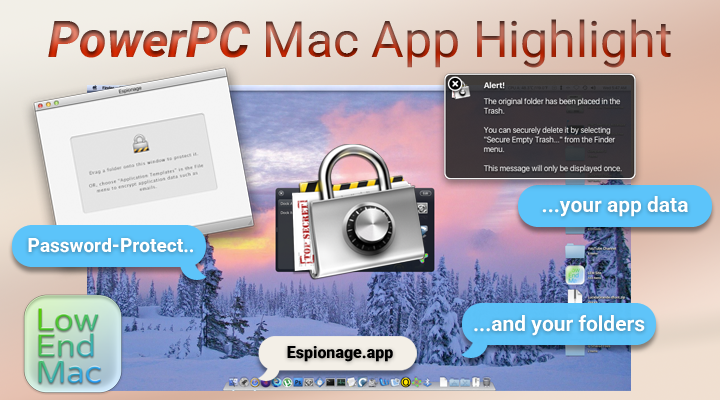
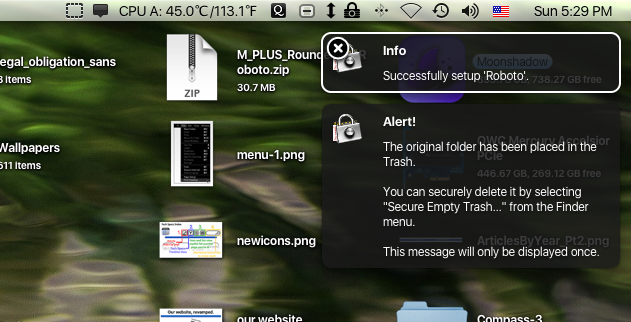
It’s a relatively straightforward app in that aspect. It makes an AES 128-Bit Encrypted .sparsebundle image out of the original, tosses the old folder in the trash, and puts a shortcut in place of the original icon.
On Your Mac
- Download: Espionage-2.8.10.dmg_.zip (Low End Mac Software Repository, 6 MB)
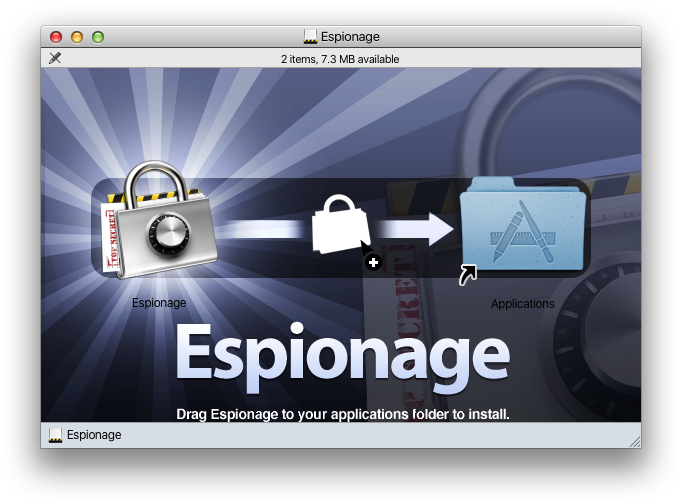
. - Once downloaded, Drag-N’Drop to your applications folder.
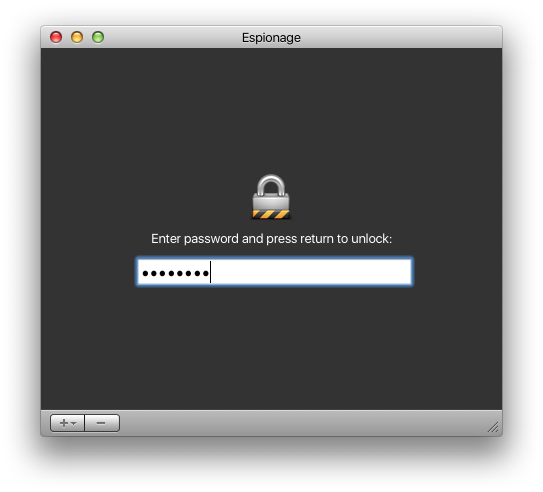
- You will be prompted to setup a new password initially, upon the first time opening the app. This is so you can lock/unlock the Espionage app. Once you have it setup, this is the password you will use every time the app is launched (after logging in or quitting).
. - This initial password you setup for the app isn’t the same as each individual password you setup for each folder, or app data you’re looking to protect.
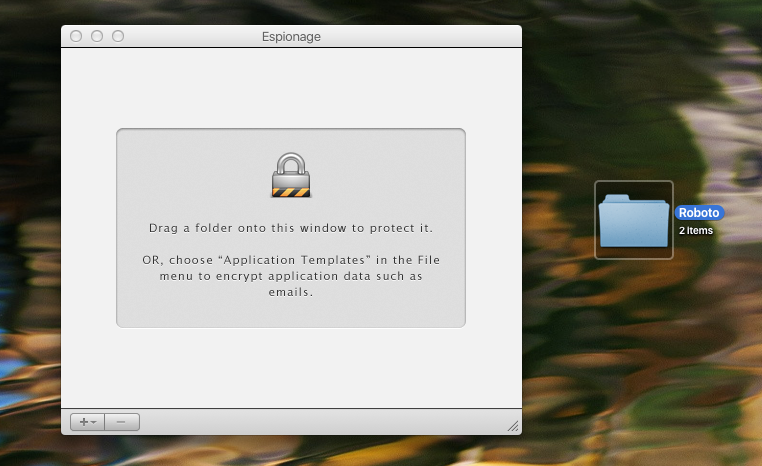
- Drag-N’Drop a folder or click the “+” to add application data, to encrypt.
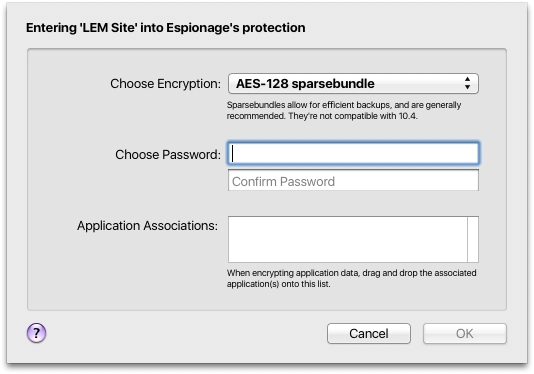
- Once done, it’ll let you choose a password, encryption type, and application associations.
- If you have an app called Growl installed, this app will show notifications. It’s a nice modern touch for Mac OS X Sorbet Leopard/Leopard.
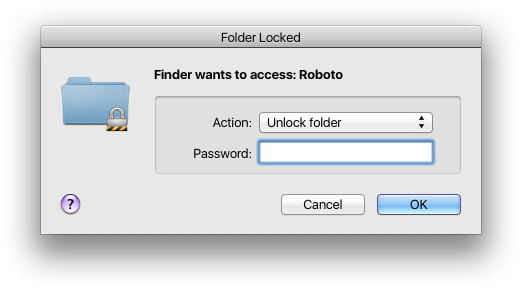
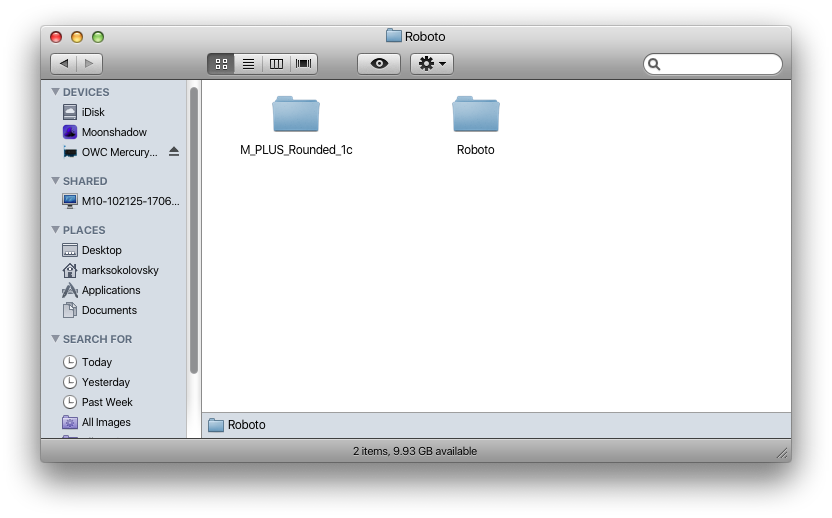
- Once you have it setup, you will use this newly created password to access your locked folder.
Features
In Preferences
- Start/Stop Espionage app as well as “helper”.
- Show Global Status menu in Menu Bar
- Enable/Disable path finder compatibility mode
- Check/uncheck for auto-updates
- Restore defaults button
- Enable info notifications or use Growl notifications
- Enable automatic backup for encrypted folders (including time interval settings)
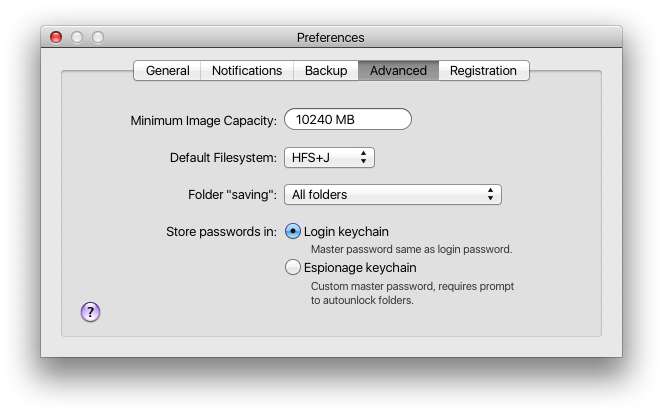
- Change minimum image capacity, default file system, dollar “saving”, encryption type, and where passwords are stored (login keychain vs Espionage’s own keychain)
- Registration tab
Per Folder
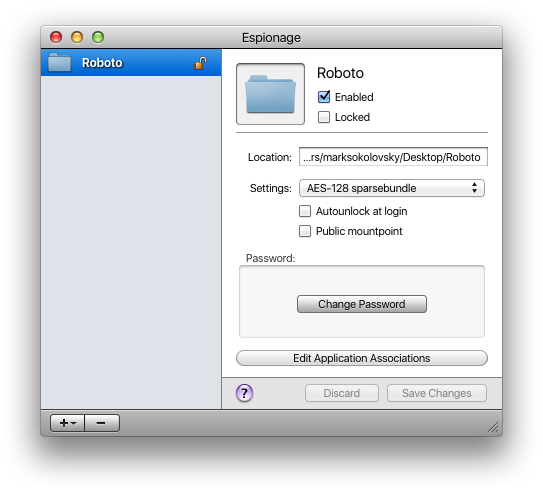
- Enable/disable folders (Caution: Do not interact with the data in an encrypted folder while it’s disabled or it may corrupt the folder!)
- Lock/Unlock folders from this window as well as the menu bar
- Location path shows in here
- Change encryption settings: AES-128 or AES-256 Sparsebundle or Sparseimage
- Enable/disable Autounlock at login
- Enable/disable public mount point
- Change password
- Edit application associations
In Conclusion
All in all, this is a nice add-on to your PowerPC Mac, adding an additional layer of functionality, security, and a pinch of modernity with the growl notifications. There’s not a ton to it – and it’s probably best this way, as it’s a simple, straightforward app which password protects your app data or folders.
