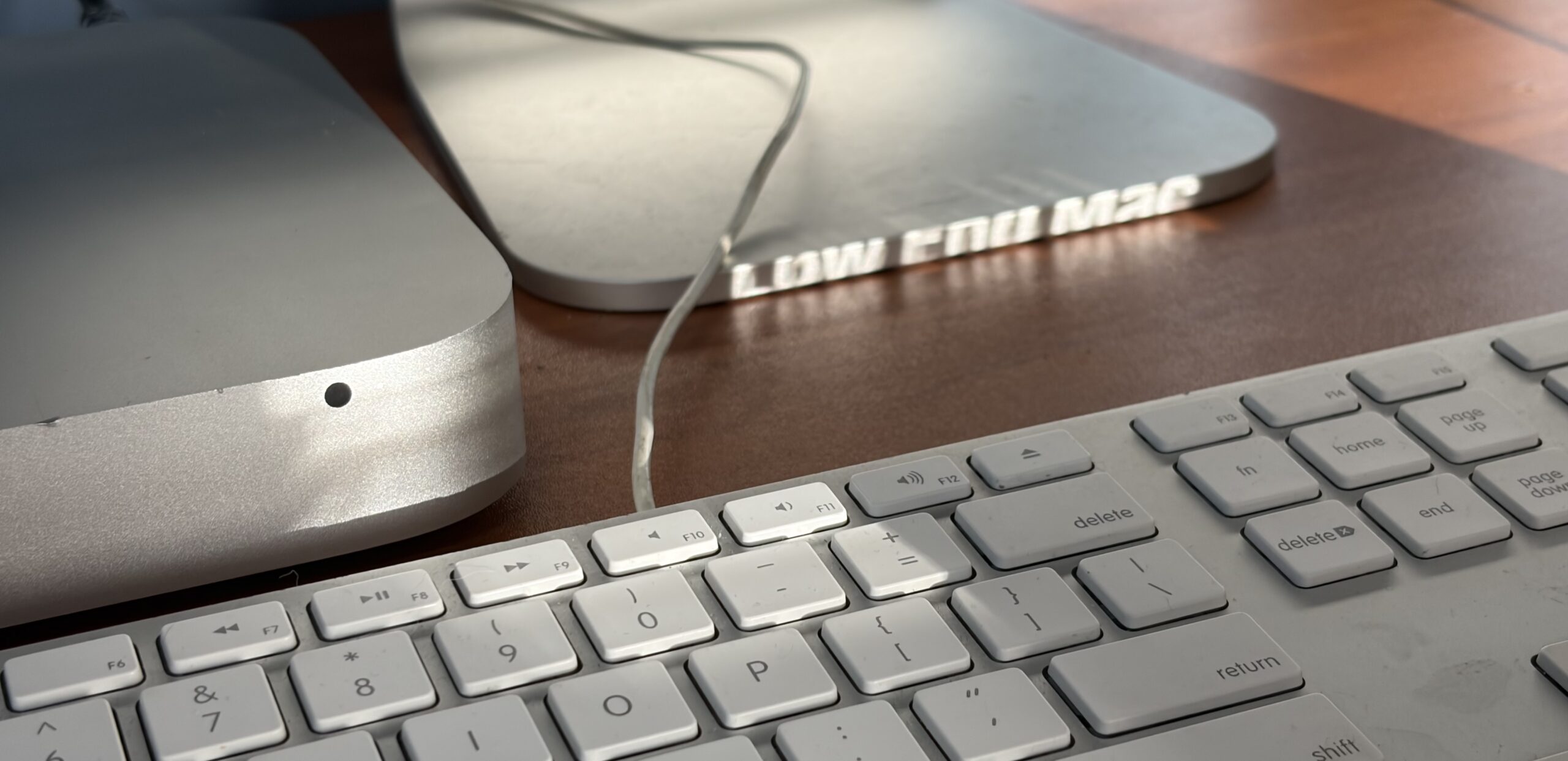
So what exactly can a cheap aluminum Mac mini do these days? Or more specifically; a Mid-2011 2.3 Ghz i5 base model, in 2026? Here at Low End Mac we want to help you get the most out of your Apple gear, so today we’re taking an in-depth look at one to see where they stand in 2026.
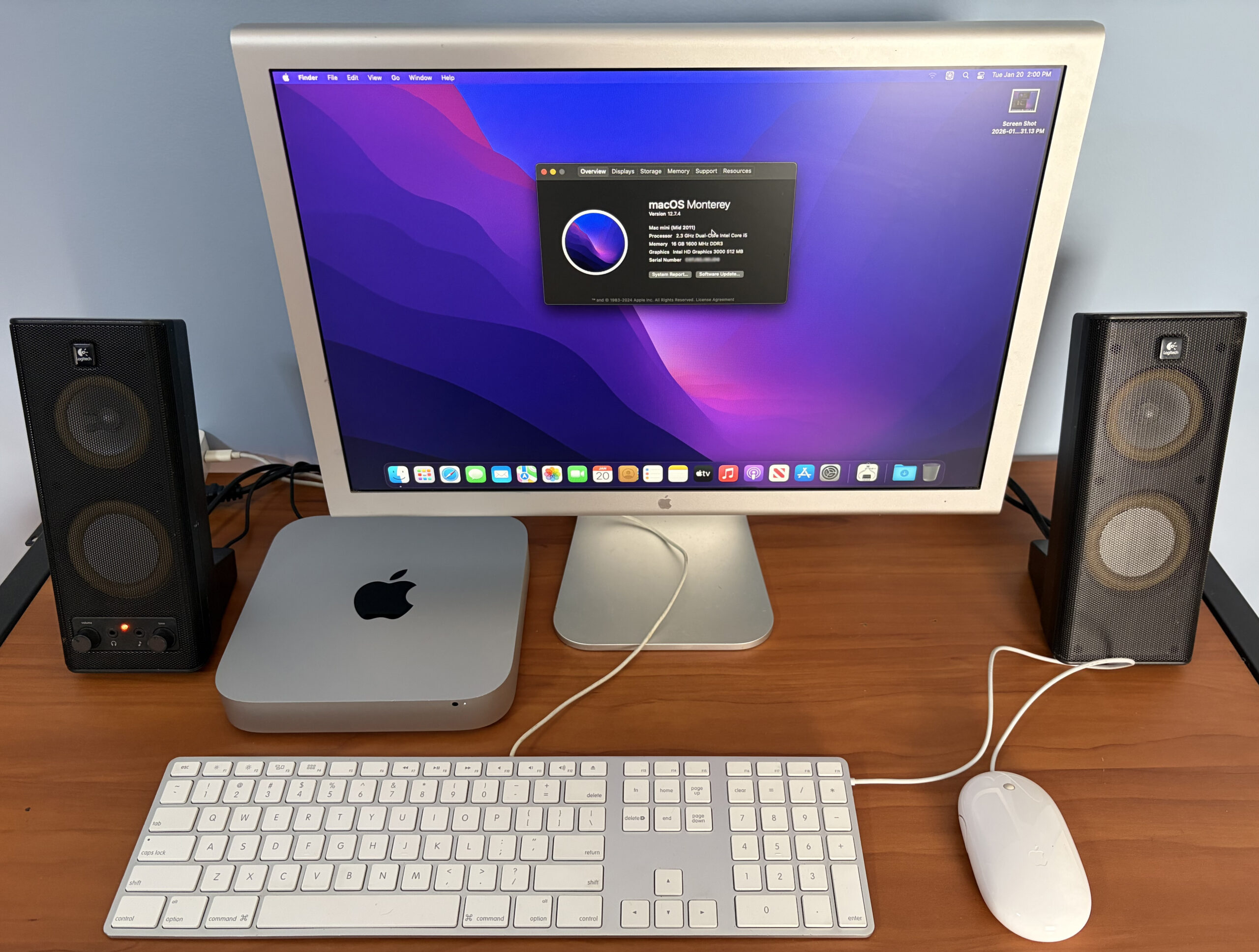
2011 is when more CPU chips were kicking things up a notch for Macs, however, alot of Macs suffered from the dreaded AMD graphics card failure that year. Fortunately for this base model 2011 Mac mini, it has only Intel HD 3000 graphics, avoiding any potential AMD GPU failures in the future.
Clocking in at a few months older than the iPhone 4s, does this Mac even belong on your desk? The answer may surprise you, even if everything at face value tells you otherwise.
What sparked the idea for this?
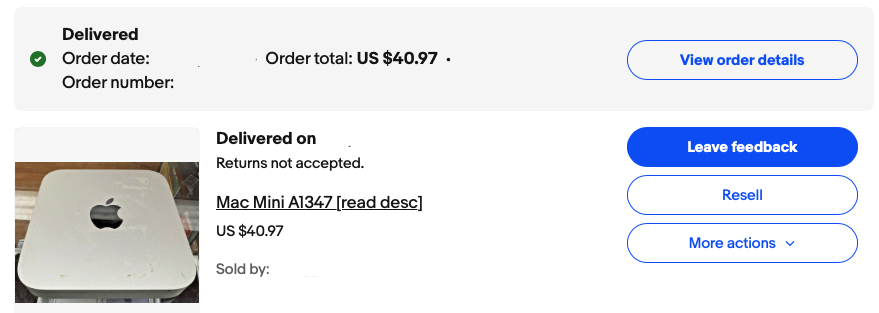
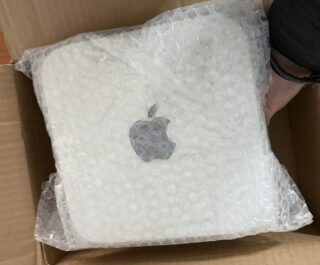
A simple eBay listing for one of these, and it was a complete gamble, I tried looking up the serial number when bidding, but the image was too obscured to be able to correctly guess all the letters. I found out later it’s a 2011, which I’m okay with for $40 in total. The upgrades put into this later will easily double the value of this mini.
Indeed it is older than a 2012, though it punches strong and perceivably above an SSD-configured Core 2-Series Intel Mac. It maintains the benefit of RAM upgradability like the 2012, has the second SATA port + SATA bay for drive upgradeability, and I believe the base model without the AMD GPUs are a good recommendation for anyone putting together a Mac setup on a really tight budget. I picked one up for a project.
 |
 |
First Mac mini to..
- Leap beyond the Core 2 Duo CPU era
- Drop the optical disk drive (in a non-server model).
- Offer built-in AMD graphics in tandem with Intel HD Graphics
- Bump the maximum RAM capacity to < 16 GB, though unofficially. Officially the first one is the 2012.
- Carry Thunderbolt ports in any iteration.
- Ship with an OS beyond Mac OS X Snow Leopard, OS X Lion.
- Ship with Bluetooth 4.0.
Clean up
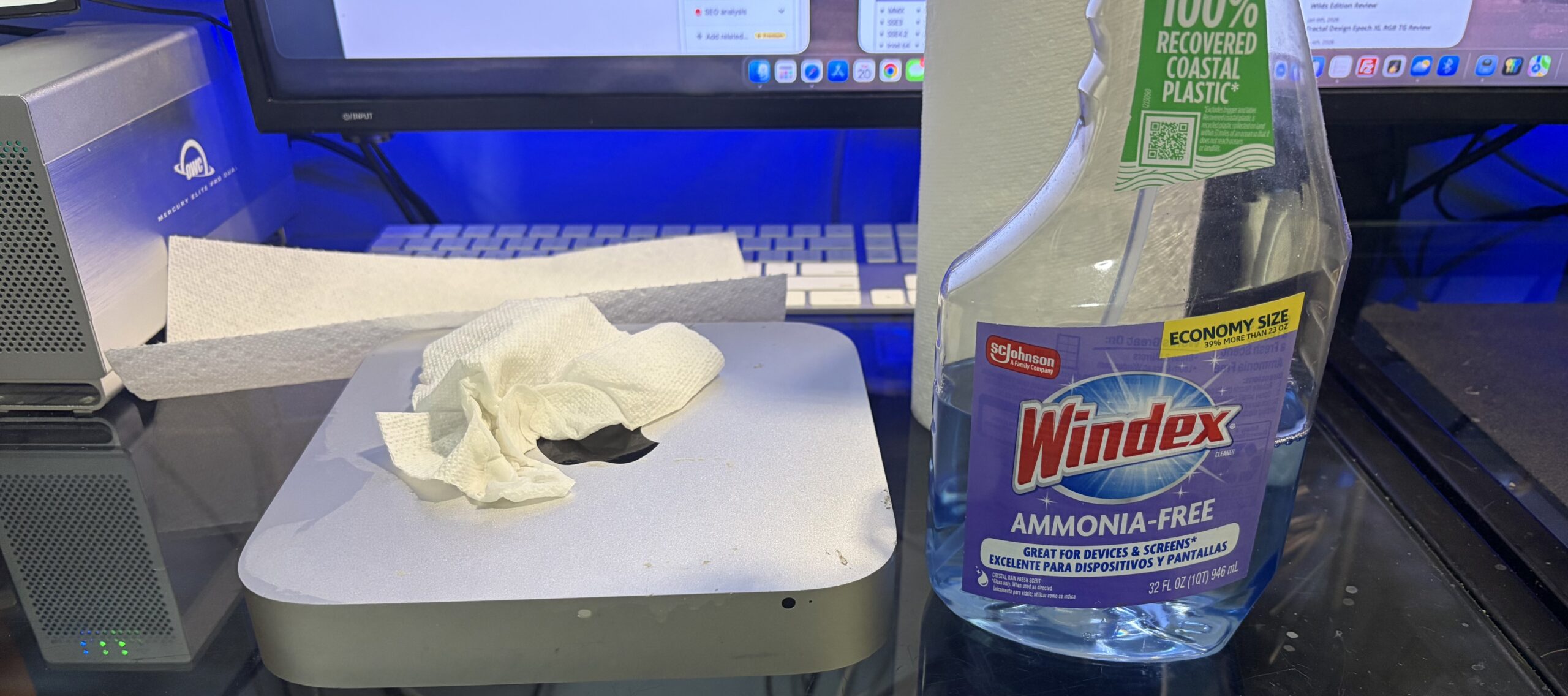
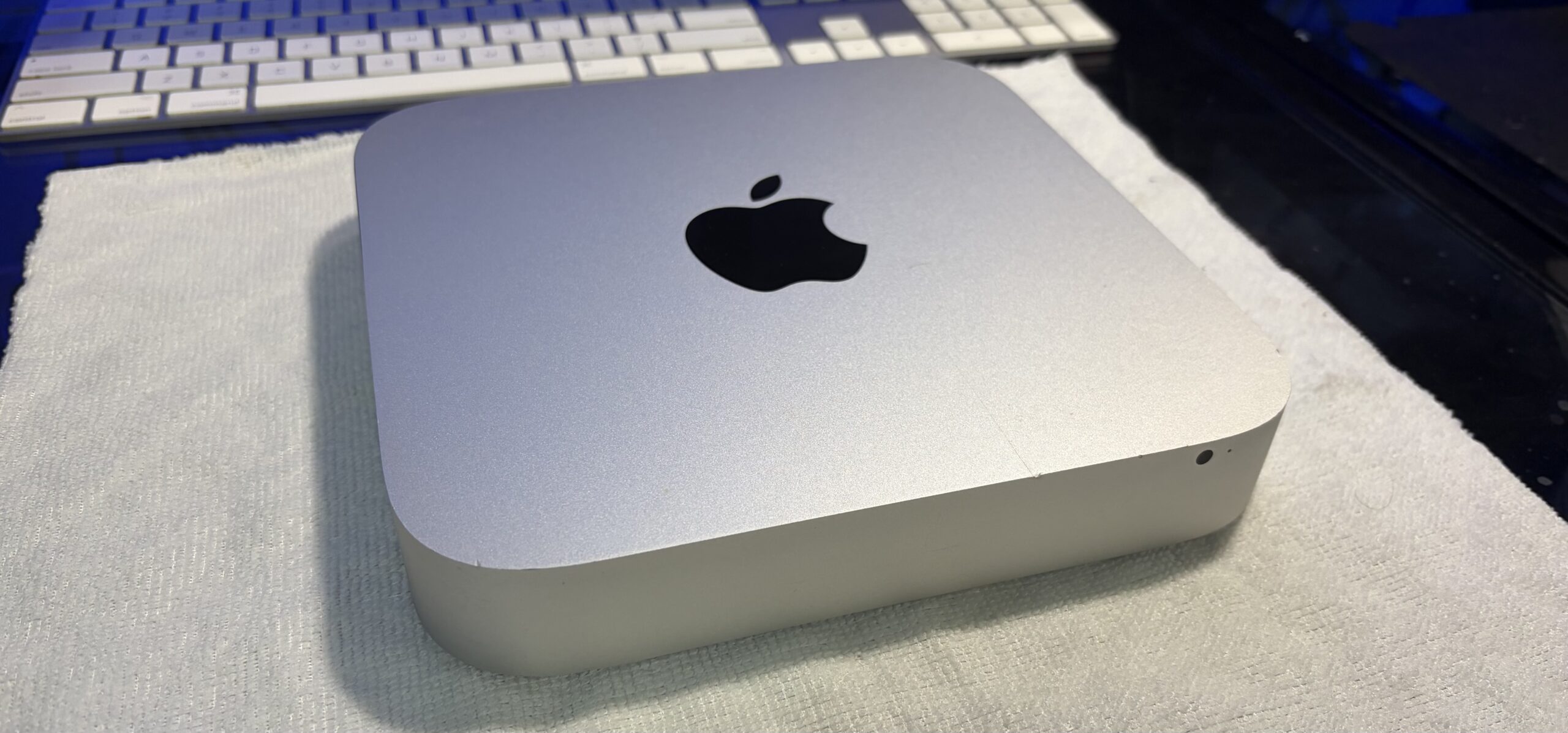
It’s not free of dings, but it cleaned up quite nicely compared to how it looked when I first got it. There are scratches which can’t be removed, but it looks good enough.
Tech Specs
For some perspective, we’re gonna compare this 2011 base mini to a base M1 Mac mini, using the 2011’s original configuration. I will then list the upgrades. Technology has come a long way since Sandy Bridge CPUs, although this is around the time contemporary consumer computer CPUs made a leap forward – still packing a punch to this day with the right upgrades.
 |
 |
i5-2415M Mac mini (2011)
|
M1 Mac mini (2020)
|
Making sure it works
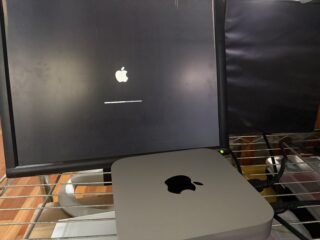
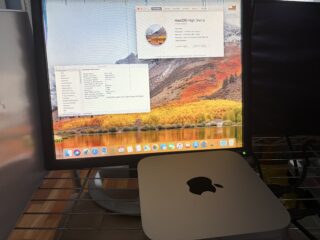
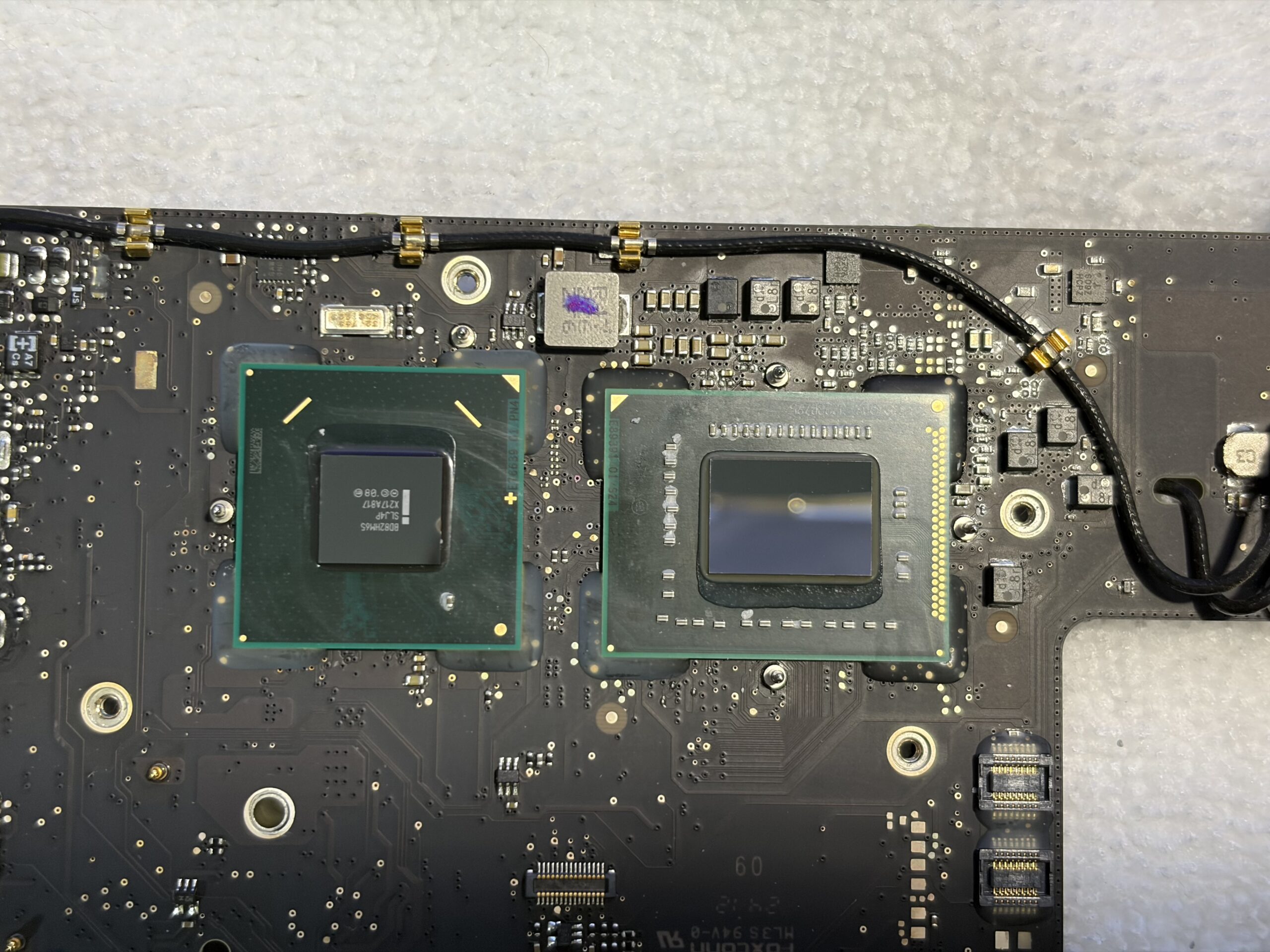
Upon receiving it I had absolutely no idea what condition it was in, what OS was on it, or what kind of trouble I was getting into to make sure it worked again. Thankfully it booted right to a desktop in its latest supported OS, macOS High Sierra 10.13.6. The mini also shipped with it’s original configuration, original thermal paste, and was probably never disassembled.
 |
 |
.
The Upgrades
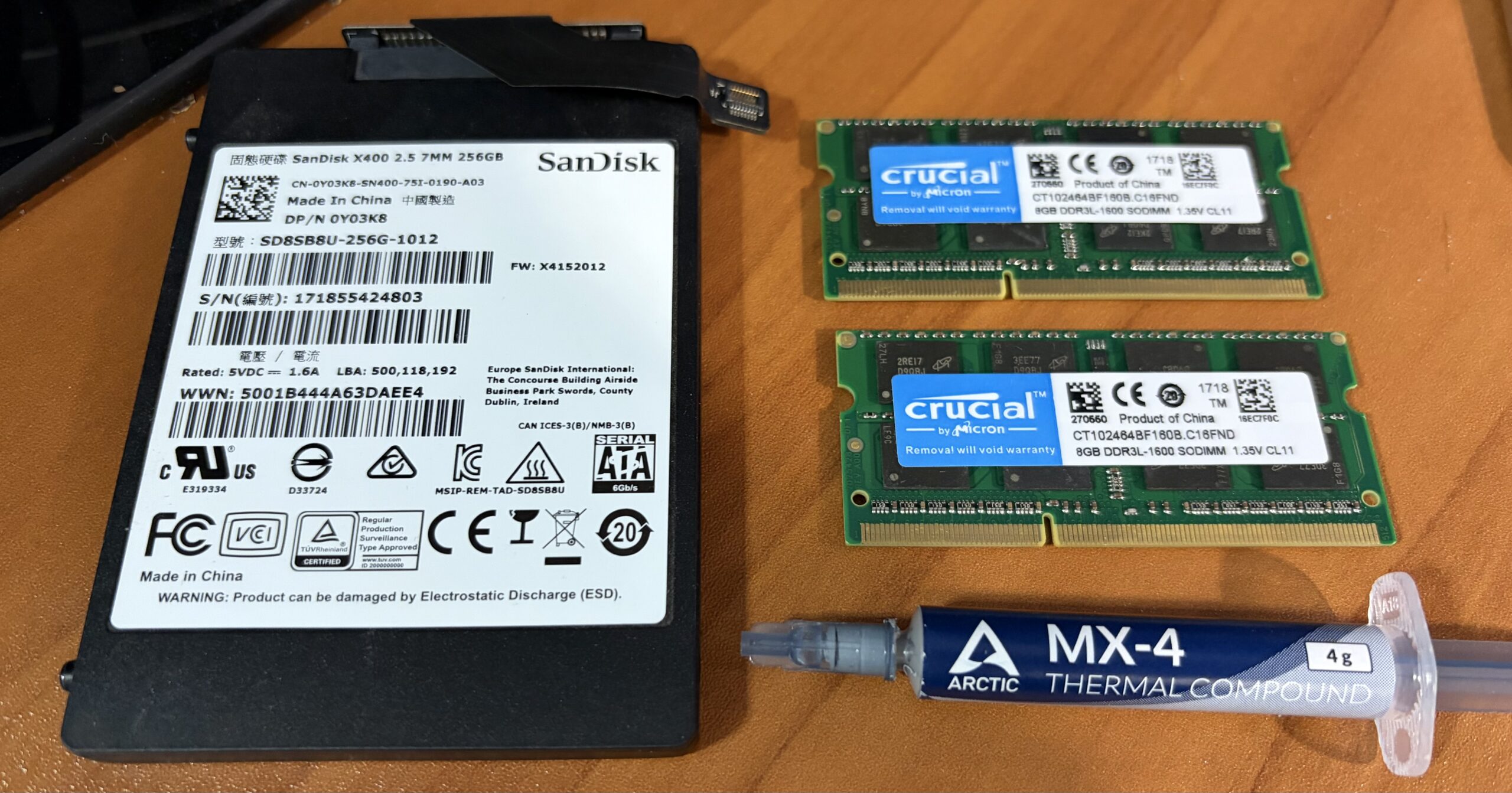
Prices are reflected in Early 2026 USD. The SSD + RAM I put into here were things I already had which weren’t being used at the time.
- 16GB RAM – 2x 8 GB 1600 MHz DDR3L sodimm sticks ($20 – $40)
- 256 GB Sata SSD – ($25 – $30)
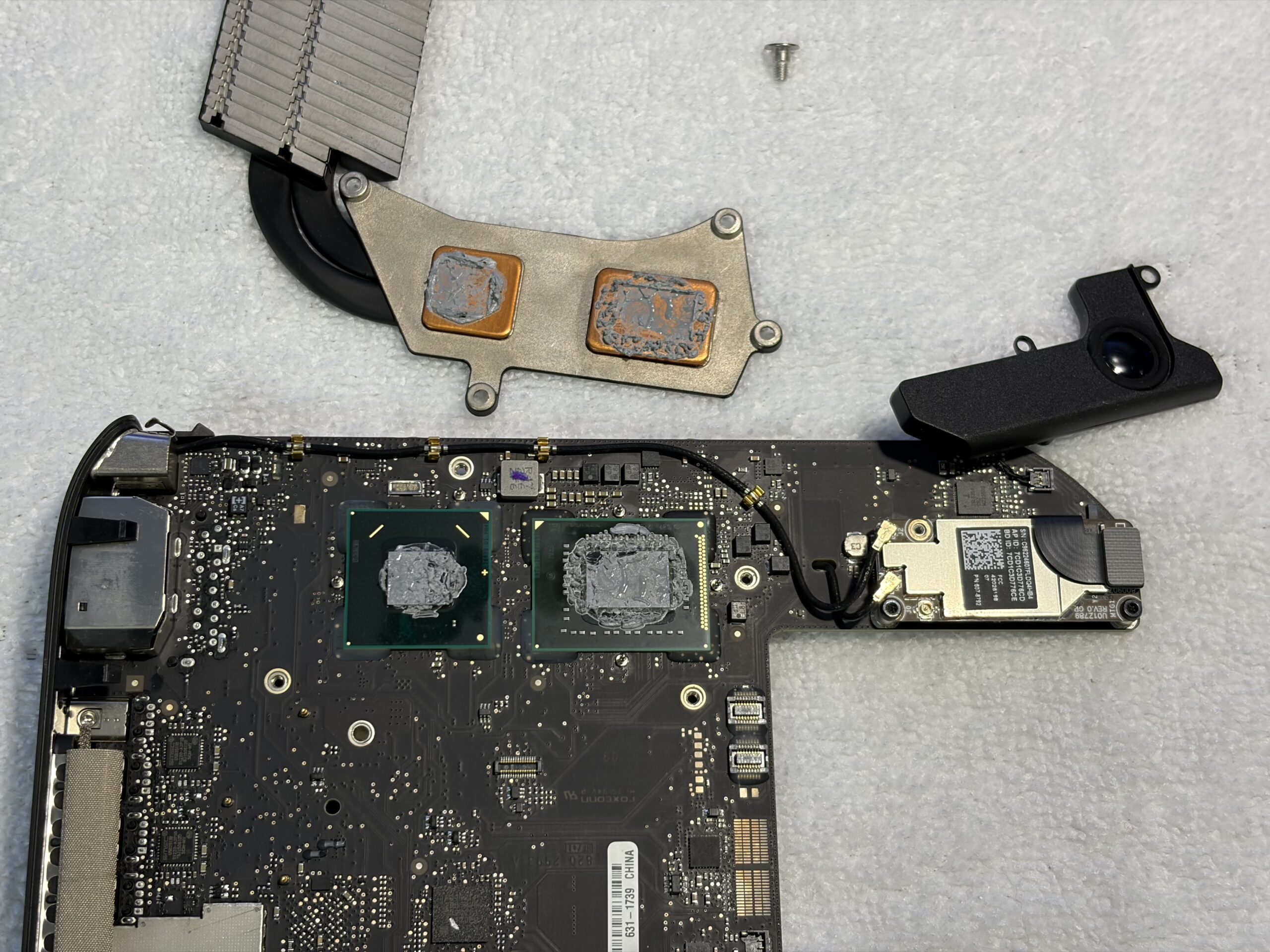
- New Arctic MX-4 thermal paste ($8 per tube. Each tube does many applications.)
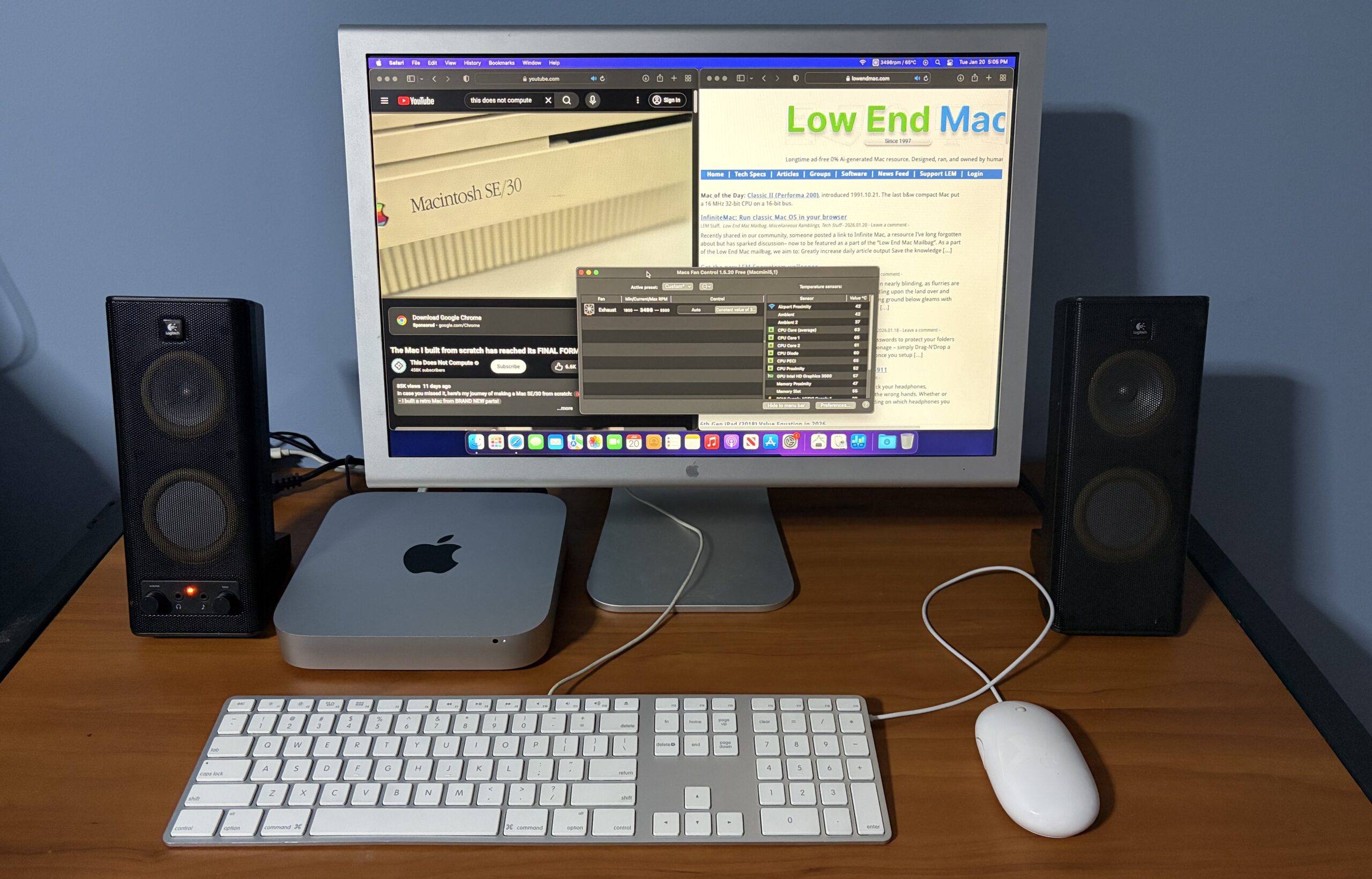
- Speakers shown in article: Logitech Model A241 (~$19)
Since I won’t be daily driving this computer myself, the Cinema Display + Speakers + Keyboard/Mouse combination shown in this article are simply to illustrate what could be. Right away as I started using it on Monterey with the SSD + 16 GB RAM, it reminded me of the kind of performance I got out of an i3 2018 mini + 8 GB RAM.
 |
 |
Think of it running like an older iPad but with a modern iOS – if you keep an app or two open at a time you’ll be fine. You might be able to get away with running perceivably intense apps which the Mac mini is still suited for, such as; Minecraft, some Photoshop, even lighter VMs, etc; as it still packs 16 GB RAM, the SSD is SATA III based, and there’s HyperThreading. It’s not as slow as you think it is, but it’s also not as fast as you think it is.
Some Use Cases
- A dedicated Mac to sync up with older iOS devices
- A great secondary computer
- A local network file server for other Macs
- Hosting more modern Mac software in a headless configuration
- Add a couple large drives in there to turn the Mac into a sort-of external drive for other Macs.
- Fix other Macs with the 2011 Mac mini by making a ton of bootable partitions between the two drives which could be plugged in onboard, get some FireWire adapters, and turn it into a Swiss army knife for PowerPC + Intel Macs to boot into, in a pinch – with Target Disk Mode.
- A living room computer to check emails
- A kitchen Mac to type something out while on a Zoom call
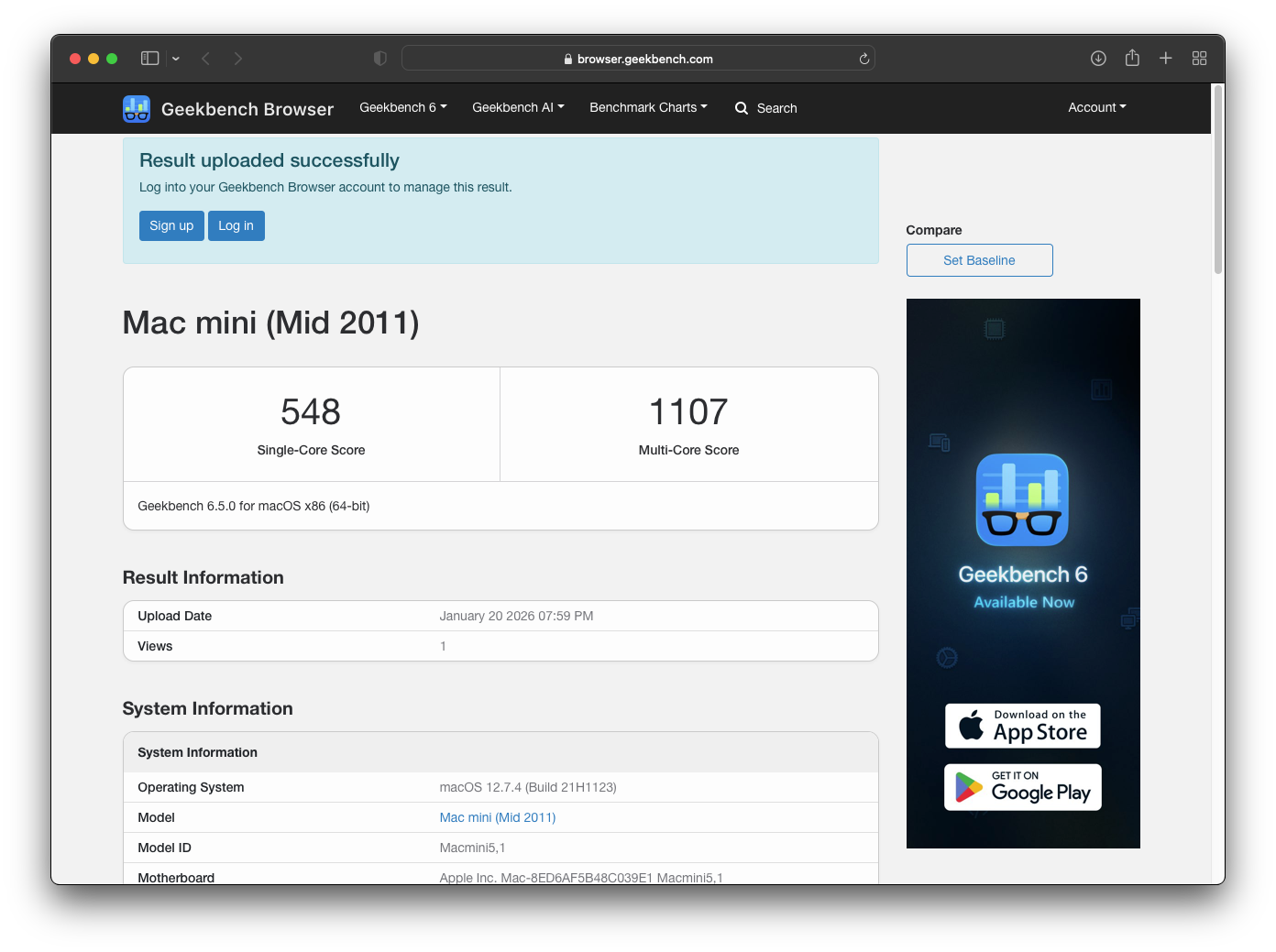
Geekbench 6.5.0
- Single Core: 548, Multi-Core: 1107
Boot Time
It’s not gonna win any competitions, although it surprised me how rather quickly it booted to the desktop + opened safari. An authentic OCLP Monterey experience on this i5-2415M 2011 mini with 16 GB RAM, new thermal paste, a 256 GB SSD, proper patches, and an Intel HD 3000 iGPU.
In Conclusion
It’s easy to discount one of these this day and age considering it’s only a dual-core 2nd gen i5 model, but I’ll have to admit it’s starting to show it’s age for a daily driver. It can certainly get the job done, but there are times you’ll notice slowdowns or sluggishness if you’re multitasking. If you can make use of an older OS, Linux, or can get by with/have a specific use for OCLP + macOS, then this Mac is for you. If you push it as a daily driver, it’ll feel like being on an iPhone X in 2026; familiar, but with jitters, stutters. It looks just as nice as any other Mac when paired up with OEM hardware, irrespective of the OS it runs. Maybe it’s worth giving a second look – it still does things.