
Way back in the 1970s and early 1980s, it was rare enough to have a personal computer in the home, classroom, or office. Today it’s common to have several computers, tablets, and/or smartphones in the workplace, school, or home.
In the early days of personal computing, networking wasn’t an issue. Today it’s something everyone with two or more devices connected to the Internet (computers, game consoles, streaming media players, tablets, smartphones, etc.) should know about. At the very least, it will be a way to share an Internet connection when you have more than one computer.
We are not covering Apple’s older AppleTalk/LocalTalk networking, since it is covered elsewhere on Low End Mac.
Ethernet
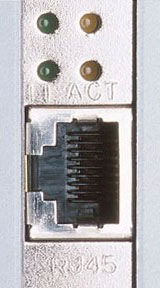 Networking protocols and wiring types have come and gone, but the most common type of network these days is ethernet using 8-strand cable with RJ-45 connectors (right). Ethernet of this type comes in three speeds: 10Base-T, 100Base-TX, and 1000Baset-T Gigabit. 10Base-T operates at 10 megabits per second, 100Base-T at 100, and Gigabit at (you guessed it) 1000.
Up through the mid-1990s, 10Base-T was the norm, but starting in the late-90s 100Base-T became dominant. In the 21st century, Apple adopted Gigabit ethernet across the board, and it is becoming more common in the PC world as well.
In an ideal world, all the computers on your network would use the same flavor of ethernet, but if you have some newer computers and some older ones (any Mac prior to the January 1999 introduction of the Blue & White G3 used 10Base-T, and the earliest Macs with ethernet used Apple’s proprietary AAUI connector), that may not be the case. Fortunately 100Base-T is generally backwards compatible with 10Base-T – it just slows itself down to match.
Hubs
The simplest piece of hardware for connecting three or more networked devices (computers, networked printers, cable modems, etc.) is a hub. Hubs come in several sizes, from small 4-port units to 24-port and beyond monstrosities rarely found outside of big institutions.
What a regular hub does is receive information from any device on the network and transmit it to all the other devices. It doesn’t know or care which device the data is going to; it’s up to each piece of hardware connected to the hub to know whether it wants to use or ignore each data stream.
Most hubs can handle a mix of 10Base-T and 100Base-T devices automatically, although there are some older computers (especially older Macs) that don’t work well on 10/100 hubs or switches. (I learned that the hard way in my IT days….) If you run into this problem, the best solution is two hubs – one for 100Base-TX or Gigabit devices and another, connected to the first, specifically for 10Base-T machines and printers.
The more old 10Base-T hardware on the network, the messier it gets.
Switched Hubs
If you’ve just got a few devices, a regular hub is fine, but as you add more devices and increase the amount of information being moved over the network, you may approach the saturation point. To avoid that, engineers invented switches, which are intelligent hubs that know which device each data packet is headed for and make sure that the information only follows the path to that machine.
The busier the network, the more helpful switching becomes. There’s probably no need to have a 4-port switch, but at the 8-port level and beyond, it can be quite helpful.
Routers
A router is a device that sits between one network and another, such as a device that sits between a cable modem connected to the Internet and a hub that’s part of your local area network (LAN).
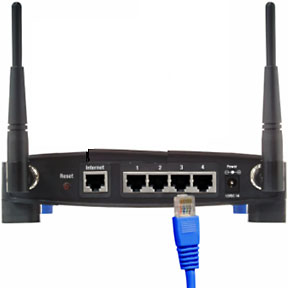
Wireless router with 4 ethernet ports and 1 WAN port.
Beyond simply connecting two networks, routers can have additional functions such as allowing multiple computers to access the Internet by translating their local network address to one that works on the Internet (NAT, Network Address Translation), assigning network addresses to local machines (using DHCP), and blocking certain ports or types of information from entering or leaving your network (a firewall).
Most routers on the market perform all of these functions.
Simple Networking
You can buy routers with multiple ports, which also makes them hubs. In some cases these are switched ports, making the router a switch. A lot of routers today will let you connect a modem (cable, DSL, or dialup) as well as 2-4 other ethernet devices. If you’ve only got a few computers, one router plus several runs of cable could be all you need to share your Internet connection with each computer.
One word about wired networking before we look at wireless networking: Wires are far more secure from eavesdropping and provide more privacy than wireless networks.
Wireless Networking
A nice twist on this is wireless networking, which came to prominence when Apple introduced AirPort on the first iBook in July 1999. AirPort uses the 802.11b protocol from late 1999 and is about half the speed of 10Base-T ethernet under ideal conditions. Although rated to 100 meters (330′), walls and interference from 2.4 GHz cordless phones and microwaves can easily reduces that by half or more.
Another interesting aspect of wireless is that throughput varies with distance. Close to the hub, you’ll achieve maximum throughput, which is generally under 5 Mbps in the real world. Further away, the data rate can drop as low as 1 Mbps.
Over the years, other protocols have come into existence to address that.
802.11a, also from late 1999, was designed to avoid the interference from cordless phones and microwaves that afflict 802.11b. It typically uses the 5 GHz spectrum, which gives it about half the range of 802.11b. Cnet estimates the maximum data rate for 802.11a in the real world “should be around 22-26 Mbps” – less than half its rated bandwidth.
Because higher frequency signals are more attenuated by obstacles, 802.11a range is reduced more by walls and partitions than the lower frequency 802.11b and 802.11g signals.
There is also a rarely used 3.7 GHz version of 802.11a.
802.11g was a big step forward in throughput. It was released in mid 2003 and is backwards compatible with 802.11b, so people with AirPort, WaveLAN, and other 802.11b WiFi cards can still use their older equipment on the new network, although they won’t see a boost in throughput.
Much like 802.11a, real world throughput is estimated at roughly 24 Mbps.
802.11n, late 2009, uses multiple antennas to boost its data rate. With three antennas, it has three times the speed of 802.11g.
802.11ac is the current standard, finalized in late 2013 and is rated at up to 866 Mbps – using 8 antennas.
The following table is adapted from the Wikipedia article on 802.11 wireless networking and represents ideal throughput. Real world results may be less:
| Protocol & Top Speed | Outdoor Max. | Indoor Expected |
| 802.11b 11 Mbps | 460’/140 m | 115’/35 m |
| 802.11a 54 Mbps | 390’/120 m | 195’/60 m |
| 802.11g 54 Mbps | 460’/140 m | 125’/38 m |
| 802.11n 150 Mbps | 820’/250 m | 230’/70 m |
| 802.11ac 867 Mbps | 820’/250 m | 230’/70 m |
Most 802.11 routers include 3 or 4 ethernet ports (sometimes switched ones) for your local devices plus an additional port for connecting a cable or DSL modem. This makes the router useful for both wired and wireless devices, although you may need to add an ethernet hub if you have more than 3-4 ethernet devices.
802.11 cards and USB dongles for desktops and notebooks are generally available for under US$100 – far less than the price of Apple’s AirPort Extreme card. However, make sure the card you buy works with your OS; some cards don’t have Mac support, and newer cards may only support a limited number of Mac OS X versions.
Complex Networks
There’s really nothing terribly complex about complex networks – they just have more hubs. It’s very easy to daisy-chain ethernet hubs, and hubs and switches often have one higher speed port especially for connecting one to another.
Why build a complex network? The most obvious reason is that you’ve outgrown your current hub and would rather add a second hub than replace the whole thing. Another reason, noted above, is to keep 10Base-T traffic off a 100Base-T hub because the older devices are sometime problematic with 10/100 hardware (especially switches).
Another reason is wiring. Rather than run a few more (or a lot more) wires from your main networking center to a location, you can use a single cable, connect it to a hub in the second location, and network devices in that area to the nearby hub. Considering the cost of running wire, this can be a very economical solution.
You should never have more than five hubs between any two devices on your network. Except for the biggest, most complex networks, that’s not likely to happen, but if you do end up with several hubs, the best approach is to wire them to a single central hub when possible.
However, ethernet is rated to 100 meters (330′), and if you need to go beyond that, you’ll want a hub to act as a repeater between your central hub and the distant one. In a really really large building, it’s conceivable that you could have a need to have hubs two steps removed from the network center.
Wireless networking equipment can also be used as a bridge to share a wireless network in multiple locations. By deploying several 802.11 access points throughout a building, coverage can be improved without the need to run wires between the wireless hubs.
Simple Internet Sharing
All of this may be overkill if all you want to do is share a simple Internet connection between two computers. On the PC side, Windows Internet Connection Sharing has been available since Windows 98SE, and there are programs that do the same thing on the classic Mac OS and OS X.
For just two users, you don’t really need a hub or router. You do need an ethernet port on each computer – NICs (Network Interface Cards) are cheap if you have an older Mac or a PC without built-in ethernet – and a crossover cable between them.
Beyond two computers, you will want a hub, but small hubs are also cheap these days.
Conclusion
There’s really nothing mysterious about networking computers. For the most part, it’s just plug-and-play.
You’ll generally be able to program a router using a browser by copying the cable/DSL modem settings from your personal computer to the router. From there on, you’ll be transparently sharing files and printers locally while also accessing the Internet as necessary.
Keywords: #networking #ethernet #wifi #802.11
Short link: http://goo.gl/mBPJMn
searchword: networking101
