Last week Daystar Technology announced the release of its
upgraded XLR8 MAChSpeed Control CPU performance software. XLR8
MAChSpeed Control is designed to provide performance and
compatibility tools for Mac CPUs. It has a range of features for
automated and manual configuration, testing, and reporting of the
CPU and backside caches. It supports all single CPU G3, G4, and G5
systems and upgrade cards within Mac OS 9 and OS X.
Features will vary by the specific CPU and system.
I've been using XLR8 MAChSpeed Control with my Pismo PowerBook since a Daystar G4 550
MHz upgrade was installed in January, 2004 - mainly for monitoring
processor temperature.
As an aside, the Pismo seems to run a lot hotter since I
installed OS X 10.4 Tiger. In the 16 months previous, the
Pismo's internal cooling fan had cut in maybe three or four times,
and that includes use in the hottest part of the year. With Tiger,
it's coming on several times a day, even though we haven't had much
warm weather in Nova Scotia yet this season.
Anyway, the new version of MAChSpeed Control incorporates an
array of tools for CPU and cache configuration, profiling, testing,
and compatibility. The update also includes compatibility with all
Apple operating systems from Mac OS 9 though Mac OS X
10.4 (Tiger).
"This is not just another piece of 'Cache Switching' software,"
says Daystar president Gary Dailey. "MSC's ability to actually
think, by profiling components and protecting users from getting
themselves into non-boot situations, coupled with its exclusive
features, makes it the 'Swiss-army Knife' of Mac CPU utilities - a
valuable tool in any system."
Daystar is a venerable trade name in the Macintosh orbit.
Daystar Technology president Gary Dailey is an alumnus of DayStar
Digital, Inc., a company that in the 1980s established and led the
performance upgrades market for Macintosh computers. In 1995,
Daystar Digital received a Mac OS license from Apple and proceeded
to designed and market the Genesis MP, the first
multiprocessor Mac OS computers with two and four PowerPC 604
processors. The first Genesis was introduced in October 1995. The
Genesis MP was replaced by the MP+, which used the faster, more
efficient 604e processor. However, when Steve Jobs pulled the plug
on Mac OS licensing in August 1997, DayStar discontinued
manufacturing computers.
Daystar now operates as an Apple Authorized Reseller and Service
Center, maintaining a staff of Apple Certified Technicians. Daystar
is also the designer and manufacturer of XLR8 brand processor
upgrades and other products.
"I was the last remaining employee of Daystar Digital, Inc.,"
says Gary Dailey, "and exclusively acquired all remaining rights to
the intellectual property in 1997 in the wake of Apple
discontinuing cloning.
"We started Daystar Technologies, Inc. dba GDTS (Gary Dailey
Technology Services) to support stranded users. The same software
engineering, manufacturing, rework, and product/marketing people
(along with some of the hardware) followed me to XLR8 in 1999.
Interex, the parent of XLR8, fell into bad times, and the
profitable XLR8 unit was sold to Tripplite. I left to again
concentrate on Daystar. After a year or so of bad management
decisions, XLR8, Inc. was out of business. Daystar picked up the
pieces, the talent, and acquired the rights and began redesigning
again, with the same attention to detail that made it the number
one upgrade company in 1999."
Gary Dailey is also a devout Christian, and his faith is
reflected in the company's mission statement: "Our mission like the
name 'Daystar implies from the Bible (II Peter 1:19), is to "be a
beacon of strength and light", within the fast paced computer
industry. We will set a strong example in fair business practices
and value....
"Our company will represent itself and back its products with
ethical practices and values consistent with its owners' Christian
beliefs."
The XLR8 MACh Speed Control supports XLR8's MVP (Multiple
Variable Processing) hardware technology, which allows the user to
change RAM, CPU, and cache performance settings without motherboard
jumper modifications. Temperature Scan monitors the temperature of
the processor(s) in the system and will report if any of them are
overheating. This technology takes away the worry that a processor
can be damaged due to the misplacement or failure of cooling
equipment.
Features of XLR8 MAChSpeed Control
Compatibility:
- System tuning. Works around a variety of processor errors in
early G3 and G4 CPUs. Improves overall stability, including
motherboard cache management, and improved sleep mode support on
the PowerBook G3. XLR8 MAChSpeed Control was the first software to
correctly support speculative processing on older ROMs and to do so
in a persistent fashion at the earliest stages of bootup -a
technique arbitrarily copied by competitors throughout the
years.
- System Information. Updates low-level information in the
IORegistry. It also updates the kernel of OS X itself to
ensure that Apple System Profiler can display the most accurate
details about the system speed and capabilities. This ensures that
accurate information is available to applications that would
otherwise be limited by the processing power available.
- Advanced AltiVec Support. Enables AltiVec support in a
technologically sophisticated and correct manner when running G4
upgrades under Mac OS 9 in pre-G4 systems. This ensures true
across-the board compatibility with AltiVec applications and is
unmatched by competitive products.
- CPU Startup Speed Management. Available on IBM G3 750 fx/gx
CPUs. For enhanced compatibility, this feature allows the system to
boot at the hardware speed and then reset to the software selected
speed automatically after the system boot sequence is
complete.
- Mac OS 9 through Mac OS X 10.4 (single CPU). Supports, by far,
the widest range of CPUs and systems available.
- Improved XPostFacto Support. MAChSpeed Control is designed to
enhance compatibility and performance for older Mac systems with
OS X installed.
Performance:
- Improved Memory & Cache Performance. Uses faster memory and
cache access settings to maximize performance.
- Semiautomatic Cache and System Controls. Allows user to
dynamically adjust backside cache speeds by choosing from tested
"safe" cache speeds. Speeds that failed testing are indicated and
prohibited.
Testing And Reporting:
- Automatic Cache Testing. Exclusive profiling and initialization
at startup insures a robust test of the system. Factory retest on
restart allows the utility to be set to retest the backside cache
on every restart.
- Active System Profiling and Tests. When opened, the software
profiles and provides a looping CPU/cache/RAM test of the machine.
It uses a graphical display to represent accurate architectural
information about the system at a glance, including processors,
internal, inline, backside and motherboard caches, busses, and
motherboard memory. Data paths and relative speeds being tested are
demonstrated by simulated data flows between the components.
Detailed dynamic information about each of the CPUs is presented
next to the graphic.
- Dynamic Status Information. Exclusively provides realtime
updates of the system's status, including its speed, CPU
temperature, version, and caches.
- Thermal Monitoring. When supported by the CPU (750-7410), it
will alert you if potentially dangerous overheating occurs.
- Memory. A detailed memory overview is available on Beige G3 and earlier machines. This view
will provide an extremely accurate view of the RAM configuration as
well as valuable suggestions about how to optimize performance by
effectively pairing RAM DIMMs.
Configuration:
- Backside Cache Control. Allows user to dynamically adjust
backside cache speeds by choosing from tested "safe" cache speeds.
Speeds that failed testing are indicated and prohibited. Various
cache operation modes can be adjusted if needed.
- Dynamic CPU Speed Switching. Available on 750 fx/gx CPUs as
found in the iBook G3 and on high-speed G3 upgrades. This feature
allows the user to change the CPU speed on the fly via
software.
Recovery:
- Reset Mode. In the event that the CPU or backside cache speed
cannot run at selected speeds, the user can boot into Mac OS X
safe mode using the shift key and use MAChSpeed Control's reset
mode to return to default settings. On Mac OS 9, hold down the
command-option-x-r keys on restart.
Compatibility:
- MAChSpeed Control 1.4.3 is compatible with System 7.5.2 through
8.6x
- MAChSpeed Control 2.6.1 is compatible with System 9 through
9.1x
- MAChSpeed Control 2.7-2.8 is compatible with System 9 through
9.2x
- MAChSpeed Control - OS 9 (2.6.2+) is compatible with System 9
through 9.2x
- MAChSpeed Control - OS X (3.0.0+) is compatible with OS X 10.1
through 10.2.x
- MAChSpeed Control - OS X (3.2.0+) is compatible with OS X 10.1
through 10.3.x
- MAChSpeed Control - OS X (3.4.0+) is compatible with OS X 10.1
through 10.4.x
Using the XLR8 MAChSpeed Control
It is not necessary to keep MAChSpeed Control open. The
extensions will automatically reload and run at bootup. Opening the
utility is recommended for reviewing, changing, or extended testing
only. To begin using XLR8 MAChSpeed Control, open the Utility
(OS X) or Control Panel (OS 9)
- In OS X the Utility is located in the XLR* Folder in the
Applications Folder.
- In OS 9 the Control Panel is located under the Apple Menu, in
Control Panels
Viewing and Adjusting Performance: View and adjust configuration
settings by clicking on each of the Panels and choosing available
choices. The section "Panels" provides additional information of
available features. When open, MAChSpeed Control provides a
graphical display of the active tests being performed between the
CPU, caches and RAM. All other information is also dynamically
updated based on current system feedback.
Using in Test Mode: When open and in the forefront, MAChSpeed
Control is performing a random looping test between the CPU, Caches
and RAM. This is an effective extended test when the CPU or Cache
are suspected of having problems.
Open MAChSpeed Control, and click in the window to ensure it is
operating as the primary application. Additional applications and
utilities can be running in the background to enhance full system
stress testing.
- Let MAChSpeed Control run overnight. This will allow complete
warm-up, testing, and working of the CPU and cache.
- Animation lockup or a system crash indicates a problem. A
problem while running MAChSpeed Control is most likely a CPU/cache
problem. If additional applications are running, the test should be
repeated. If no failure occurs, then the problem could be related
to other components or software being used by the additional
applications.
- Unclicking the Mute checkbox will allow blind testing. The Mute
checkbox was added to allow technicians to test systems without the
need for constant viewing or monitors. When the sound stops, a
MAChSpeed control lockup has occurred.
- On systems with backside caches, enable retest on restart.
Additional backside cache testing can be performed by selecting (on
the Cache Panel), retest on restart.
Panels
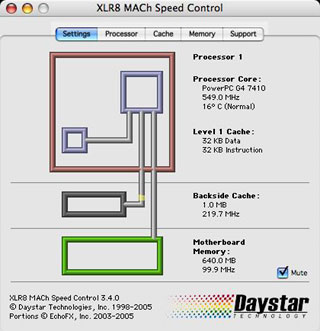
Settings panel - This is the Main Panel of MSC (MAChSpeed
Control). It displays the current system configuration. All
components represented are available, as listed for use by the
system. For example, if the backside cache is displayed, then it
does exist. If not, then it is either defective, or nonexistent.
All reporting is conducted and verified independently with timing
and profiling tests directly on the components. This assures that
you are getting actual accurate information. Other reporting
software such as Apple System Profiler or third party utilities may
rely on system database, which can provide outdated or flawed
info.
- Processor Core: Shows type, speed, and if available the
reported core temperature.
The CPU speed type is derived from the published CPU values. It
is not possible to correctly discern between a 744x and 745x CPU
via software.
- Late versions of G3 CPUs supported either 8x or 10x
multipliers. This information is displayed after the CPU type when
available.
The temperature monitoring relies on the ability of the CPU to
accurately report its core temperature. Freescale (Motorola) has
identified that the reporting can be inaccurate and has since
disabled the functions. It is supported on most PowerPC G3 and
early G4 CPUs, but unfortunately not by the PowerPC 750 G3 CPU used
in G3 iBooks like mine.
Depending on the CPU type, it will also show Normal or High,
when the temp reports an unsafe (90°C plus) temperature. You
will also receive an temperature alert from MAChSpeed Control.
- Level 1 Cache: Shows size and type of cache if a Level 1 cache
is present.
- Level 2 Cache (and Backside): Shows size and type of cache if a
Level 2 cache is present.
- Level 3 Cache: Shows size and type of cache if a Level 3 cache
is present.
- Motherboard Memory:
- Shows total size of RAM installed.
- Shows current speed of motherboard bus to RAM.
- Mute Checkbox
- The mute checkbox will silence the animation.
- The animation sound is offered for blind monitoring of extended
testing. It will continue as long as the test is looping
successfully.
Using XLR8 MAChSpeed Control - OS 9 & OS X
Processor Panel - This panel displays the processor version
number and other processor related information. Note that if an
XLR8 MAChVelocity is installed, its version information can be
obtained here. Features vary on this panel by CPU and System.
- PowerPC 740-7410 - Changing the status of Thermal Monitoring -
Thermal monitoring is only available when one or more CPUs in the
system provide temperature-measuring facilities. For example, the
PPC 7410 chip in my upgraded Pismo is supported, but the PPC 750fx
chip in my iBook is not. While enabled by default, it is okay to
disable monitoring after you are comfortable that the systems
cooling measures are functioning consistently well. Even when
disabled, thermal monitoring will still take place for two minutes
after startup.
- PowerPC on Older Systems - Changing the status of Speculative
Processing - The option to change the status of speculative
processing is only available on systems where speculative
processing may cause problems. If you have a choice, Daystar
emphasizes that enabling speculative processing is not
recommended and suggests that you refer to the XLR8 white
paper.
- PowerPC 750 fx/gx - Changing the speed of the CPU - This option
allows you to dynamically change the speed of your CPU in
real-time. Speed changes will take effect immediately and be
maintained on restart. Note that on boot, the system will boot at
the default speed. The MAChSpeed selected speed will not take
effect until the loading of the OS at the end of the boot
sequence.
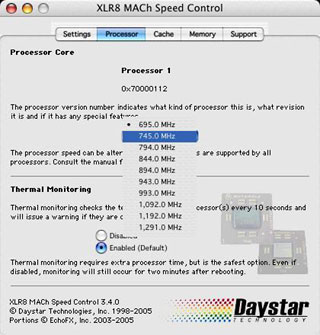
This sounded very cool in theory, but in practice, when I tried
"overclocking" my iBook's 700
MHz (actually 695 MHz according to MAChSpeed Control) to a
modest 745 MHz, I got an instant crash and lockup that required a
force restart. :-(
Cache panel - This panel allows the user to change the backside
cache speed and to adjust the status of speculative processing and
the motherboard cache on certain machines (for more information on
speculative processing, refer to the XLR8 white paper). Features
vary on this panel by CPU and System. If the features are not
available, they will not be shown.
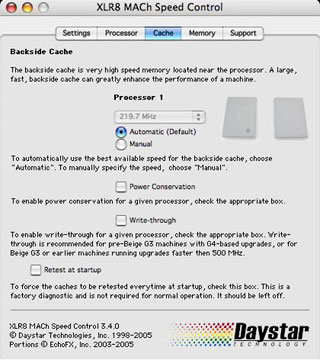
- PowerPC 750-7410 - Changing the speed of the backside cache -
Once the system is profiled on boot, MAChSpeed Control will
automatically choose the safest speed setting for the backside
cache. The Automatic button will be selected. Selecting the
"Automatic" setting will cause the cache to run at the safest
working speed, which it deem on my Pismo to be 219.7 MHz. Sometimes
this is not the fastest speed that may be available. Selecting the
"Manual" setting allows the user to select any available speed,
possibly including speeds faster than that selected by "Automatic".
Speeds selected manually will remain in effect until changed by the
user.
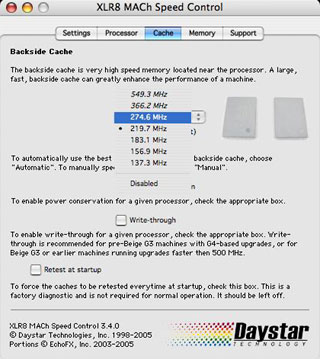
- To change the speed of the Backside Cache, select the Manual
button. This will allow the user to select from tested speeds. Only
speeds that have passed the initial cache test can be selected.
Speeds shown in 'italic' failed and cannot be used.
- To disable the Backside Cache, select the Manual button. This
will allow the user to select the 'disabled' selection in the pull
down menu.
PowerPC 750-7410 - Changing the status of Power Conservation -
Checking "Power Conservation" will allow the OS to put the backside
cache into low-power mode when the system is inactive. Battery life
on portables will be extended and electricity bills will be
reduced. Enabling Power Conservation will not affect system
performance.
Changing the status of Write-through - According to Daystar,
generally write-through is not necessary except on some older
machines or at very high CPU speeds. If you are having stability
issues on 6 PCI-slot hardware, or are running at 500 MHz or faster,
you may wish to consider turning write-through on. Note that there
is a modest performance penalty associated with this action. If
write-through comes on by default in the control panel, it is a
good idea to leave it on.
- Changing the status of the Motherboard Cache - This selection
is only available on Apple or Daystar systems that have a
motherboard cache. If you have a choice, please note that enabling
the motherboard cache is not recommended - your system will
run more reliably with the motherboard cache disabled. If your
motherboard cache is removable, Daystar recommends that it be
physically removed from the system.
- Retest on Restart - This selection is only available on systems
with Backside Caches. It will automatically force MAChSpeed Control
to re-profile, and retest the Cache at all possible speed
configurations on reboot. This is meant as a diagnostic testing
mechanism and is not recommended as a long-term setting.
Memory Panel - The memory panel provides highly detailed
information about the DIMMs installed in pre-"blue and white"
machines. This information is particularly useful on clone-era
equipment.
- Enough information is provided that will allow a memory
configuration to be calculated that will take maximum advantage of
the interleaving capabilities of those machines.
- DIMM information for later machines is not provided. Support
panel - Contact info and addresses for Daystar.
MAChSpeed Control is available via download or USPS, direct from
Daystar's website at <http://4daystar.com>. It is sold in
versions for Mac OS 9, Mac OS X, and combo packages, and
is a relatively inexpensive utility, priced as follows:
- MAChSpeed Control - OS X 3.4, $16.95
- MAChSpeed Control - OS 9 2.8, $9.95
- MAChSpeed Control - OS X/OS 9 3.4/2.8, $19.95
- Include Postage Paid CD - $24.95
Worth having in your arsenal, especially if you have a processor
upgrade installed (including non-Daystar and non-XLR8
upgrades).
Existing Daystar customers within the last 12 months will be
upgraded free of charge. Detailed information on MAChSpeed
Control's features and use is available in the online product
sheet. 