
The Late 2005 15″ PowerBook Hi-Res looks just like the old one – until you look at the screen. From April 2002 until now, 15″ PowerBooks have had 1280 x 854 displays. The Late 2005 15-incher boasts that to 1440 x 960, the same resolution common on many 15″ widescreen Windows laptops.
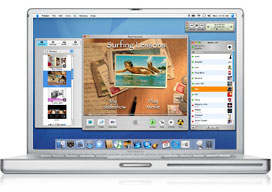 Apple no longer has a slower, lower-priced 15″ PowerBook (with earlier model, the entry-level machine ran at a lower CPU speed and had a Combo drive). The hi-res 15″ PowerBook G4 comes with a dual-layer 8x SuperDrive. As with earlier models, it includes Apple’s backlit keyboard. It now supports Dual-Link DVI by default (previously a $100 build-to-order option).
The use of DDR2 memory will probably improve performance. This was the final generation of PowerBooks, as Apple moved the Mac to Intel CPUs in 2006.
Battery life is rated at 5.5 hours, an hour longer than earlier models.
Closed Lid Mode: G4 PowerBooks support “lid closed” (or clamshell) mode, which leaves the built-in display off and dedicates all video RAM to an external display. To used closed lid mode, your ‘Book must be plugged into the AC adapter and connected to an external display and a USB or Bluetooth mouse and keyboard (you might also want to consider external speakers). Power up your ‘Book until the desktop appears on the external display and then close the lid. Your ‘Book will go to sleep, but you can wake it by moving the mouse or using the keyboard. The built-in display will remain off, and the external monitor will become your only display. Since all video RAM is now dedicated to the external monitor, you may have more colors available at higher resolutions. The TiBook is designed to run safely in closed lid mode, but if yours runs hot (perhaps due to overclocking or high ambient temperatures), you may want to open the lid when in closed lid mode: The screen will remain off and the computer will more readily vent heat from the CPU.
To resume use of the internal display, you need to disconnect the external display, put the computer to sleep, and then open the lid. This will wake up your ‘Book and restore use of the built-in display.
- Got a G4 PowerBook or iBook? Join our G4 ‘Books Group or PowerBooks and iBooks Forum.
- Got a PowerBook G4? Join the Titanium G4 email list.
- Our Mac OS 9 Group is for those using Mac OS 9, either natively or in Classic Mode.
- Our Tiger Group is for those using Mac OS X 10.4.
- Our Leopard Group is for those using Mac OS X 10.5 and 10.6.
Details
- introduced 2005.10.19 at US$1,999; replaced by MacBook Pro 2006.02.
- requires Mac OS X 10.4 Tiger and 10.5 Leopard
- CPU: 1.67 GHz G4 (7457B)
- Bus: 167 MHz
- Performance:
- Geekbench 2 (Tiger): 885
- ROM: 4 MB, NewWorld ROM in RAM architecture
- RAM: 512 MB, expandable to 2 GB using 533 MHz PC2-4200 DDR2 RAM
- Level 2 cache: 512 KB at CPU speed
- Video: ATI Mobility Radeon 9700 AGP 4x
- VRAM: 128 MB
- Video out: S-video and DVI connectors (VGA supported with adapter)
- display: 15.2″ (38 cm) 24-bit 1440 x 960 114 ppi color active matrix
- supports 1280 x 800, 1152 x 720, 1024 x 768, 1024 x 640, 800 x 500, 720 x 480, and 640 x 480 pixels at 3:2 aspect ratio; 1024 x 768, 800 x 600, and 640 x 480 pixels at 4:3 aspect ratio; 1280 x 800, 1152 x 720, 1024 x 640 and 800 x 500 at 16:9 aspect ratio
- allows mirroring to external display or extended desktop mode
- Hard drive: 80 GB 5400 rpm ATA/100 (120 GB 5400 and 100 GB 7200 rpm drives optional)
- optical drive: 8x SuperDrive DL writes DVD±R at up to 8x, DVD±RW at 4x, reads DVDs at 8x, writes CD-R at 24x, writes CD-RW at 10x, reads CDs at 24x
- floppy drive: external USB only
- expansions bays: none
- USB: 2 USB 2.0 ports
- FireWire: 1 FW400 port, 1 FW800 port
- IR port: none
- Ethernet: 10/100/gigabit
- Modem: v.92 56k
- WiFi: 802.11g AirPort Extreme built in
- Bluetooth: BT 2.0 built in
- PC Card slots: 1
- size: 9.5 x 13.7 x 1.1″ (241 x 348 x 28 mm)
- Weight: 5.6 pounds (2.5 kg)
- Part no.: M9969LL/A
Keywords: #15inchpowerbook #15inchpowerbookg4 #hirespowerbook
Short link: http://goo.gl/0QDQTO
searchword: 15inchpbg4hires
Online Resources




