Depending on the Mac you own, you’ll have a different range of ports available to you. As device standards change so do the cables and accessories that are to be used with them. At one point or another, we started to consider getting USB-C accessories as needs arise, although I held out for a while as accessories in general felt overpriced.
I’d get something small or just what I needed at the time, building a little collection along with some bonus adapters I found along the way. Whether you’re using a MacBook Air, a Neo, an iPad, or even a late intel MacBook Pro, here’s what ended up in my bag and why I thought it was a good idea. This article is an update to the 2025 article, with some new suggestions.
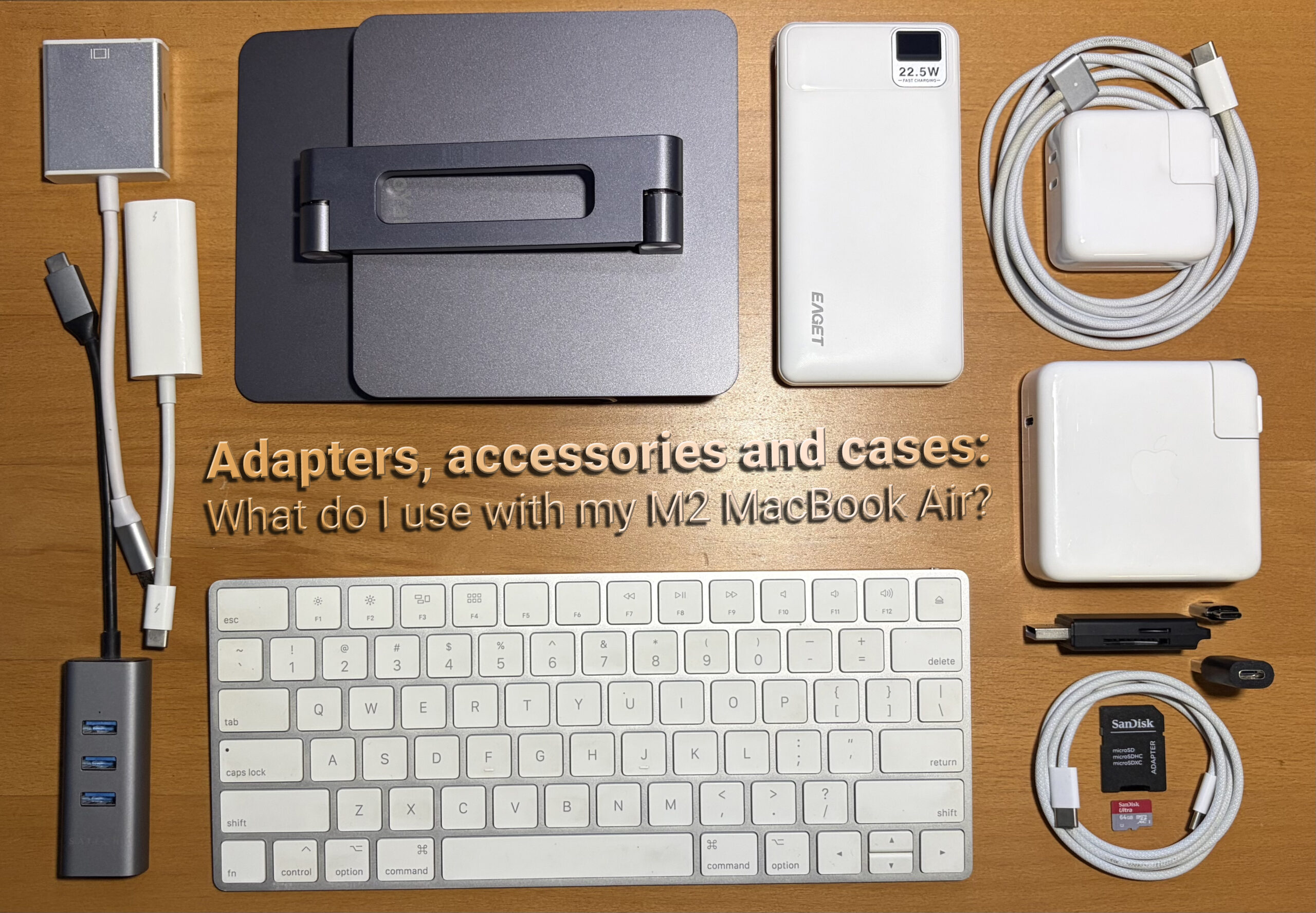
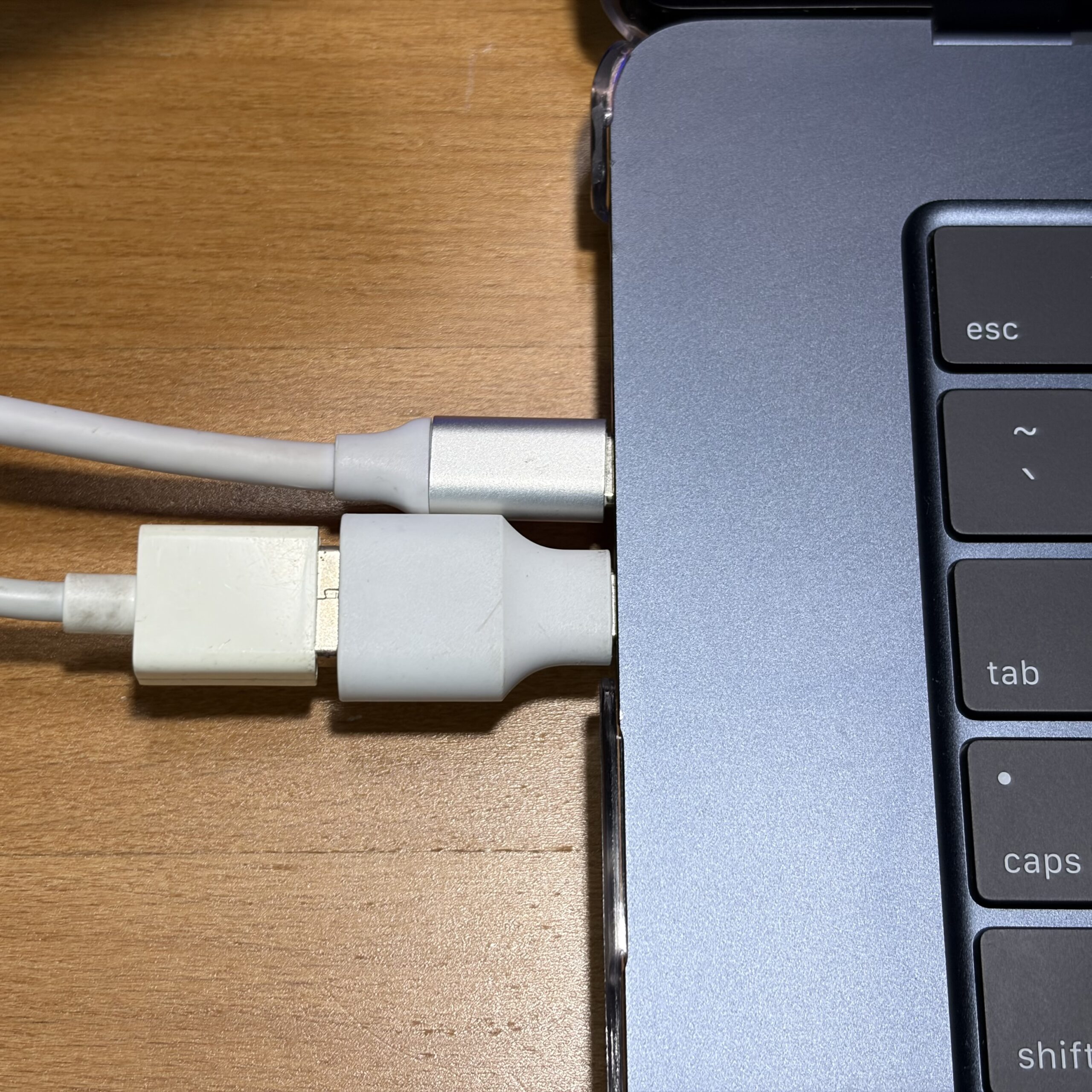
Adapt almost anything (USB-C to USB-A adapter)
 Think your adapter won’t work with your new ‘Book? Think again – I believe this is the most useful accessory out there, even if it’s only $2 on eBay. Mine came in a box along with a Samsung Galaxy S7 Edge many years ago, before switching to an iPhone X.
It’s just one of those things where you know you won’t use it all the time, but it’s fantastic to have just in case.
Protecting your ‘Book
Whether you’re protecting a new purchase or a well preserved vintage device, a case is one of the most effective ways to insulate your device from damage while using it.
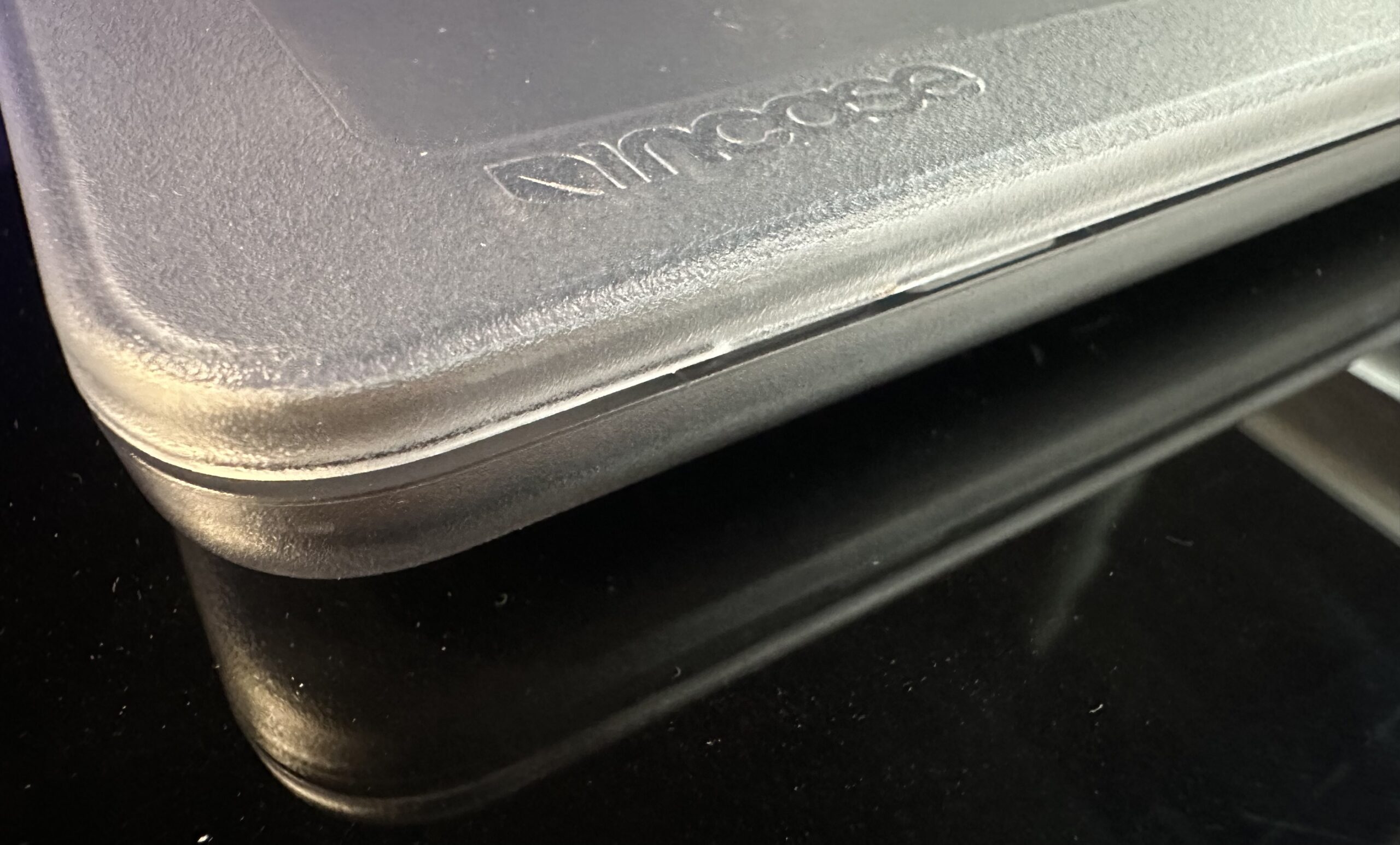
I enjoy the aesthetic quality of the devices I choose to own so I get clear cases. My biggest gripe with these over the years is how brittle some get after aging, and how some clear cases are susceptible to cracking with ease. Price isn’t always a factor either – I’ve bought $15 and $50 cases that cracked.
 |
 |
- Link: Incase Edge Hardshell Case for 15? MacBook Air (Apple)
. - Link: Cases and Protection for ‘Books (Apple)
When I had an M4 MacBook Air, I bought an Incase Edge Hardshell which was available at the Apple Store for $49.95. It was a very snug case, was made of good material, and seemed refined compared to other cases made for the same MacBook.
 |
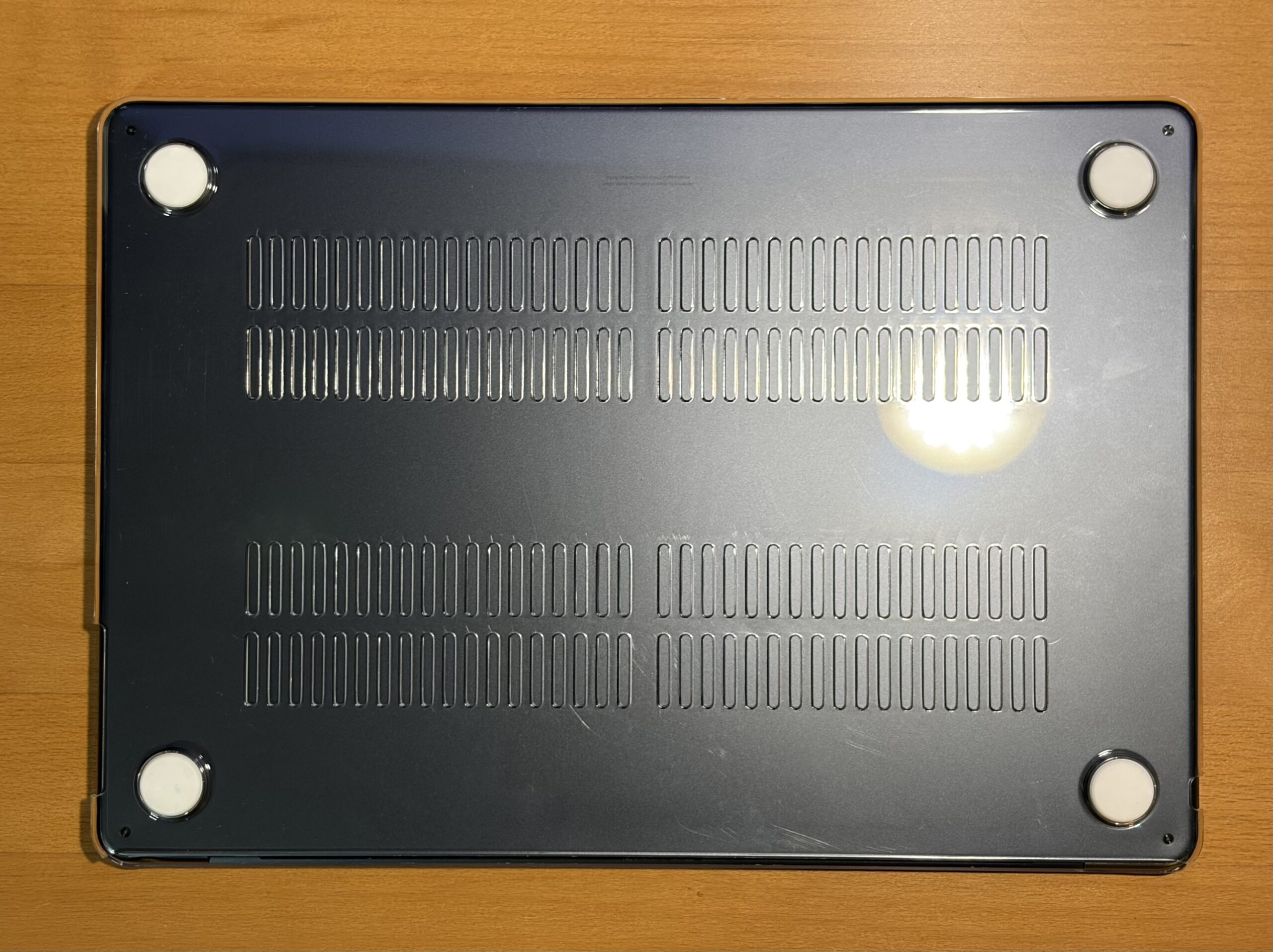 |
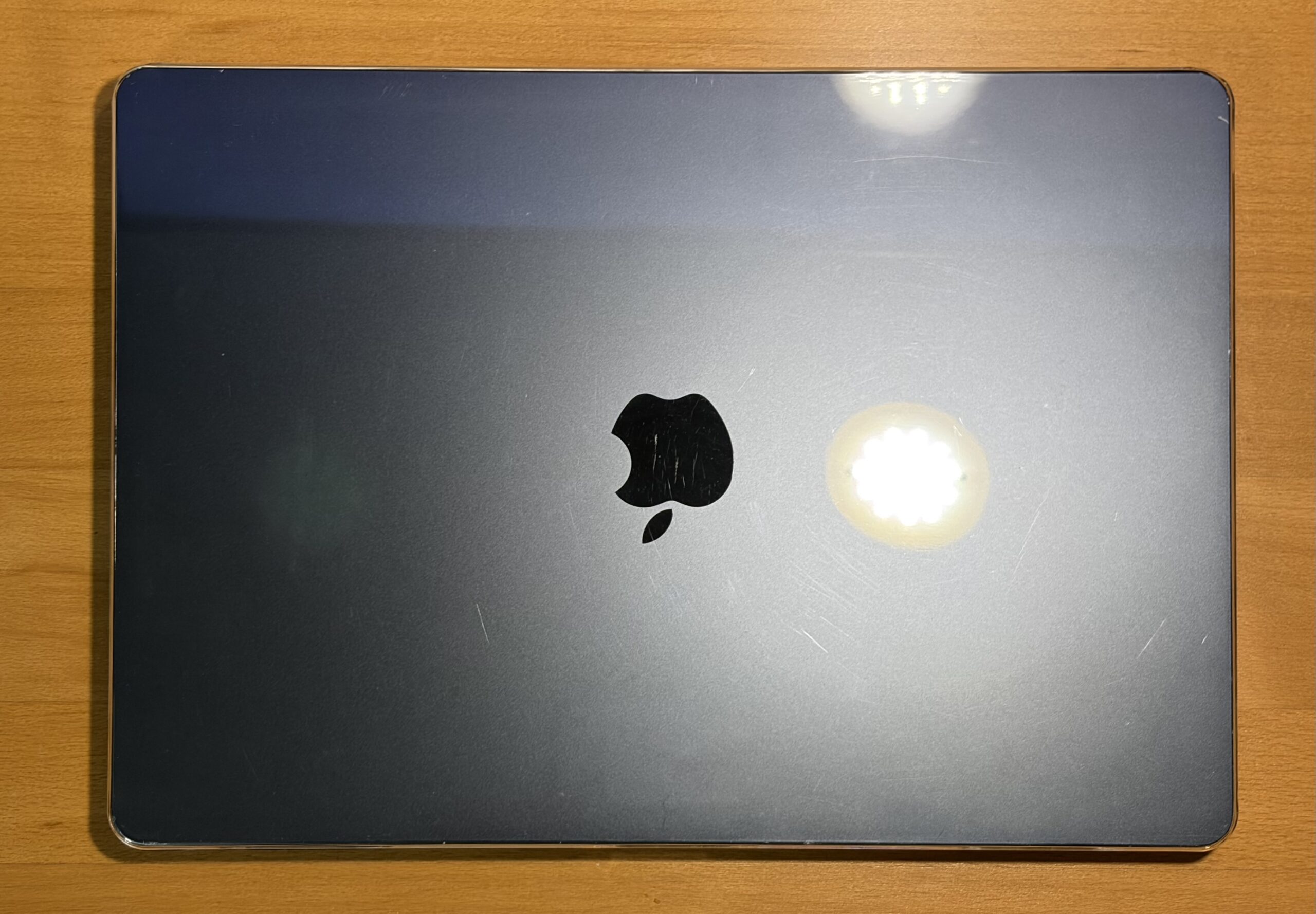
What I use now: It’s a $10 Amazon clear case and does the job of protecting against direct light impacts and scratches, like when carrying it or sliding into a backpack. It’s not as super tight like an Incase, but that makes it easier to remove and clean.
A mini-hub and an ethernet port
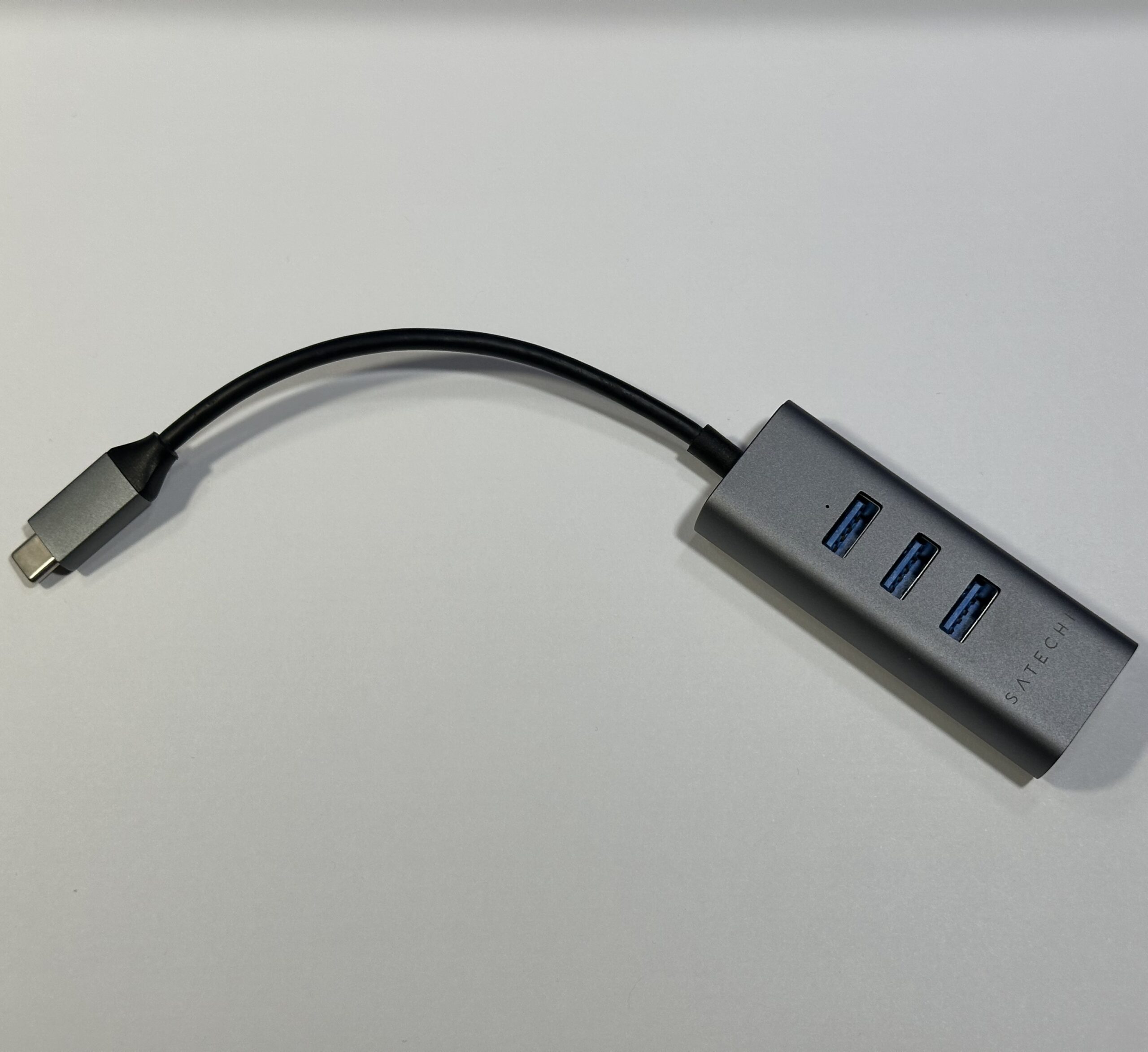 The Satechi USB-C to 3x USB-A 3.0 + Gigabit ethernet adapter is something that stuck around in my accessory box since I had the 2018 15? TouchBar. It’s not over-the-top, aesthetically matches space gray machines, and is priced seemingly around the same as other similar devices if doing a quick eBay search. Right now it’s only $29.99 on Amazon.
In truth I forgot how much I paid for mine, but it couldn’t have been more than $40. The metal casing is starting to slide, nothing superglue can’t fix.
See: More SATCHI Hubs & Adapters on their website.
Most of the time it’s plugged into my M4 mini on my desk, so I think it’s time to either get a new hub for the Air or the mini.
Keep using that Aluminum Cinema Display with Apple Silicon
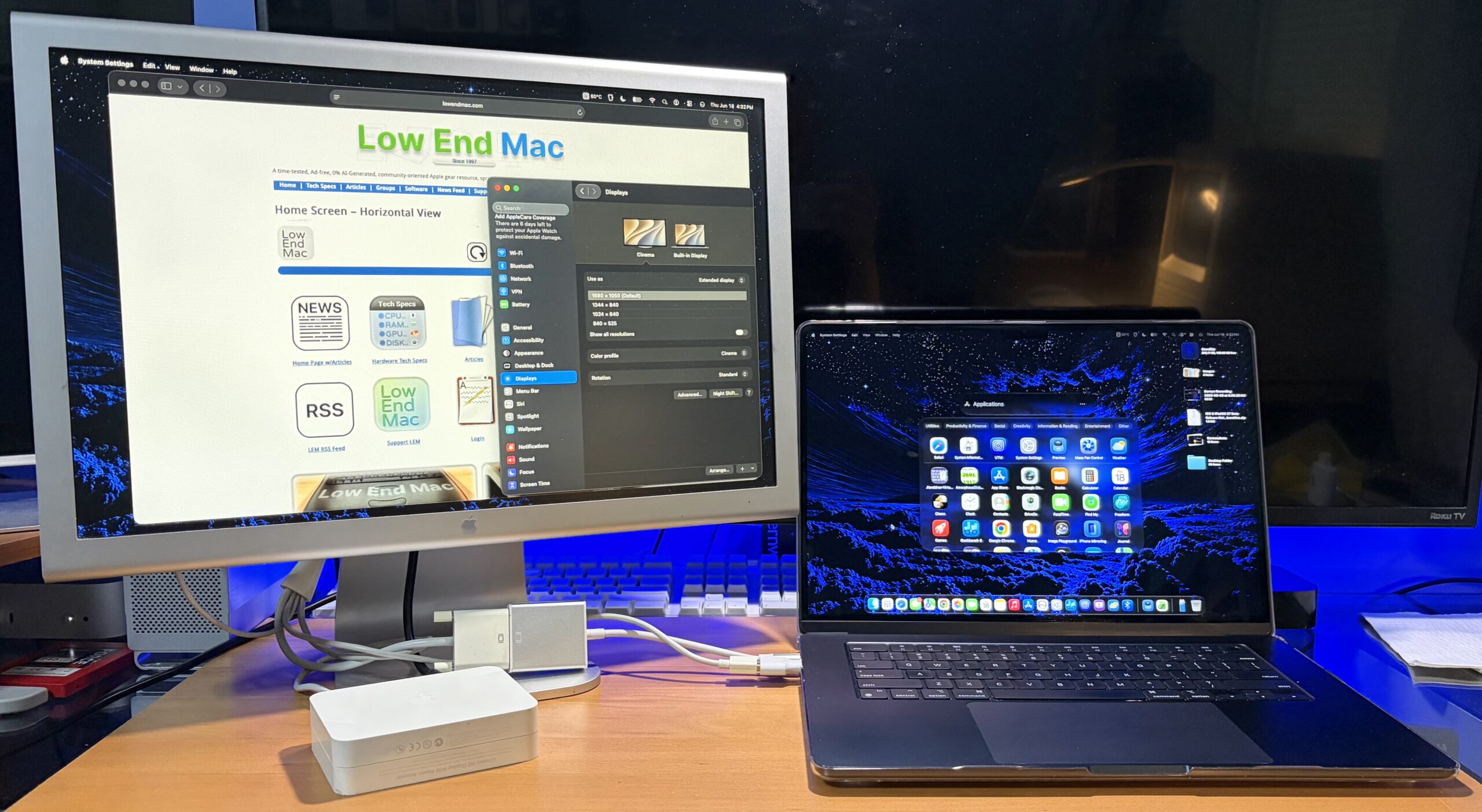
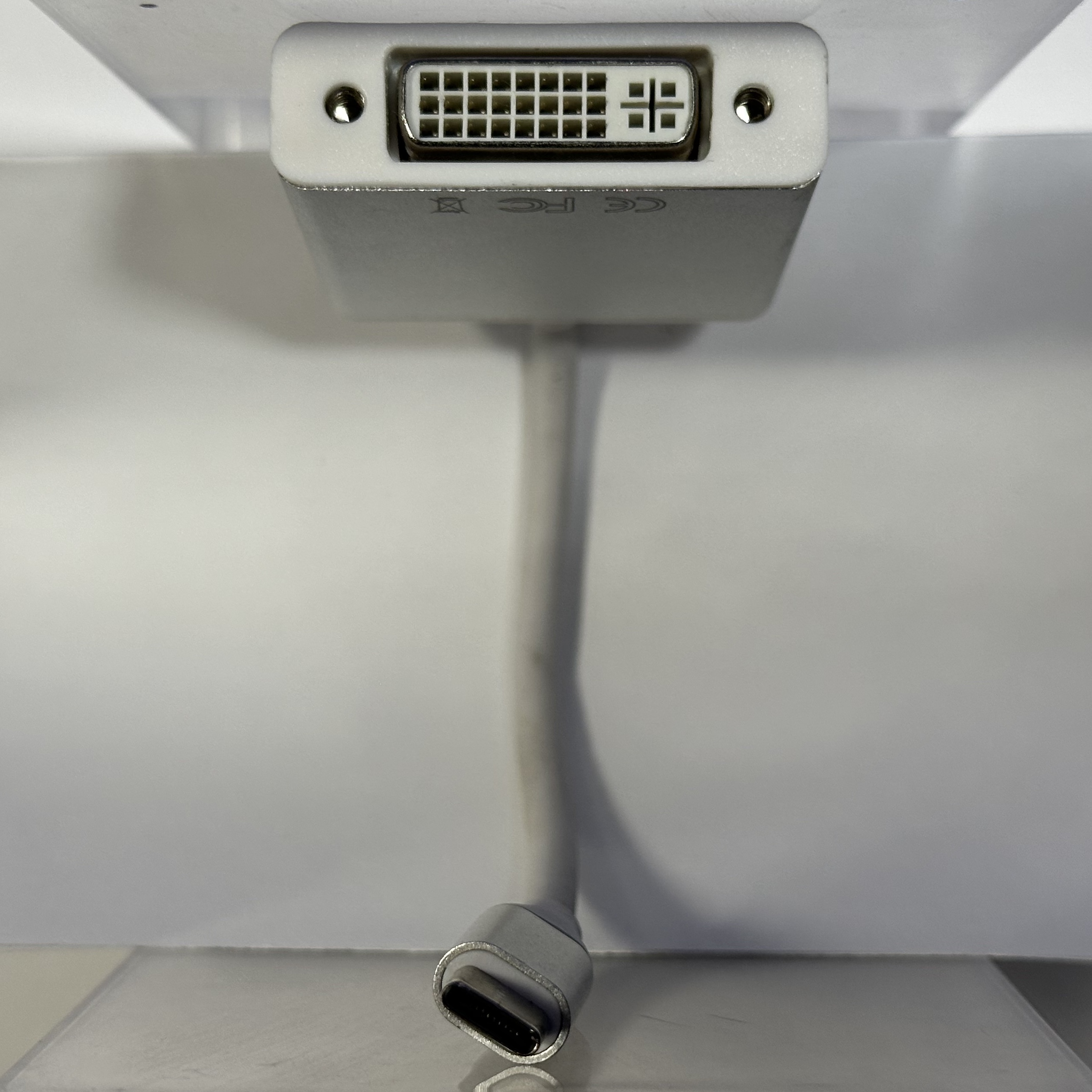
Unlike the Macs made 20 years ago, an Aluminum Cinema Display can be adapted to work on an Apple Silicon Mac. This was a generic $26 single-link adapter from back when I was setting up an M1 Mac mini as a daily driver. Works great for the 20-Inch Aluminum Cinema Display and the M2 Air.
 |
 |
Dual-Link DVI adapters are a little more and I haven’t picked one up when I could. Although some have said an Amazon adapter works for them in conjunction with a mini-display port to Dual-Link DVI adapter.
Fast Charging by saving your old Power Brick
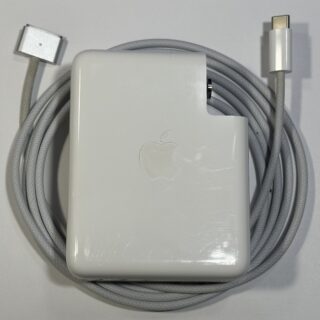 Did you know..?
The M2 MacBook Air supports fast charging using the higher-watt charging bricks like those on the MacBook Pro. The Air ships with a smaller charging brick and supports regular charging speeds.
When trading in your old ‘Book to get a new one at Apple, they let you keep accessories including the charger. If you turn them in, they’ll recycle it – keep your old ones. Better than spending at all but if you have to.. Anker has a 100W brick for $29 recommended by 9to5Mac on Amazon.
My own Setup: A 140W Apple USB-C brick stays at home, and the slightly smaller 87W Apple USB-C brick is what I take with me in the bag, since the MacBook Air only needs 70W to fast charge.
No SD card slot? No problem.
If you need an SD card slot in a pinch but don’t use one all the time.. or if you’re stuck with a perfect set of circumstances that force you to get an external SD card reader.. the good news is these adapters are plentiful and cheap.
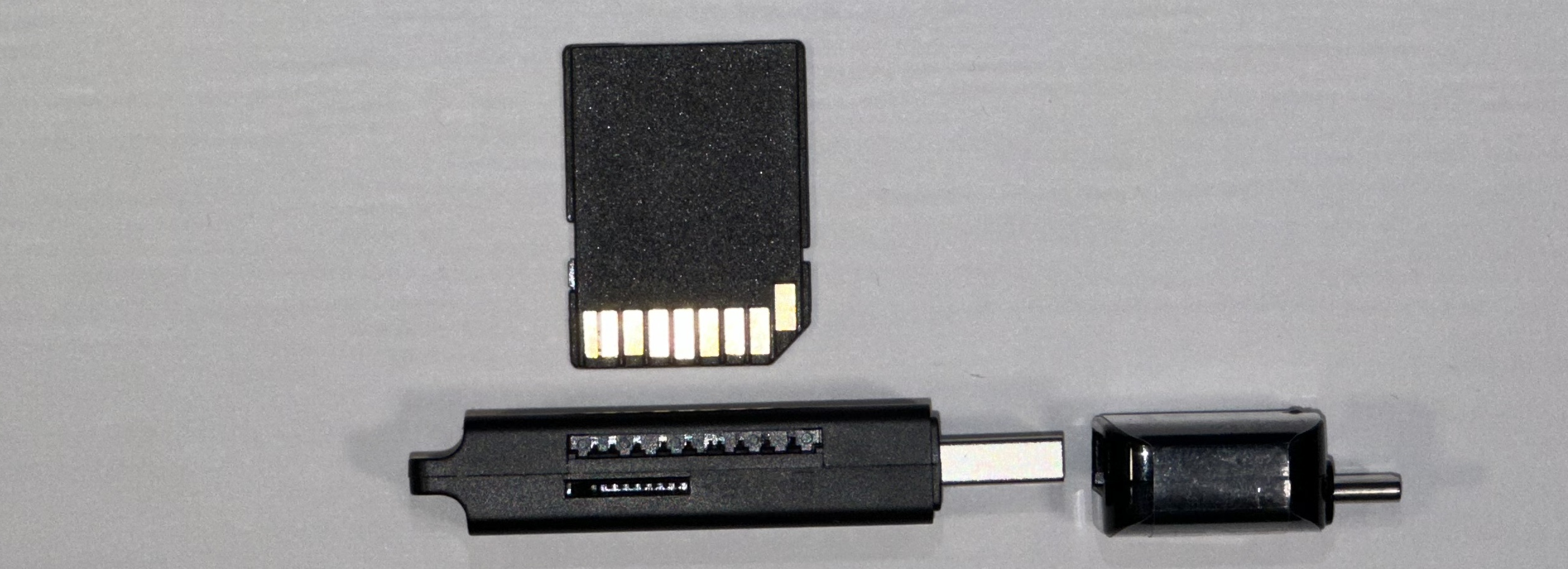
Accidentally picked one up with a USB-A port instead of a USB-C port? No problem, that $2 USB-C to type-A adapter will have you covered.
Connecting to an external display
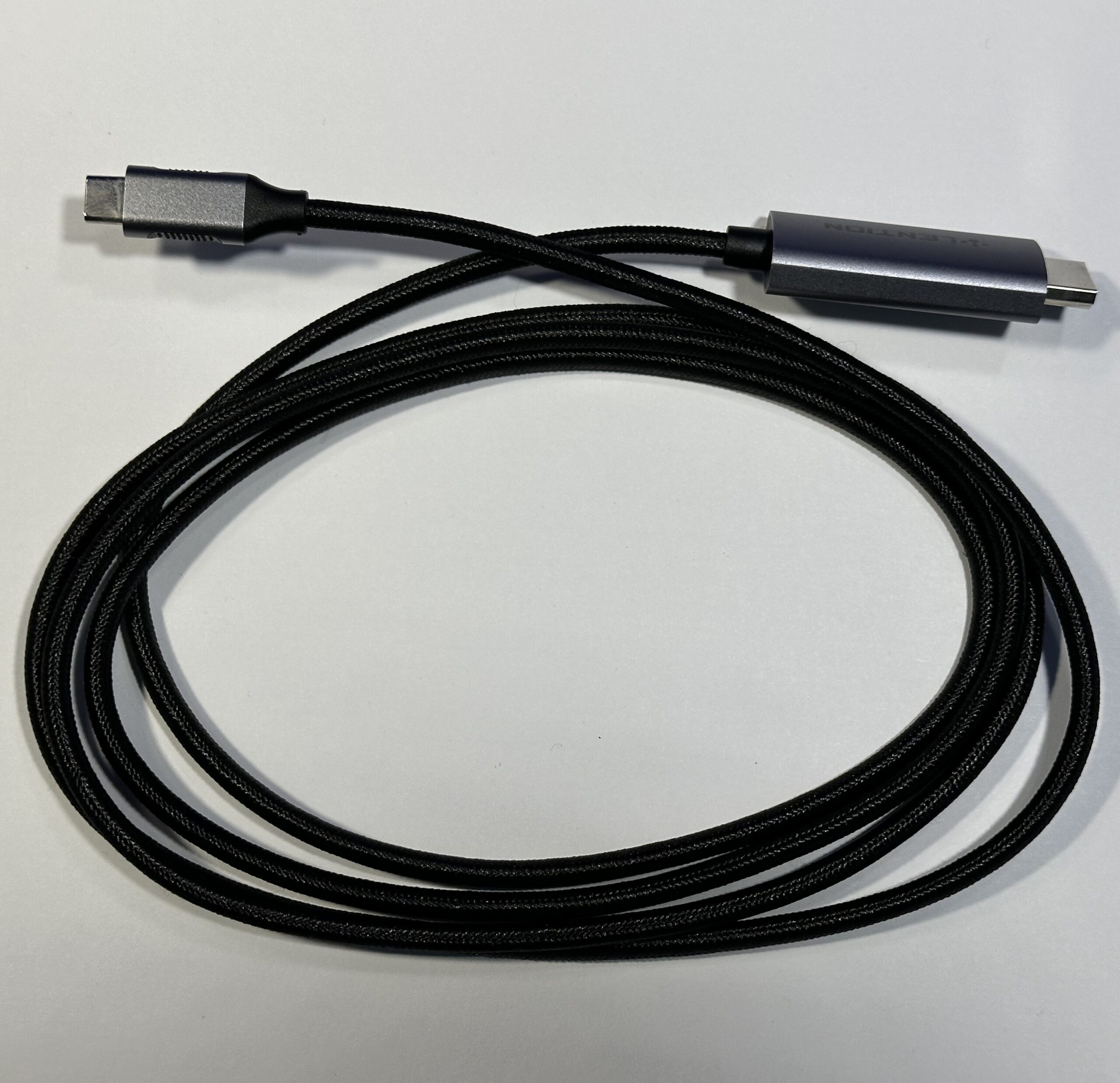 Not all adapters are made equal, it’s good to keep that in mind when shopping around. Even though specifications have improved over time and generally manufacturers will swim with the current, you can still end up buying something unusable simply by not checking twice and all over.
When I picked up my M4 MacBook Air over a year ago, I made the foolish mistake of buying a USB-C to HDMI cable that ran with HDMI 1.4. It was limited to 30 Hz at 4K so I had to pickup yet another cable. This cable now remains as spare, which I ended up using for the M4 mini to hook up to a third display on my desk.
At first I didn’t think anything of it, I figured it’d be okay to fly with 4K30Hz since all that was needed was far more screen space to work with, to get things done. I had absolutely no idea I would get stomach-motion sickness from trying to use the screen like that. Once I switched to 60 Hz, my stomach-motion sickness stopped.
A low-cost, large-size external drive
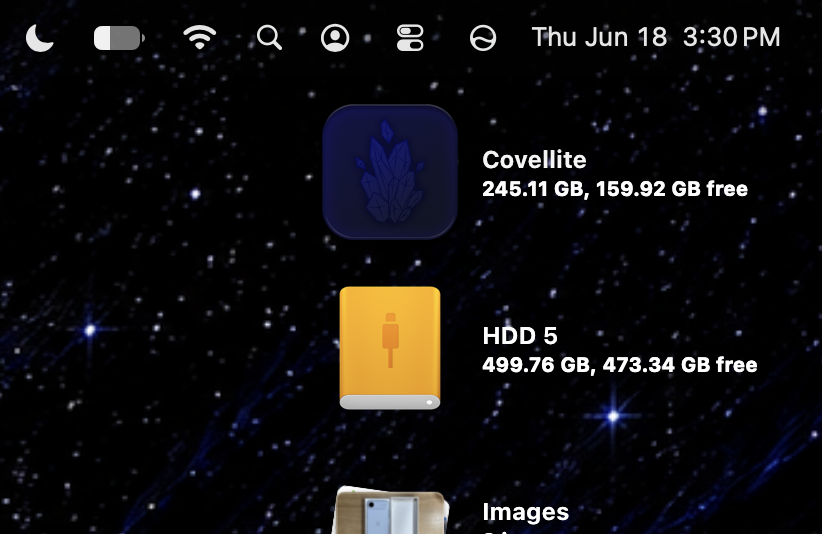
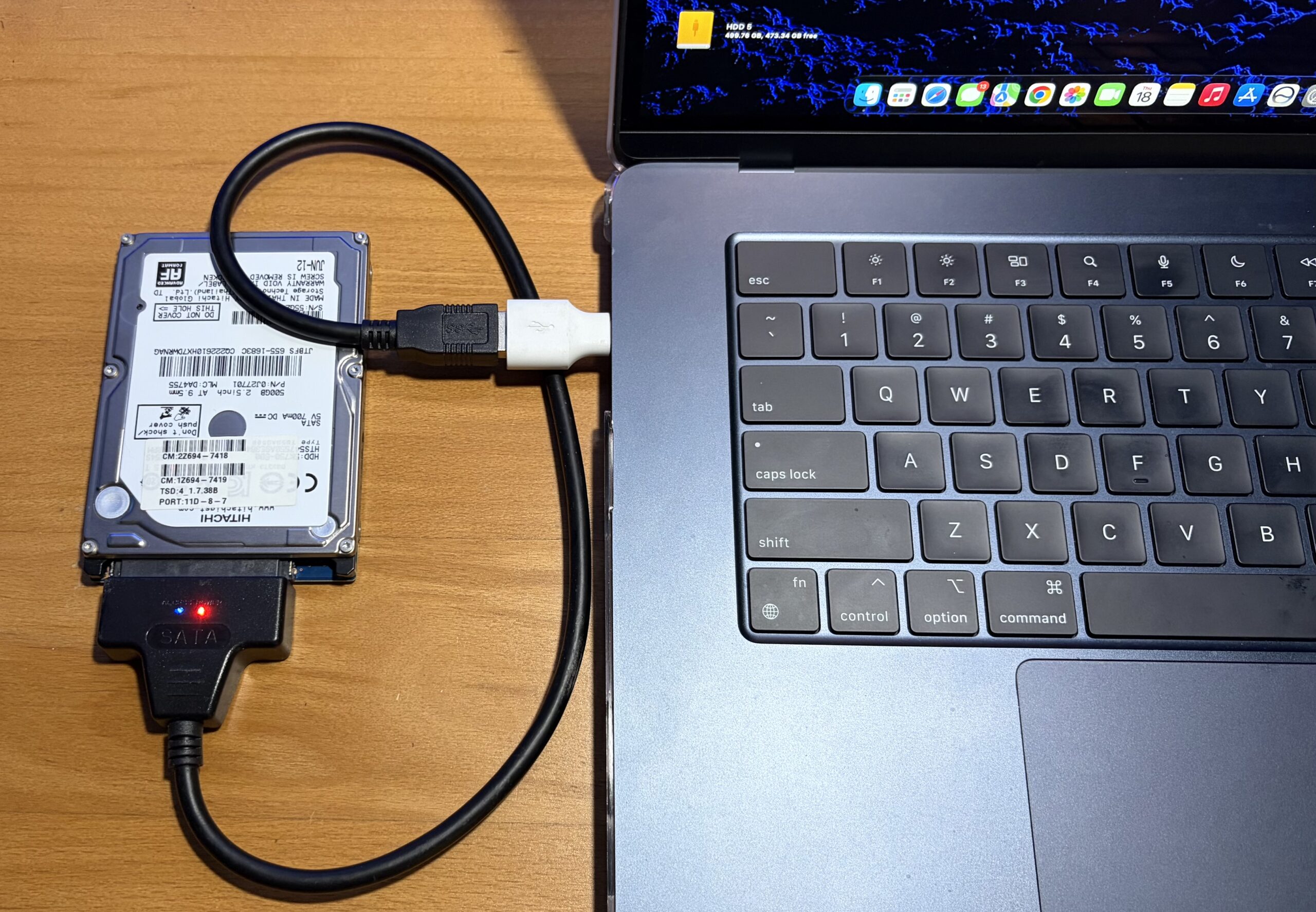
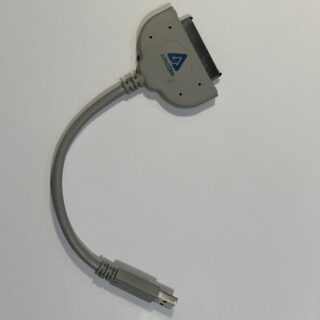 USB-C to SATA adapters exist and are as easy and cheap to find as your standard USB-A to Sata cables. I have my trusty Apricorn SATA 6G USB 3.0 adapter, and just use that USB-C to Type-A adapter instead of getting a whole new SATA adapter.
Old laptop drives are tossed out frequently as they’re no longer the preferred primary storage method, and the industry has generally moved onto Solid State Drives for increased performance. You can literally get a 500 GB drive off eBay for just $10, and it’s not too slow at copying stuff.
 |
 |
Getting yourself a versatile and sturdy laptop bag
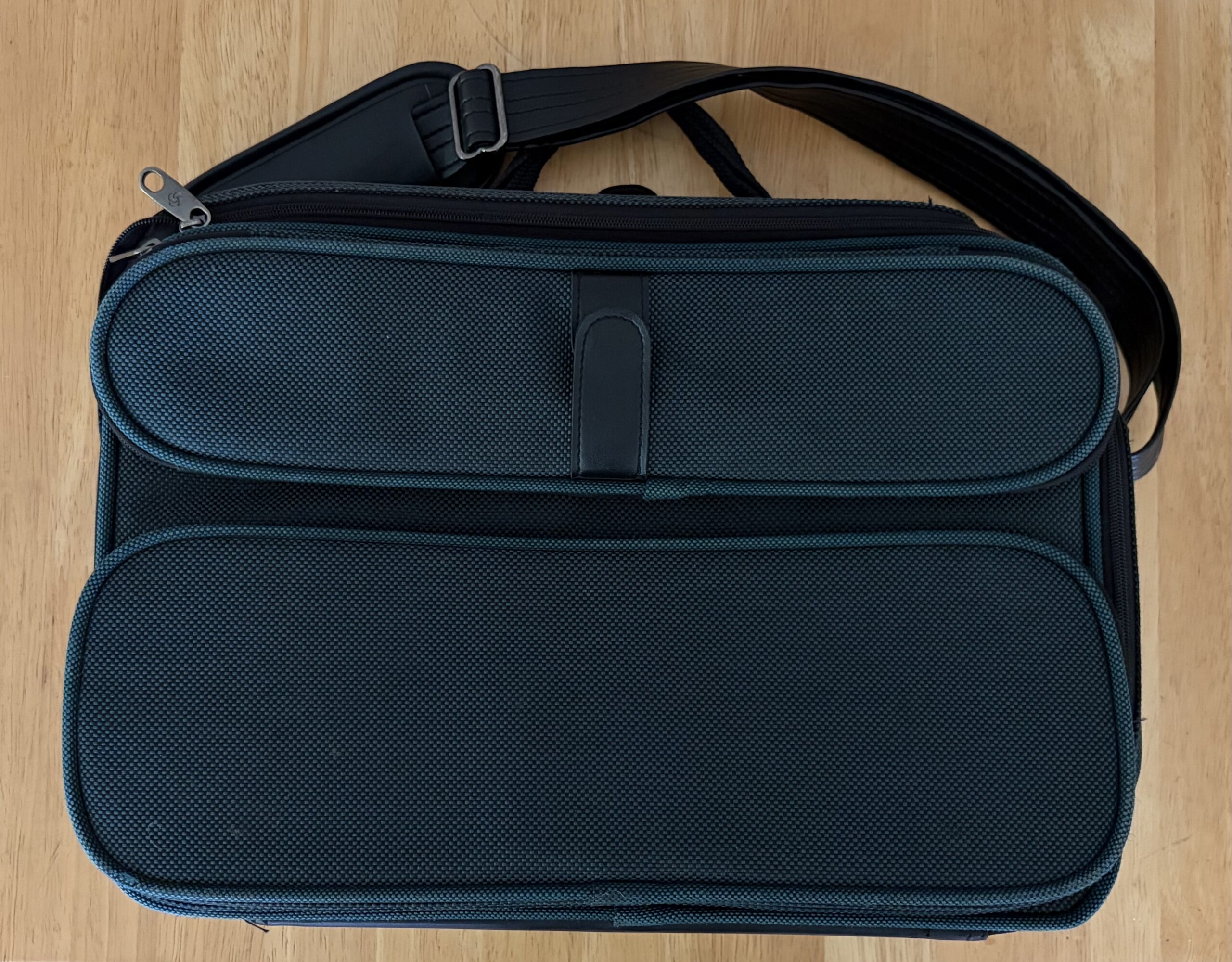
Your local off-price department store might have a laptop bag you’re looking for without breaking the bank – saving money by buying something that was overstocked or closed out but still new. You may even find something nice at a yard sale, and later clean it/sanitize it.
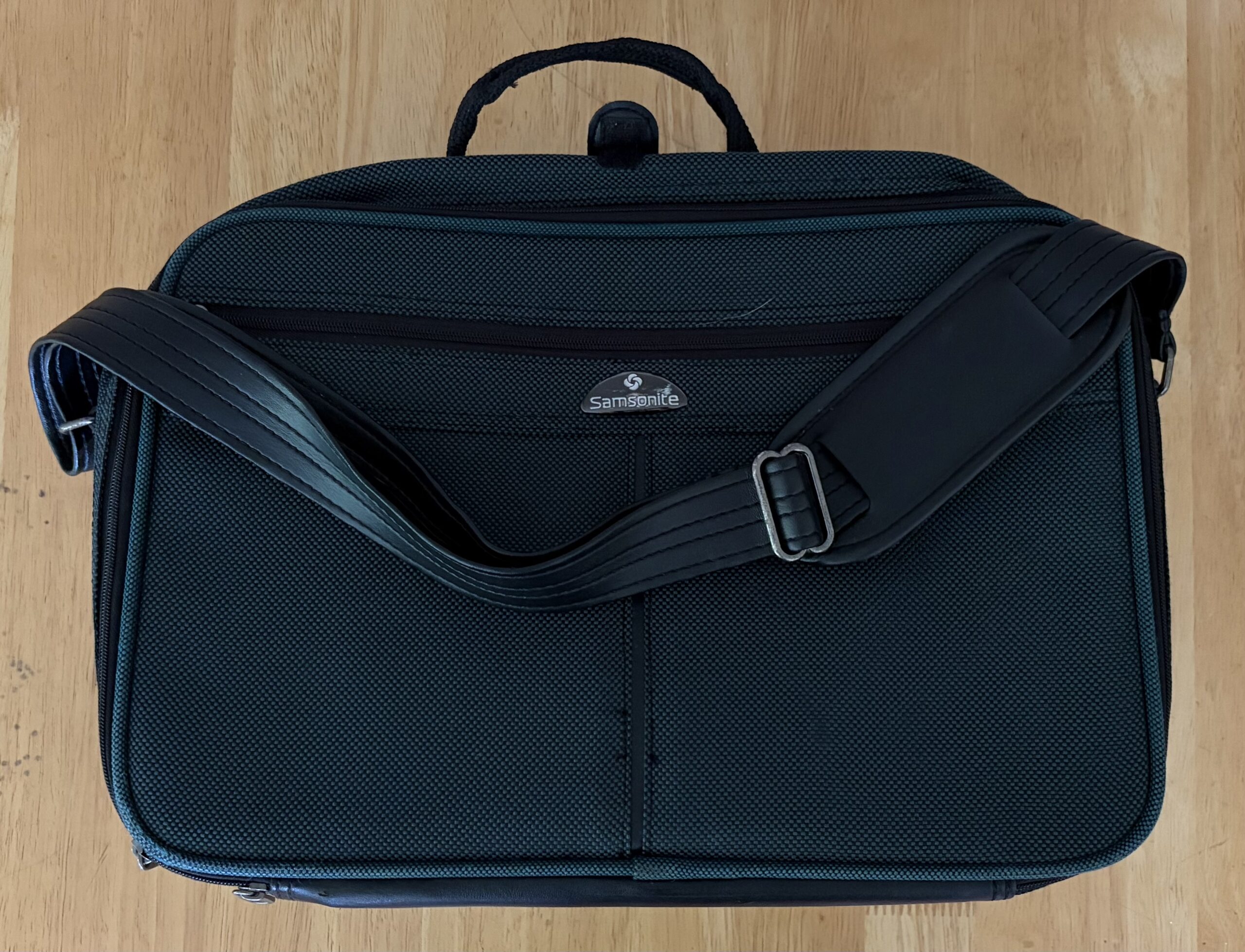
While you can often find a cheap laptop bag for under $30, most tend to be more fabric-y, lack rigidity, and feel less safe from drops. Mine doesn’t have a frame/sturdiness to it so I might replace it at some point, but it’s convenient.
 |
 |
.
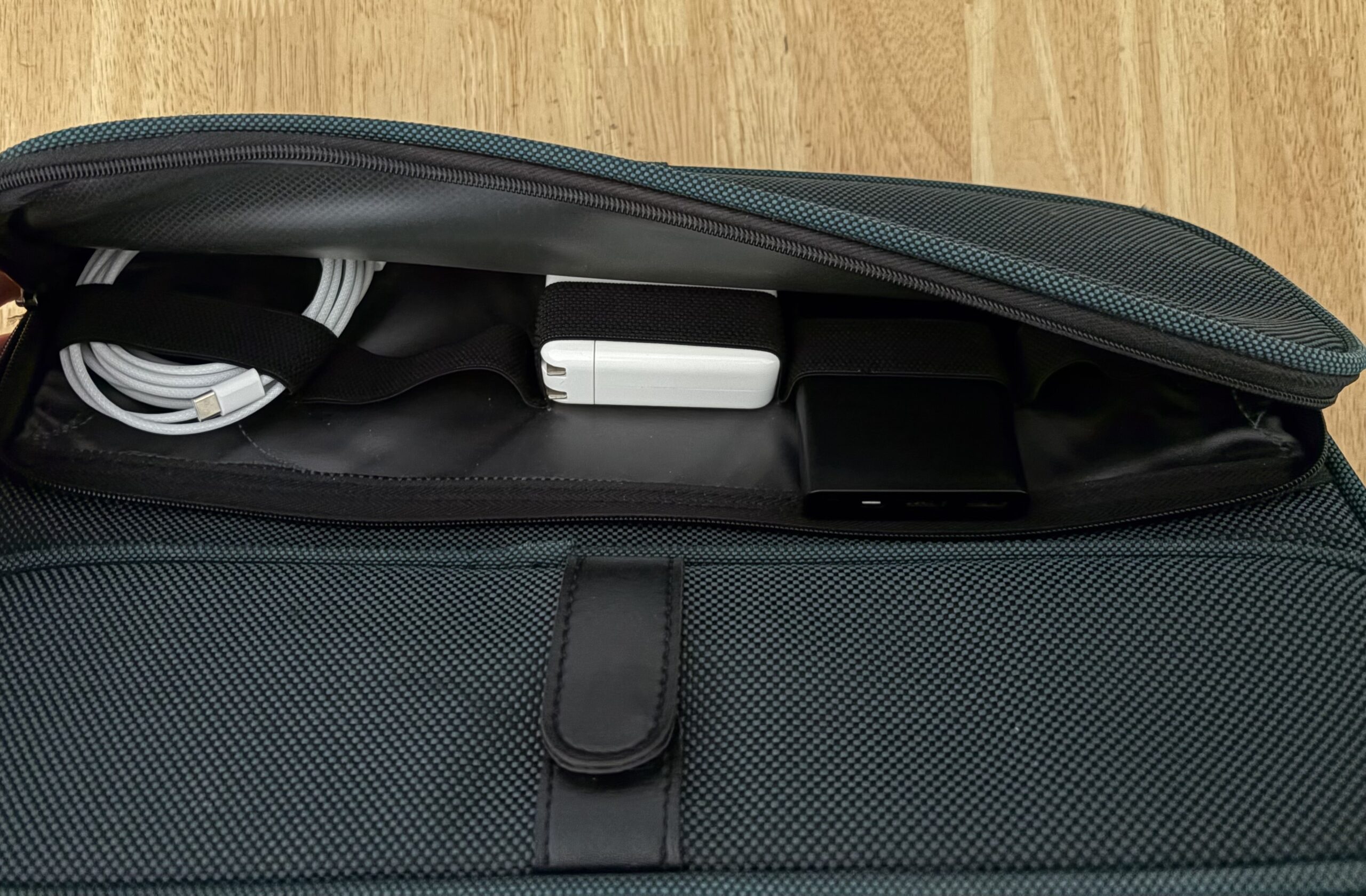
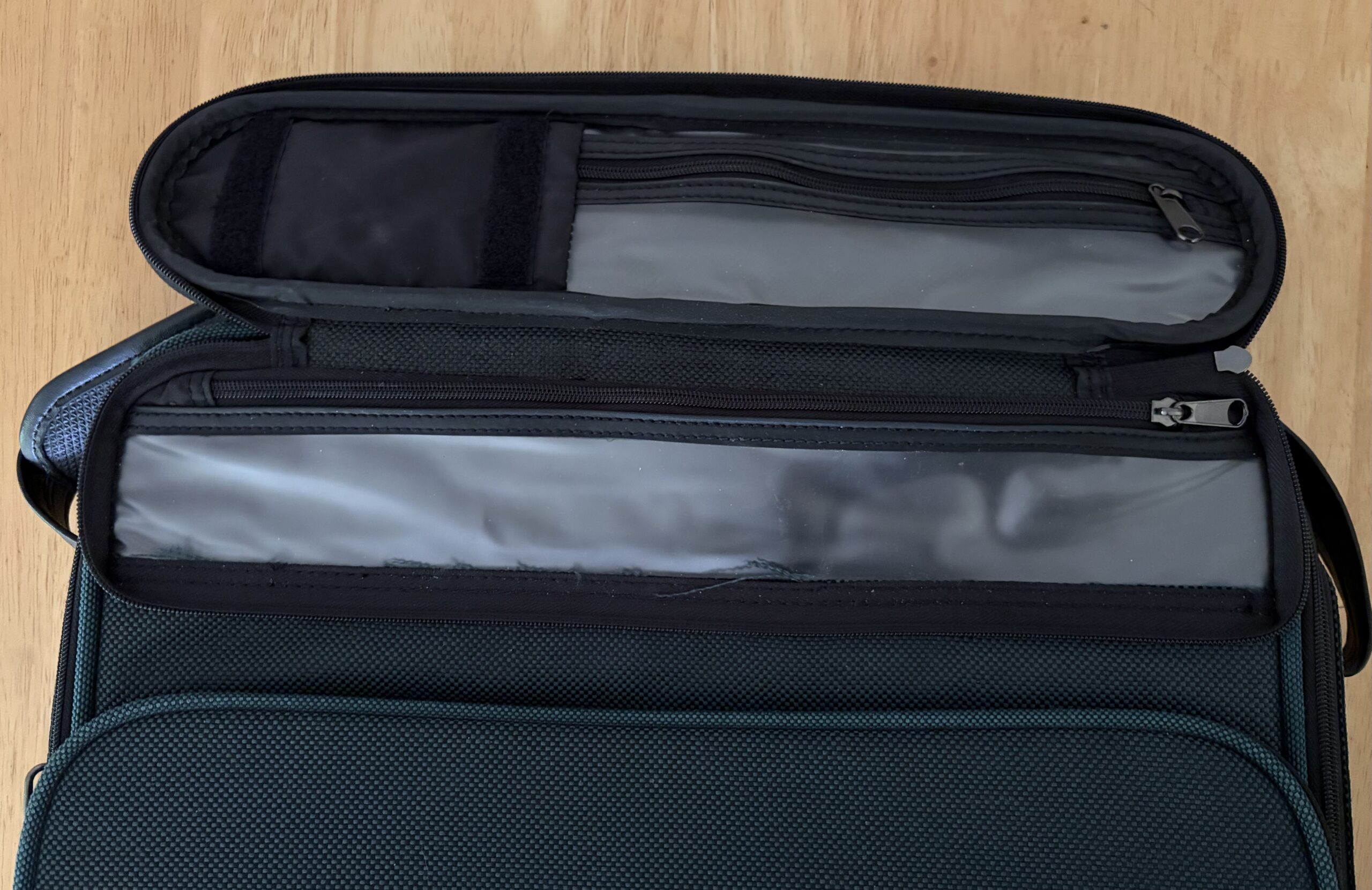
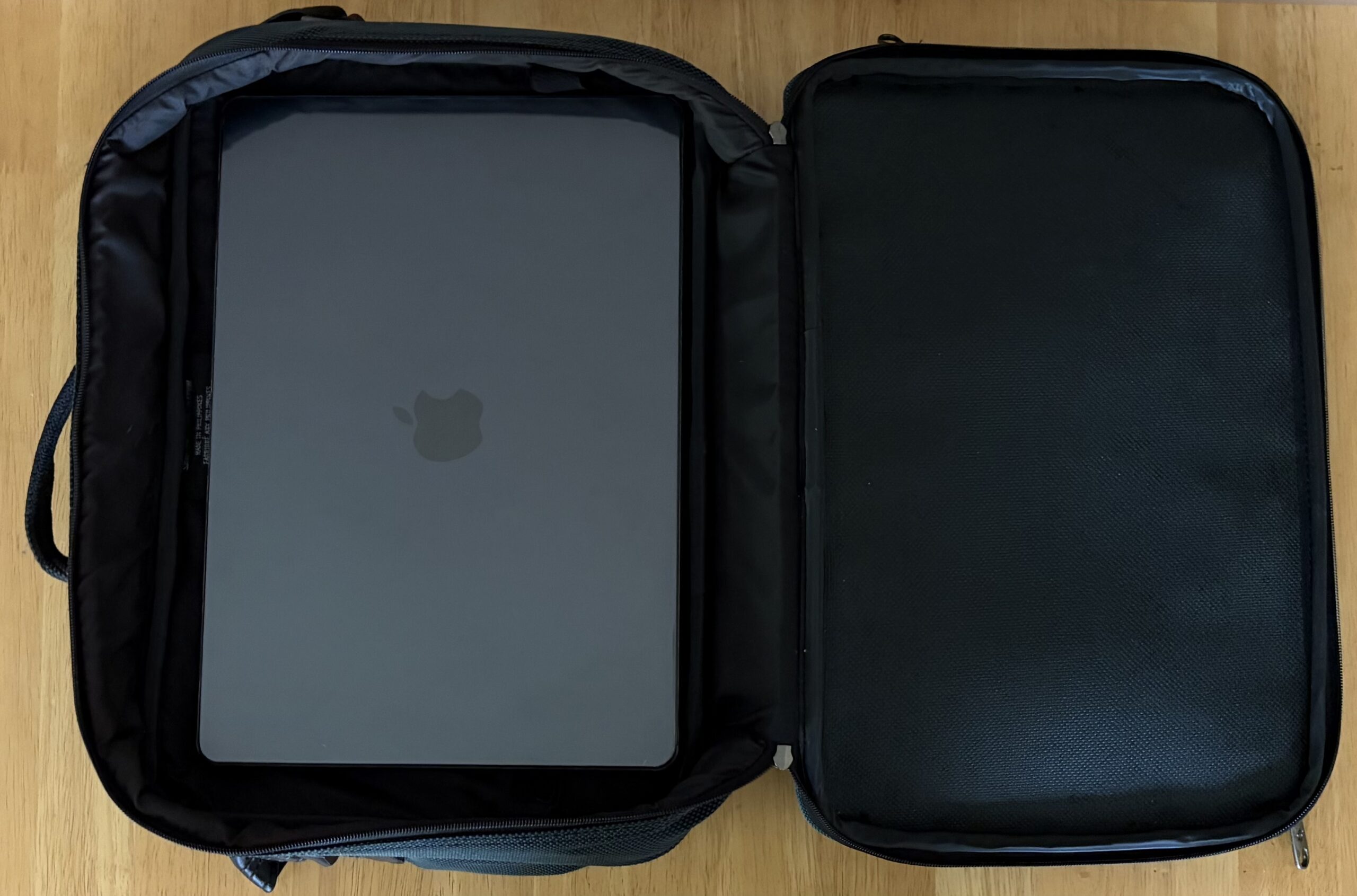
- I like how this one has multiple straps inside a separated compartment, perfectly segmented for things like: Power Banks, USB-C power bricks, wrapped-up USB cords, and more.
. - The top compartment is a little smaller, and can be good for a long extension cable tucked away, or other small items you wouldn’t want jostling around with the MacBook.
.
 |
 |
.
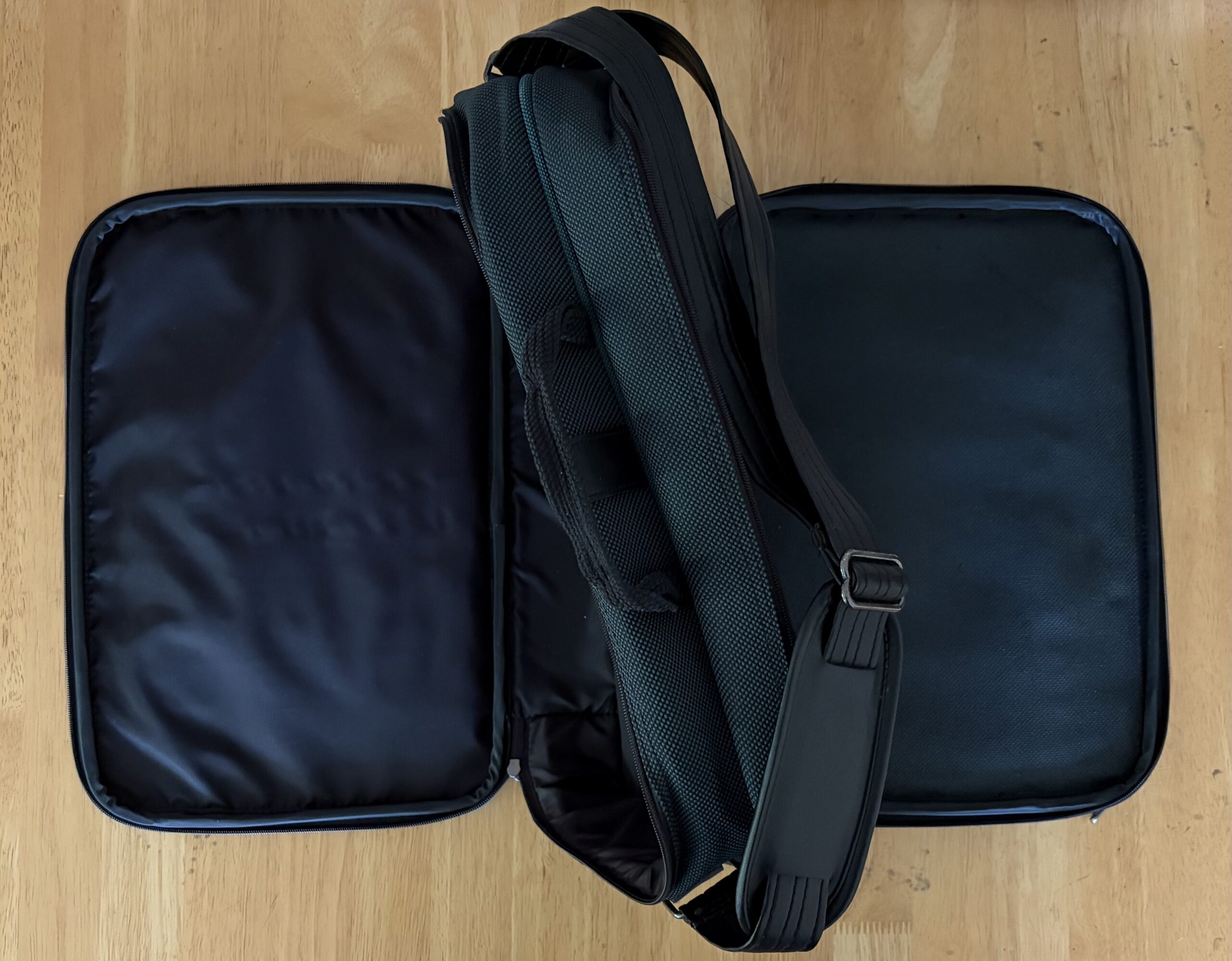
- There’s room for a second notebook altogether, or you can take other items with you if you’re going on a trip!
 |
 |
.
Charge anywhere
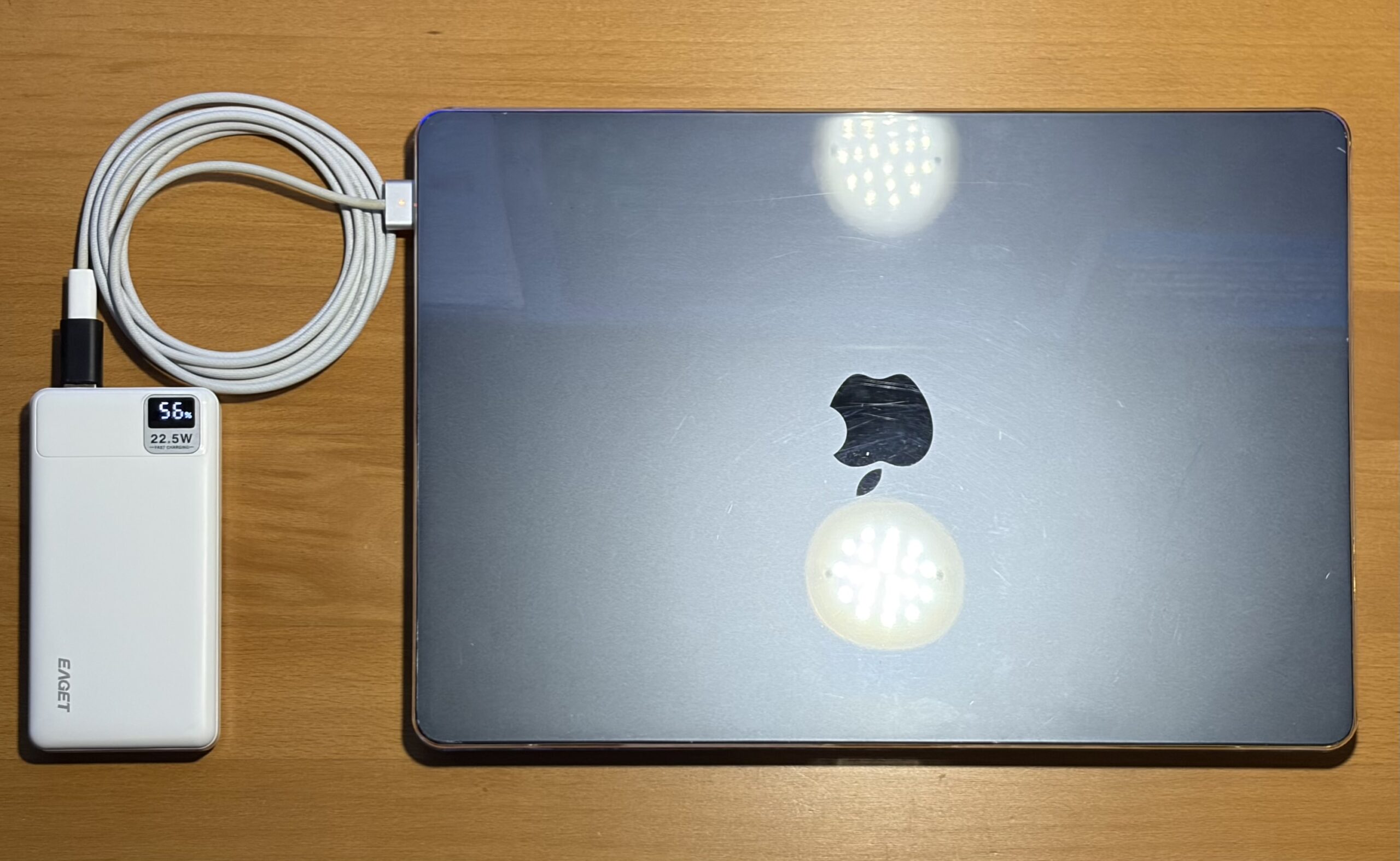
A portable power bank can be very useful and timely in certain situations, such as: Your cord isn’t long enough to reach the wall, no outlets are nearby, or you’re out and about and need to charge. In order to properly charge a Mac off a portable power bank, you’ll want something rated for at least 35 W and those tend to cost in the ballpark of ~$50 or more.
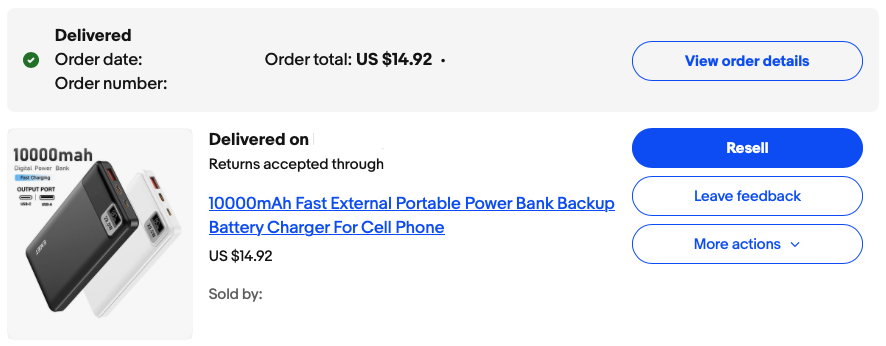
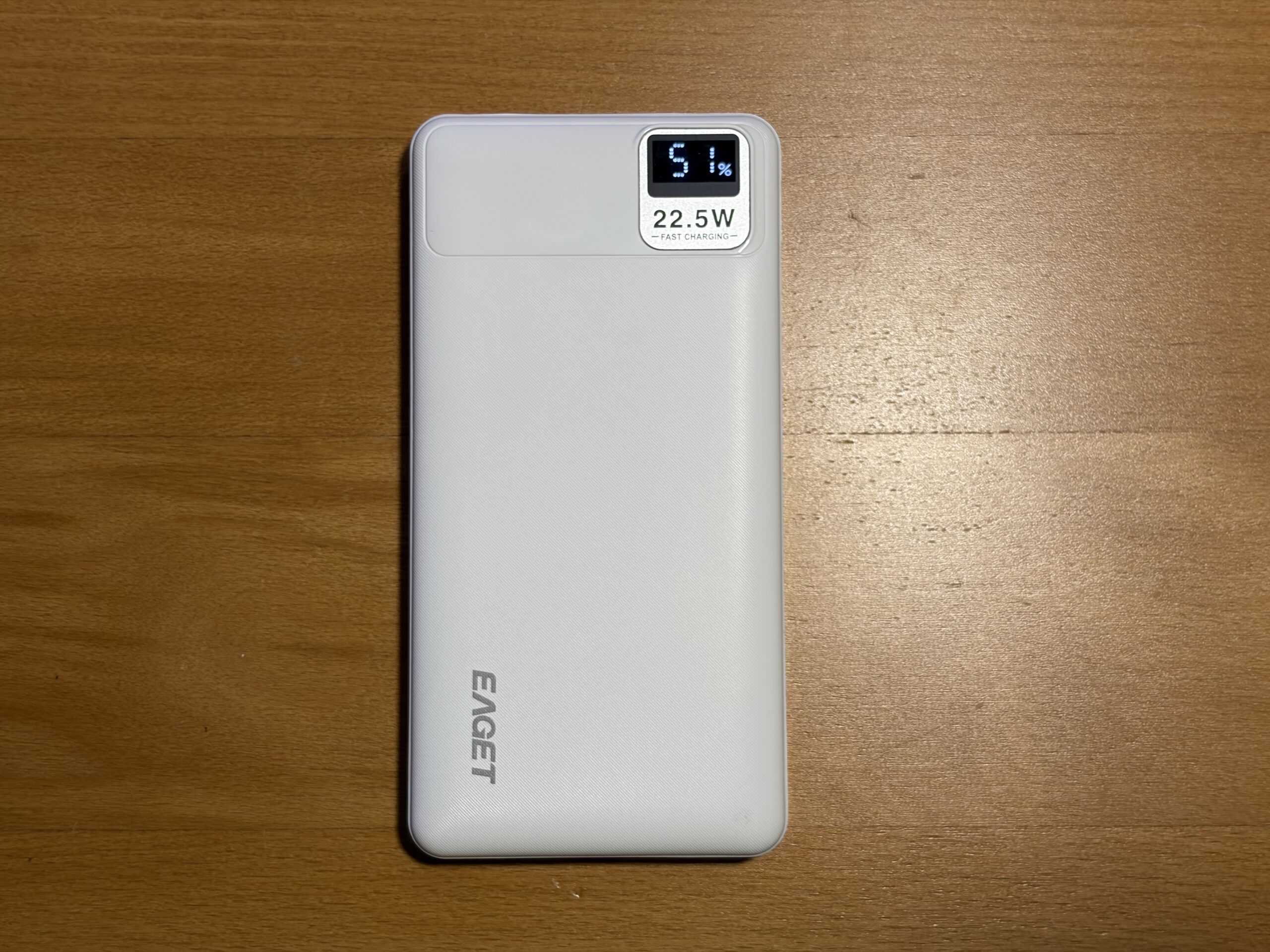
I went on eBay and bought a $15 10,000 mAh portable power bank, which was advertised to have 22.5W fast charging. While I don’t have anything to test how many watts are actually being delivered, it’s able to charge my iPhone several times over and can trickle charge the MacBook Air while it’s sleeping. Not exactly the same as being able to plug-in and charge while it’s on, but it’s something.
 |
 |
At the desk
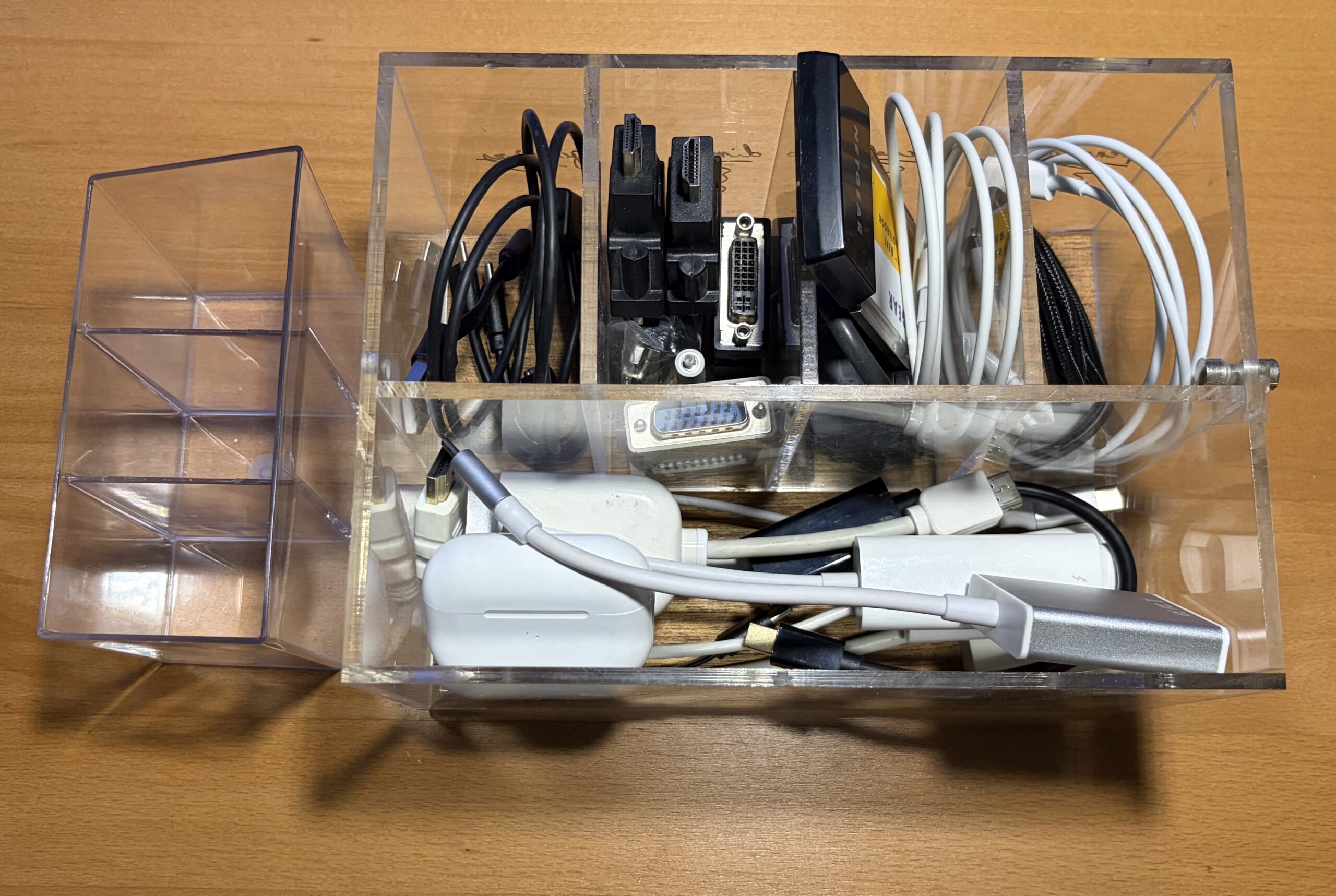
Your local dollar store, off-price department store, eBay, or even art stores can have small low-cost plastic organizers like these, perfect for separating adapters and categorizing them so they’re not laying around everywhere or stuffed in a box.
An ultra slim OEM keyboard
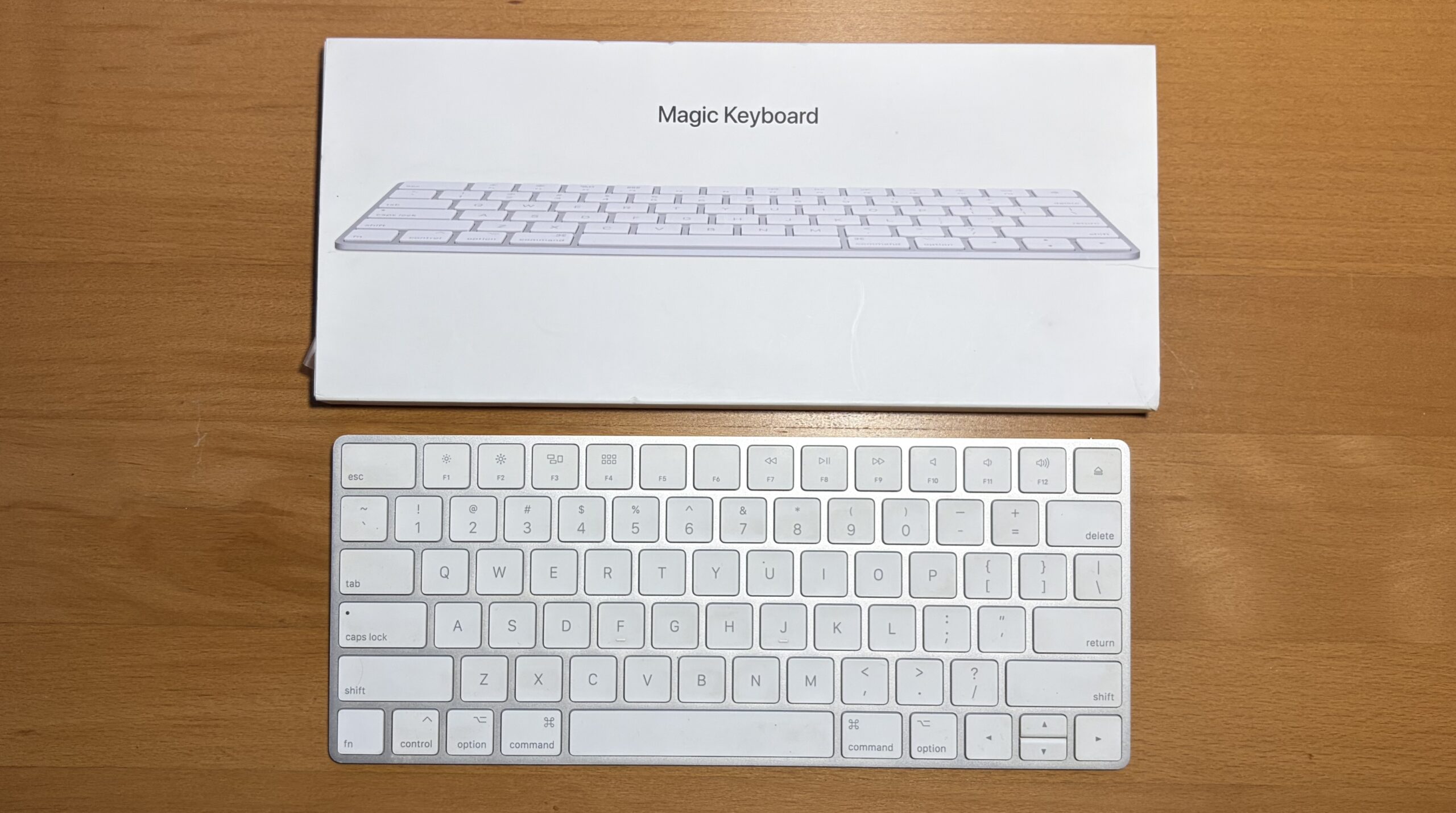
Since the keyboard on my MacBook Air is not fully functional, I have a wireless bluetooth keyboard in the laptop bag with me, fits right inside one of the slim compartments. Many of the older wireless Apple Keyboards can be found secondhand for far below their original cost.
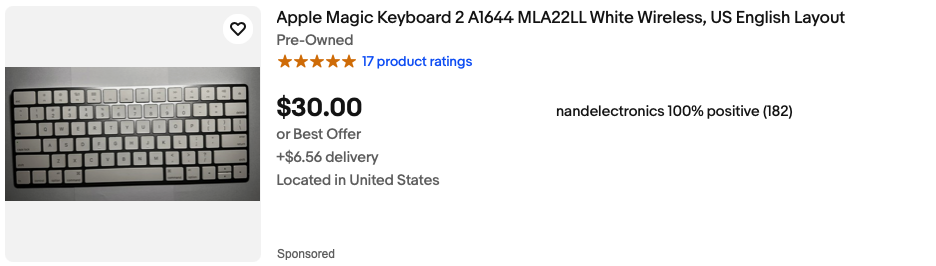
- Mine is an A1644, which came alongside the Magic Mouse 2 and Magic Trackpad 2 in the late 2010s. These are charged using a lightning cable, and can be found under $40 on eBay.
A stand for your iPad, or clamshell mode for the ‘Book
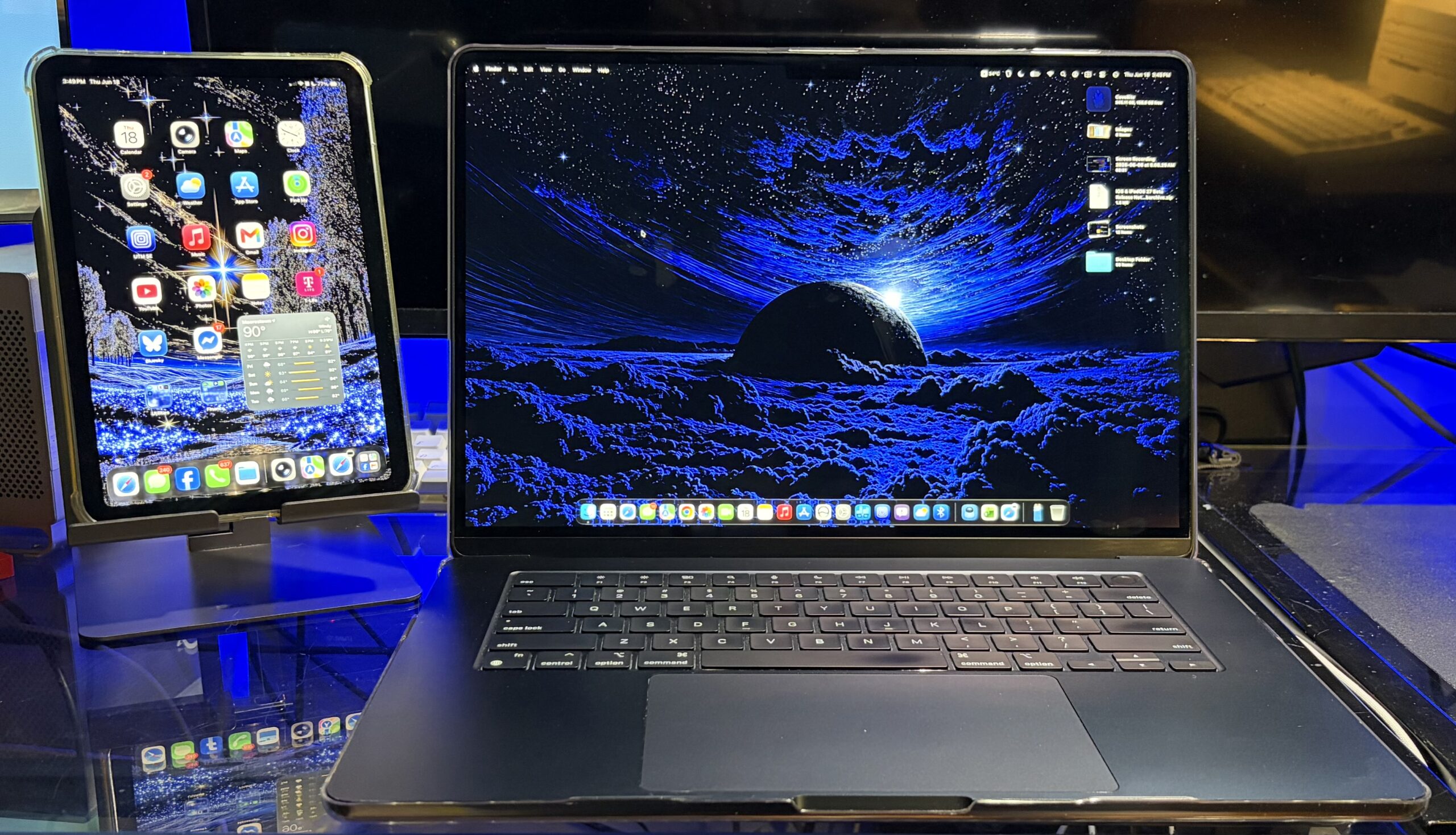
This is actually an iPad stand, but I find it’s able to comfortably support my Mac vertically upright also. For something this small it’s probably best to have the Mac sit trackpad-down for clamshell mode, to not put stress or weight on the bottom/rear of the display. They make accessories out there more tailored for this specific purpose, I just figured it’s “doable” with this too.
 |
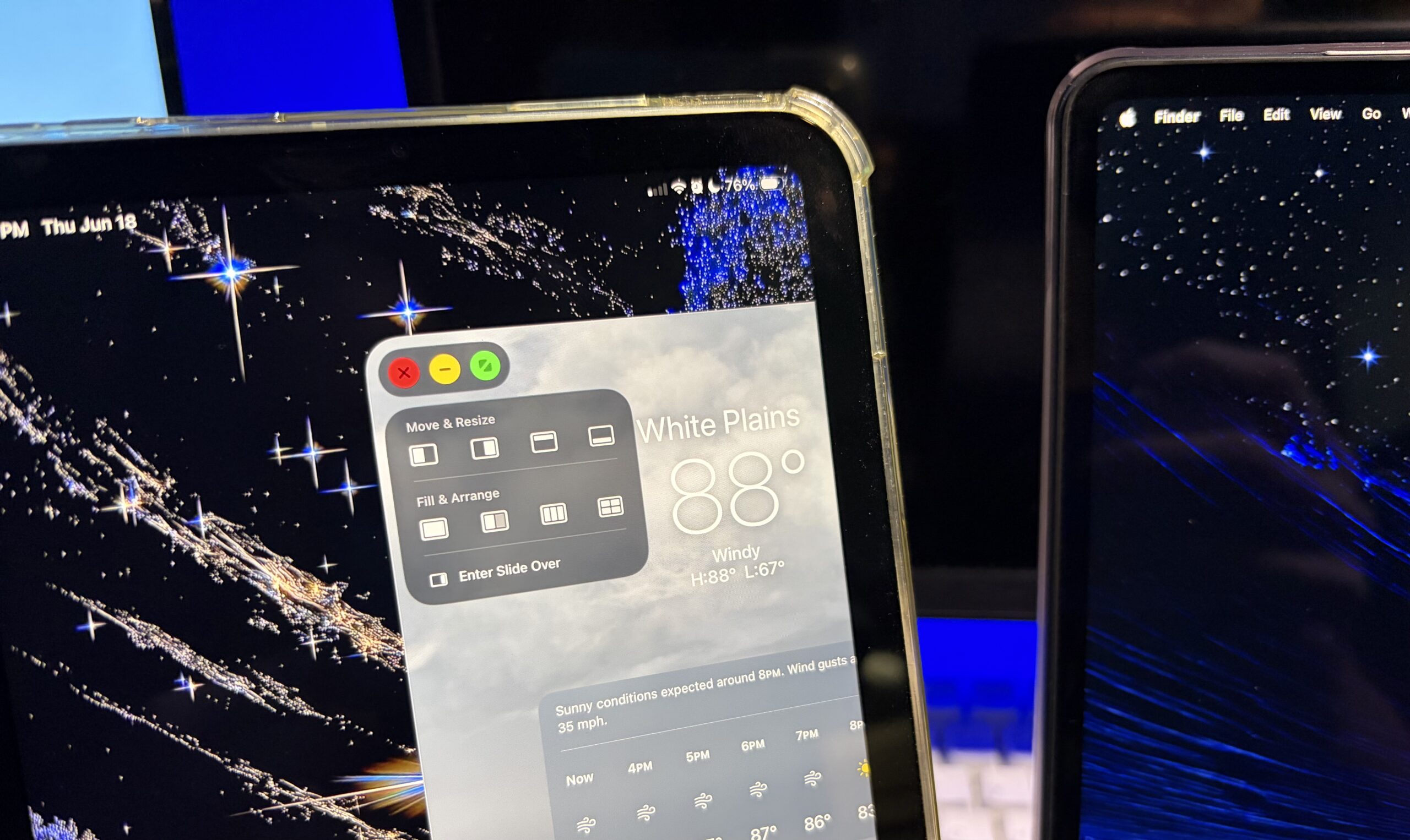 |
Most of the time, however, it’s just a stand for the iPad. With the MacBook Air next to it, I can control the iPad using the trackpad or have it as an extra display using SideCar.

In conclusion
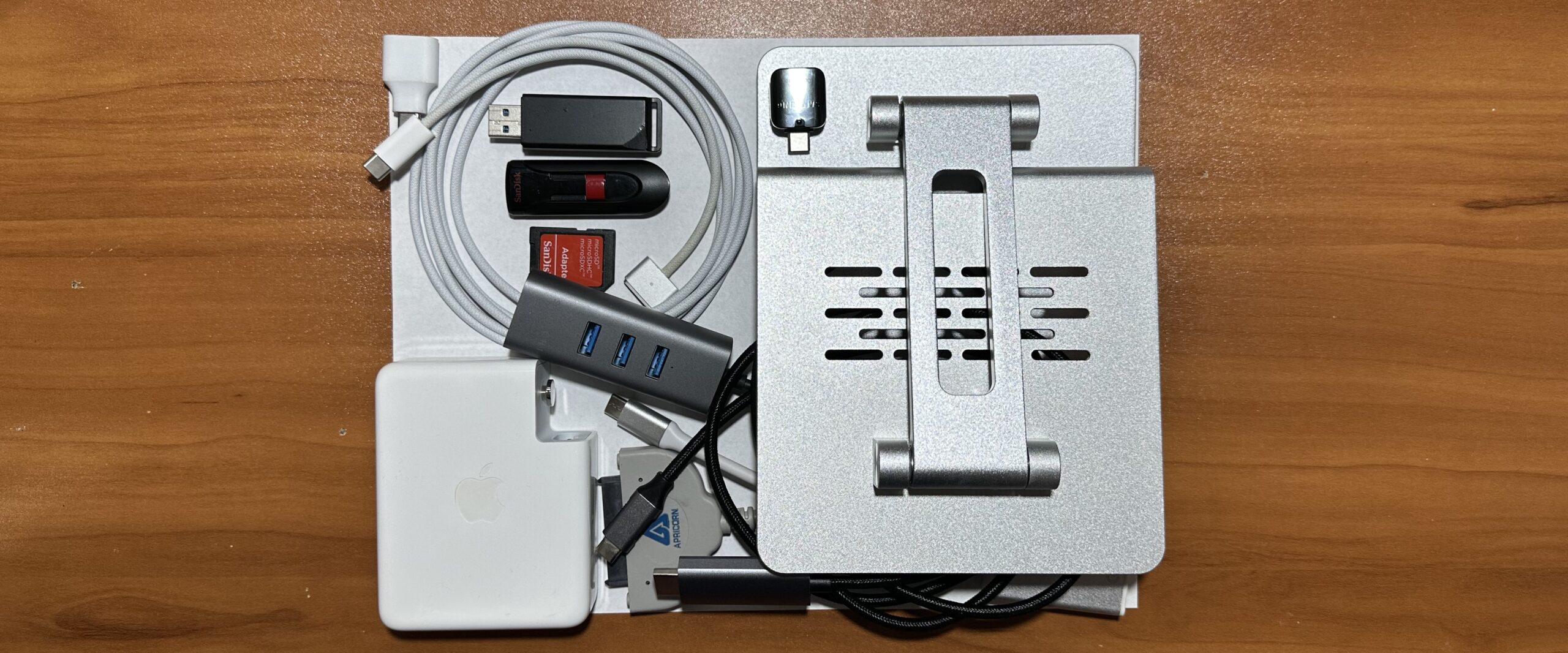
If we combine most of what’s discussed in this article, it can comfortably sit within the space of a sheet of paper – smaller than the 13? Air. The lighter, more versatile and smaller an adapter is when toting a laptop around, the better. We all know how it gets lugging around a bit much, and portability demands space be a premium.
Inside the space of only a sheet of paper, this is what’s here:
- Fast charging the MacBook Air (Came with the ‘Book I traded in)
. - Adapt USB-C to USB-A (Free, came with Galaxy S7 Edge in 2017)
.
- Connect to HDMI monitors or TVs (~$15)
.
- Connect to Aluminum Cinema displays (~$25)
.
- Hookup 2.5? drives for mass storage or diagnostics (~$15-30)
.
- Plug in a Micro-SD card or an SD card (~$2)
.
- Prop-up an iPad as a second display or ‘Book in clamshell mode (~$17-25)
.
- Gain an extra 3x USB type-A v3.0 ports while also gaining Gigabit Ethernet (~$25-35)
. - A Magsafe 3 to USB-C charging cable (~$35 used)
Won’t take up that much more space:
- A low-cost power bank (~$15)
.
- A case right on the laptop (~$15 – $50)
. - Magic Keyboard 2 A1644 (~$35)
.
- A 500 GB 2.5″ SATA Hard drive (~$12)
Adapters and accessories don’t necessarily have to cost more, and there is a plethora of multifunction accessories out there along with cheap ones. I went and picked things up along the way, instead of spending $80 on a “20-in-one” or two – and this is what worked for me.