
In 2006 or so, Dan Warne published his list of the top 30 mistakes made by new Mac users. We want to revisit them.
He writes:
“The Unofficial Apple Weblog has posted a short story on the top five mistakes made by new Mac users.”
“The comments attached to the article are entertaining, and pick up many other common mistakes.
“The thing that strikes me is that most of these problems could be resolved by Apple.”
That’s a matter of definition. Is something necessarily a problem because people make mistakes? More precisely, is something on the Mac a problem because it doesn’t work the same way it would be expected to on a Windows computer?
That’s the crux of the list: Windows users expect everything to work the Windows way – and Mac users expect their Macs to work the Macintosh way. Although there is significant overlap between these two operating sytems, there are also important differences.
Let’s look at Warne’s list:
1. Closing an application window, thinking it has quit.
Conversely, the problem with Windows is that it quits an application simply because you’ve closed the last window it was using. That means the program has to reload from your hard drive the next time you open a document. What a waste of time!
However, Windows users expect this behavior – and they don’t seem to understand the concept of quitting a program manually rather than closing a window and having the program quit automatically. My fiancé, new to the Mac after her Windows Me machine went buggy, runs into this all the time with Camino 1.1, which is itself a little bit buggy.
Windows users need to be taught the Macintosh way – and there’s an easy way to address this. Apple and/or third-party developers could simply add a dialog box that pops up the first time a user closes the last window in an application:
Thank you for using Application X. Closing the last open window doesn’t quit Application X on the Mac; it keeps running in the background so it will be ready the next time you need it. If you really want to quit Application X or any Macintosh application, type Cmd-Q or choose Quit under the application menu.
Then give the user the following options:
- Don’t show this reminder again (a checkbox)
- Quit Application X now
- Quit Application X every time I close the last window
- Don’t quit Application X and show this reminder the next time I close the last open window.
I’m sure there are more terse ways of wording this, but this would serve two purposes: It would teach the new user (we’re assuming they are using a new user account) the Macintosh way and allow them to set Application X to work the way they are used to as Windows users.
2. Downloading an app and running it from the disk image.
This isn’t a problem per se. You can run almost every Mac app from a disk image (I haven’t run into any that won’t, but some may exist). In fact, it’s a good way to check out new software before you install it on your Mac.
Yes, it may not launch as quickly as from your hard drive. Yes, it may not be able to store some settings you choose to make. Yes, you won’t be able to unmount the disk image while the program is running. But it’s not a problem per se.
Again, a little intelligent programming can turn this from a problem into a learning experience. Add a little code so the program checks the name of the drive it’s running from. If it’s the name used by the disk image, pop up a message like this:
Thank you for trying Application X. You are currently running this program from a disk image file; it is not loaded on your hard drive. This program may run with some restrictions and may run more slowly than expected until you install it on your hard drive.
Then provide these options:
- Don’t show this reminder again (a checkbox)
- Quit Application X and automatically install it in the Applications folder
- Quit Application X and have the user manually install it wherever they choose
- Continue to run Application X from the disk image.
3. Creating endless untitled folders
Yeah, this one is a problem. The Finder should pop up a dialog box every time you create Untitled Folder and ask you to name it – perhaps even insist that you do so. Longtime Mac users are used to this behavior, but there’s nothing intuitive about making a new folder and not putting a label on it right away.
4. Using Safari’s Google search to get to a website
That’s a feature, not a problem. If I want to find the Current catalog online, I can type “current” in the link box, hit return – and end up at Current TV (current.com). If I type “current” into the search box and hit return, I get a whole page of links. That includes currentcatalog.com, which is the URL I didn’t know about until I Googled “current”.
5. Confusing the concept of wallpaper with screensaver
I haven’t spent enough time on Windows to understand the problem. Wallpaper is the Windows term for a desktop picture, and a screensaver is a screensaver – not a background image.
6. Double-clicking a window thinking it will maximise it, but instead sending it to the dock
This behavior goes way back to System 7.5, when Apple made WindowShade a standard feature. Double-clicking on a window’s title bar rolls it up like a window shade. With OS X, Apple dropped the window shade metaphor (you can add it with WindowShade X for OS X 10.4 Tiger through 10.6 or WindowMizer for OS X 10.6 Snow Leopard and later) in favor of minimizing the window to the Dock.
Double-clicking to minimize a window’s screen use is the Macintosh way going back to 1994. Double-clicking to maximize a window is the Windows way, not the Mac way. It’s again a matter of expecting a different operating system to mimic the one you’re used to.
This, of course, leads to one huge difference between Windows and every version of the Mac OS. The Windows way is to maximize a window so it occupies the entire screen. The Mac way is to resize a window only as big as it needs to be, which makes much more sense in a multitasking environment.
Double-clicking to minimize or maximize isn’t right or wrong. Neither is maximizing to full screen vs. making the window just as big as it needs to be. They’re simply matters of expected and learned behavior.
Unfortunately, there was no “maximize to full screen” support in OS X until 10.7 Lion . Some programs, such as TextWrangler, can maximize to full screen with older versions of OS X, and others, such as Camino, let you zoom to full screen by Shift-clicking on the green button. Perhaps Apple could make Cmd-click on the green button maximize to full screen.
Again, it might be nice to code a dialog box to help new users understand what’s going on.
In Mac OS X, double-clicking a window minimizes it and puts it in the Dock. If you wish to maximize a window, click on the green button.
And when a new user clicks on the green button, a message like this should appear:
On the Mac, clicking the green button to maximize a window only makes the window as large as it needs to be; it doesn’t make it use the whole screen. To maximize to full screen, hold down the Cmd (or Shift or Alt) key when clicking the green maximize button.
It would be really nice to add full screen mode to QuickTime so people don’t have to pay for the “pro” version or use some hack to access a feature that should just be there.
7. Not understanding the usefulness of column view and leaving everything in icon view
If they understand it in Windows, they’ll understand it on the Mac.
8. Not using any keyboard shortcuts
Again, if they use keyboard shortcuts on Windows, they’ll learn to do the same thing on the Mac. If anything, the Mac makes it easier by displaying keyboard shortcuts in the pull down menus.
9. Thinking that now they’ve got rid of Windows they won’t have problems of any sort on their Mac
Only a fool would believe that any computer could be foolproof and never have any problems. Hardware fails. Operating systems and apps have bugs.
10. Renaming desktop icons to random characters because they don’t understand the difference between the Enter and the Return key on Mac. (Enter puts an icon into rename mode.)
Huh? I have to admit that I wasn’t aware of this, as I usually just click on the icon’s name when I want to change it rather than on the icon itself. And I couldn’t test it immediately, as I use a Logitech keyboard that may not work the same way as an Apple keyboard.
The funny thing is, after I dug out a Mac keyboard from the basement and plugged it in, I found that both the Return and Enter keys work exactly the same way. Click on an icon, press either key, and type in a new name. Then hit either key to finish renaming the file.
What do Windows users expect to happen when they single-click on an icon and then hit the Enter or Return key? Double-clicking an icon is the standard way of launching an app in either Windows or the Mac OS.
11. People trying to find the menus on a window, not realising they’re always at the top of the screen
Here’s another one where Windows bugs me. There’s all this space at the top of the screen for a long, feature-filled menu bar, but Microsoft would rather restrict users to a menu no wider than the current window. Sure, it’s closer to what you’re working on, but it’s not faster and easy to access.
A display has four “infinite” edges and four “infinite” points that you can’t drag the mouse past, assuming you don’t have multiple displays. A window within the display has no “infinite” edges or points; you can drag the mouse way past the menu bar in Windows and most non-Mac operating systems. That’s less efficient.
Again, this is a matter of expecting the Mac to work like Windows. The Mac way is better. Why would Apple consider this a problem to fix?
12. Trying to resize windows from the edge rather than the drag area on the corner
Again, this is a matter of learned behavior. Frankly, here’s one are where the Windows way may be more intuitive – I don’t use it enough to say. I’m used to the Macintosh way, and there are times when I wish I could just make a window wider or taller instead of using the bidirectional resize in the lower-right corner.
I also wish I could grab the edge of the window in any Mac app and move it around the screen, but only certain Mac apps (usually those with the brushed aluminum appearance) support it.
13. Trying to use the Ctrl key rather than Cmd key for shortcuts.
I’m getting tired of saying it, but this is another matter of learned behavior. As a longtime Mac user, I have a hard time remembering to use Ctrl instead of Cmd when I use Windows.
14. Thinking it’ll be easy to get a stuck CD out.
This is a hardware problem, not a Mac problem per se. If people stopped putting mini CDs and business card CDs in slot-loading drives, there would be no problem, and a Windows PC with a slot-loading drive will have the same issue.
15. Installing a program every time they want to run it because they think the installer is the program.
I’ve never heard of this one before. Most installers make it pretty clear what they are and install software in the Applications folder – the logical place for users to look for them.
16. Where’s “the internet”? (looking for the Windows Internet Explorer “e” icon)
Any Windows user who has had the sense to try Chrome, Firefox, or Opera knows better than that. Any Windows user who hasn’t looked at alternatives to Microsoft’s “browser that is a malware magnet” isn’t likely to be looking at an alternative to Windows.
17. Repeatedly hitting the Apple key expecting the Apple menu to pop up (confused with Windows Key and Start Menu concept)
Is that what the Windows key does? Not having spent much time with Windows, I wondered why in the world that extra key existed. I just assumed it was like the Opt key….
As for getting into the Apple menu, simply move the cursor over the Apple icon and click.
As for “the Apple key” (), it hasn’t existed on Apple keyboards since 2007, the year after the TUAW article referenced by Warne. It’s been known as the Cmd (Command) key and marked with a splat symbol (⌘) since the Apple IIGS was introduced in 1986.
18. Thinking the green “+” button maximises a window to full screen (not realising that Apple’s maximise philosophy is to only make a window as big as it needs to be to comfortably fit the width of content currently being displayed)
We’ve covered this above in point 6.
19. Looking in vain for an uninstaller app, because they don’t realise that uninstalling an application on Mac is as easy as dragging the program icon into the trash.
Not quite true. This point should read, “Looking in vain for an uninstaller app because they don’t realise that uninstalling an application on Mac is as usually easy as dragging the program icon into the Trash.” Some programs strew stuff all over your hard drive – mostly apps ported over from Windows or Linux – and they almost always include an uninstaller or an uninstall option in the installer (not intuitive).
20. Minimising windows all the time rather than using “hide”, leaving the document section of the doc [sic] littered with forgotten minimised windows (that are quietly occupying system resources).
Um, there is no “hide window” option that I can find. I can hide an application or minimize a window, but the few apps I’ve just looked at don’t include a “hide window” setting.
And about the only time I use the “hide” feature is when taking a screen shot so there will be less clutter in the background. (An even better solution is Screenshot Helper, which can put a plain white or colored background behind the current app and hide your desktop picture and the Finder.)
21. Double-clicking dock icons.
Exactly what’s the “problem” here? Just as when clicking a link in a browser, double-clicking doesn’t do anything different than single-clicking. Double-clicking is unnecessary, but there’s nothing wrong with doing it here.
22. Inadvertant [sic] click-drags and removing programs from the dock in the process.
Huh?
23. Saving everything to the desktop or somewhere on the hard drive other than their home folder
Saving everything to your home folder is a good default behavior, but the Mac OS has always allowed users to store files anywhere they choose to. And with multiple users, it can still determine who has access to your files.
It would drive me crazy if the operating system tried to force me to save everything within my home folder. For instance, I keep a mirror of this website in a folder called “lowendmac.com” in the “LEM” folder on the “Work” partition on my hard drive (I also have separate folder in LEM for the archive and Photoshop files). This makes it easy for Claris Home Page to use shorter links. The link to this article comes up as
"/musings/07/30-mistakes.htm"
rather than
"/Dooley/Users/dknight/Sites/lowendmac.com/musings/07/30-mistakes.htm"
Freedom of choice is a good thing.
24. Trying to load documents or programs multiple times because they don’t recognise the progress indicators (sound of hard drive grinding, CD spinning, Mac spinning beachball, browser status bar)
It’s a Mac. You can’t open the same document twice at the same time in any application I’ve ever seen, nor can you launch multiple instances of a program unless you’ve taken the time to duplicate and renamed it.
25. Not understanding that the dock is used to both launch and return to a program …
Likewise, on Windows, not understanding that Start is used to both start programs and to shut down the computer.
Frankly, anyone used to Windows should understand the Dock’s behavior pretty quickly.
26. Inability to work with multiple documents on-screen at the same time, because they have only ever learned to use Windows’ maximise mode which always makes everything full-screen
This is not a Mac problem. It’s a user problem. The same behavior increases productivity on either platform. It’s a matter of learning when not to maximize your windows – and by not defaulting to full screen maximized windows, the Mac makes it more likely that user will learn to work with side-by-side or overlapping windows.
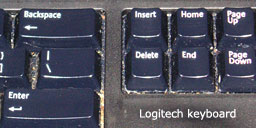 27. Confusing “delete” with “backspace” (because Apple has two keys named “delete” on the keyboard, one of which does forward delete and the other backward delete. Way to go, usability geniuses).
Yes, that’s pretty moronic. On my Logitech keyboard, one is marked Backspace (with an arrow pointing left) and the other is marked Delete. On my Apple keyboard, backspace is called delete and forward delete is marked del and has an arrow pointing to the right.
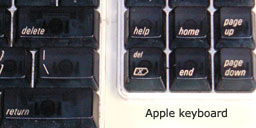 Maybe the powers that be should get together and create better names for these keys, since it’s deleting whether you delete to the right or the left of the cursor. Logitech’s choice of Backspace (also found on my Acer keyboard) seems more sensible than Apple’s choice of delete since it indicates direction.
Apple’s more recent aluminum keyboards still label the backspace key delete, while now marking the forward-delete key delete followed by an arrow pointing to the right.
Having a key marked del or Delete that deletes characters to the right of the cursor is completely unintuitive regardless of how long it’s been standard.
My suggestion: Apple should adopt Backspace as the name for the “delete left” key and include an arrow indicating the direction in which it will delete characters. The rest of the world should adopt fwd del or del fwd as the name of the forward delete key – and include an arrow showing the direction of deletion, as Apple already does.
(And while we’re at it, how about acknowledging that people sometimes eat near their keyboards and making it easy to get the crumbs out?)
28. Expecting “home” and “end” keys to go the beginning and end of a line, rather than beginning and end of a document.
It was pretty moronic of Microsoft to choose Home and End for the start and end of a line rather than the start and end of a document in the first place.
I believe this behavior has its roots in the ancient text-based version of Microsoft Word back in the days before mice. It might have made some sort of sense back then to use Home to go to the first character in a line, End to got to the end of the line. It doesn’t make any sense at all in the GUI world of Windows or Macs.
29. Not realising that when you copy a folder over an existing one, OS X replaces the destination folder rather than merging the contents, which is what Windows does.
Agreed. We’ve covered this before on Low End Mac. See One Thing Mac OS X Should Learn from Windows, Mac Finder Copy Not Flawed, Just Different From Windows, The Copy-and-Replace vs. Copy-and-Merge Debate Continues, and Mac and Windows: Different but Equally Productive.
Once again, the ideal solution is a dialog box that pops up any time you there’s the potential to destructively copy files.
Warning: Folder A will replace Folder B, which will remove files that exist in Folder B. If you would rather merge the two folders, you may choose to do so now.
Then provide these three options:
- Merge files from Folder A into Folder B.
- Merge contents of both folders so they match.
- Replace Folder B with contents of Folder A.
The Finder is savvy enough to know when it may be called on to overwrite or delete files. The user should always be warned when this may occur.
30. Looking for the “complicated” way of doing everything. For example, trying to go into system preferences and right-clicking on the networking icon in order to find available wireless networks, rather than just clicking on the AirPort icon in the menu bar and selecting the relevant wireless network.
Again, this is a user problem, not a Mac problem. The point itself makes it evident that Apple already has a simple, easy solution. Switchers need to experiment and do a little research, such as picking up a Dummies book or two. The worst – and dumbest – thing they can do is move to the Mac and expect it to work like Windows.
Conclusion
Most of the “30 problems” aren’t problems at all. They’re differences between the Windows way and the Mac way that new Mac users should be taught – and the next upgrade to OS X would be a perfect time to add some of these task specific lessons in dialog boxes that warn and educate them about Mac differences.
Problems Apple should address by changing in the Mac OS:
- Stop the proliferation of untitled folders (#3). Make it easier and perhaps even necessary for users to give new folders names.
- A warning message any time copying a folder might destroy files in the target folder (#29)
- Adding a standard way to maximize a window to full screen, perhaps using Cmd-click on the green maximize button (#18, discussed under #6). In OS X 10.7 Lion and later, Cmd-Ctrl-F toggles between full screen mode and regular mode, solving this problem.
Problems Apple should address in hardware:
- Relabel the backward delete key as a backspace key with an arrow pointing left (#27).
- Figure out some solution to the small and oddball CDs that sometimes get stuck in slot-loading drives (#14). As long as people insist on using small CDs, business card CDs, and other oddities, Mac users will try putting them in their Macs.
- Give us a two-button mouse with two buttons, not a second pseudo-button. (No, it’s not on Warne’s list, but it should be. How in the world is a new user going to intuit that the Mighty Mouse can function as a two button mouse when there’s no visual indication of a second button?) I always use third-party scroll mice with my OS X Macs.
Problems Microsoft should address:
- Stop using the Home and End keys in stupid ways (#28). Home, not Ctrl-Home, should bring you to the beginning of a document, and End should bring you to the end of it, not to the end of the line. Switch to Ctrl-Home and Ctrl-End for the start and end of lines and dump this outdated convention.
We’ve suggested ways programmers could educate users, such as notifying a user when an app is launched from a disk image or explaining that closing the last window doesn’t close the app. (And the few apps that do quit when you close the last window should stop doing so! Also, programs shouldn’t automatically open a blank document when you close the last window, an irritant found in Nvu.)
Apple could do a lot more, both within OS X and in advertising, to remind people that Macs are not going to work like Windows computers. With Intel and Boot Camp, they’ve made it easy for Windows users to run Windows on Macs. Now they need to make it easy for Windows users to learn the Macintosh way and take full advantage of what Apple has to offer.
Further Reading
- User Mistakes or Mac Mistakes?, Backspace vs. Delete, and It’s Too Easy to Zap an Icon in the Dock, Low End Mac Mailbag
Keywords: #macusermistakes
Short link: http://goo.gl/6nFCM8
searchword: macusermistakes
