Preference in computer pointing devices is a subjective,
idiosyncratic thing. There is no objective "best" mouse - it's what
you find most comfortable and supportive of productivity. Most
people use mice, but some prefer trackballs or trackpads, and then
there are roller bars.
I check out a lot of pointing devices for product previews - and
most have their relative virtues and some weaknesses - but for my
own production work, I tend to use a mouse most of the time, and
for the past three years or so, it has most often been a MacMice
product.
My introduction to MacMice mice was the company's original "The
Mouse", an 800 dpi resolution device with an LED optical tracking
sensor and a pretty conventional form factor quite similar to that
of Apple's original USB "Pro" optical mouse. What impressed me most
about The Mouse from the get-go was its silky-smooth feel and
tracking, which were the best I had ever experienced in a computer
mouse.
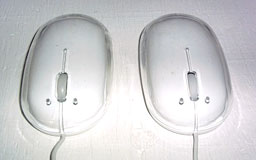
The Mouse glides smoothly and almost effortlessly on my
mousepad, thanks to its light weight and MacMice's very effective
proprietary "glide pads." I also thought The Mouse's clear plastic
base glowing red when the LED sensor was activated was a cool
(albeit totally aesthetic) touch.
 But it was mainly the feel of The Mouse that appealed
to me. No fancy ergonomic gimmicks - just an attractive and
comfortable conventional shape and light effort, along with a
smooth, "clickless" scroll wheel and soft action mouse buttons.
But it was mainly the feel of The Mouse that appealed
to me. No fancy ergonomic gimmicks - just an attractive and
comfortable conventional shape and light effort, along with a
smooth, "clickless" scroll wheel and soft action mouse buttons.
"The Mouse" has now been superseded by "The Mouse II Laser",
which is virtually identical in look and feel to the original
product, but with a 1600 dpi laser tracking sensor. Besides the
increased tracking resolution, laser tracking means you no longer
need a mousepad if you prefer not to use one; the laser pickup is
sensitive and accurate enough to work on virtually any mousing
surface. No more uncertain performance on glossy or colored table
tops.
The laser scanner also means the base no longer lights up, but
its higher resolution should appeal to users who do precision work,
and it also can be quickly reconfigured to operate at 800 dpi as
well.
MacMice has also introduced two new mice based on the original
"The Mouse" form factor - the Danger Mouse laser mouse and "The
Mouse BT II" Bluetooth wireless mouse.
The Danger Mouse shares the
1,600 dpi tracking sensor of The Mouse II Laser and is the same
size, shape, and weight, but it has an opaque plastic finish
(available in solid white, black, or red) and a smaller-diameter,
more deeply-recessed scroll wheel. I still like the original design
a lot, with its classy clear-over-white livery (The Mouse II Laser
is also available in silver), but for feel, I now prefer Danger
Mouse, thanks to the small "miniscroll" wheel.
 The Mouse BT II, on the other hand, has been something of a
disappointment to me. While it shares its shape and dimensions with
its corded siblings, for some reason it's still equipped with the
old 800 dpi LED sensor, and the weight and weight distribution of
its internal batteries have ruined the feel, IMHO.
The Mouse BT II, on the other hand, has been something of a
disappointment to me. While it shares its shape and dimensions with
its corded siblings, for some reason it's still equipped with the
old 800 dpi LED sensor, and the weight and weight distribution of
its internal batteries have ruined the feel, IMHO.
While the MacMice corded rodents feel light and nimble, the BT
II feels heavy and ponderous. The fact that it's also quite
expensive doesn't help.
I'm personally not a fan of Bluetooth pointing devices, with
their need for mucking around with batteries and with wireless
pairing, wake-up lag, and a slight latency in response, and the BT
II's surprisingly unsatisfactory feel certainly doesn't help. It's
amazing that a device that looks exactly the same can feel so
different.
So let's take a look at these three Mice in greater detail.
The Mouse II Laser
The Mouse II Laser (and the other two) is a nearly symmetrical
rectangular ovoid in shape and of about average size for computer
mice. The entire housing cover serves as the button - or more
accurately in this case, two of the three buttons. The front half
of the case is split and serves as left and right buttons.
This
configuration may sound like more of a compromise than it is, and I
find that it's very comfortable to use with plenty of tactile
positive feedback. The Mouse II's conventionally-sized scroll wheel
has a delightfully light, silky-smooth action and also a third
button click function. I find the scroll wheel button click a bit
too stiff on all of these mice, but I only use it for toggling
Exposé.
The new 1,600 dpi laser tracking is fast and responsive for
accurate pixel level editing. Personally, I find 1,600 dpi a bit
too lively for most tasks, even on my PowerBook's big 17" display,
but happily the resolution can be toggled to 800 dpi (the same as
The Mouse's LED tracking sensor) by simply holding both click
buttons down simultaneously for a few seconds. It works for me, and
the higher resolution is always available if I feel the need.
 If you
are using OS X 10.1 or higher, no driver installation is necessary
for basic support of mouse clicking and the scroll wheel. If you're
still using Mac OS 8.5.1 through OS 9.2.2 or you want more mouse
functionality than the built-in OS X drivers provide,
proprietary drivers are downloadable at the MacMice support site.
MacMice's MouseCommand v10 and MouseCommand v9 USB mouse drivers
are full featured to satisfy demanding multi-button mouse users,
with assignable scroll button, left-handed operation, adjustable
clicking and motion, built-in adjustable cursor acceleration,
reversible horizontal scrolling. The v9 driver works with Mac OS
8.5.1 through 9.2.2, and the v10 version works with Mac OS X
10.1 through the latest version.
If you
are using OS X 10.1 or higher, no driver installation is necessary
for basic support of mouse clicking and the scroll wheel. If you're
still using Mac OS 8.5.1 through OS 9.2.2 or you want more mouse
functionality than the built-in OS X drivers provide,
proprietary drivers are downloadable at the MacMice support site.
MacMice's MouseCommand v10 and MouseCommand v9 USB mouse drivers
are full featured to satisfy demanding multi-button mouse users,
with assignable scroll button, left-handed operation, adjustable
clicking and motion, built-in adjustable cursor acceleration,
reversible horizontal scrolling. The v9 driver works with Mac OS
8.5.1 through 9.2.2, and the v10 version works with Mac OS X
10.1 through the latest version.
One of the nicest things about The Mouse has always been its
supple, flexible cord, and the Danger Mouse and Mouse Laser II
cords are made of the same soft material, but they're five feet
long - three feet more than The Mouse classic's cord. I'm a fan of
long mouse cords (especially appreciated when using Apple 'Books
with the USB ports located on the left side), so thanks for the
extra length, MacMice.
Being a fan of the original classic MacMice The Mouse, I like
this virtually identical but technically upgraded product as well.
My only nitpicky complaint is that assembly tolerance standards
seem to have slipped a bit since my 800 dpi The Mouse was made. The
upper case housing has a lot more vertical play in it than with the
classic unit, although I should add that the Danger Mouse I tested
was the most solid-feeling of the three.
The Mouse Laser dimensions are 2.2" wide, 4.4" long, 1.2"
high.
The Mouse Laser is available for $29.99
MacMice Danger Mouse USB Laser Mouse
Happily, the basic Mouse/Mouse II symmetrical ovoid form
factor has been retained with Danger Mouse, although in opaque
white or black (or red, about which more below) livery rather than
the clear-over-white motif of the older design. I do prefer the
aesthetic effect of clear-over-white. The opaque color looks a bit
bland and utilitarian by contrast.
Functionally, the difference between the Mouse II and Danger
Mouse is that the latter has a smaller diameter (10 mm)
"Micro-Scroll" scroll wheel mounted nearly flush with the top of
the Danger Mouse housing - in answer to the Apple Mighty Mouse's
miniature trackball, and one that I think is more usefully
practical. I didn't think I was going to like the tiny,
barely-protruding scroll wheel as much as the conventionally-sized
and configured one in The Mouse, which is as smooth as silk and
requires virtually zero effort. However, once I got used to the
Danger Mouse scroll wheel, I now definitely prefer it.
 MacMice
notes that Apple's use of a miniature scroll ball on Mighty Mouse
exposed many users to a new and seemingly contradictory concept: a
tiny scrolling device "feels" more precise in usage than a larger
one. However, they suggest that many of these same users have
learned that a sealed, embedded mini-trackball is not the perfect
implementation of this idea. The MicroScroll miniature scroll wheel
delivers the precision of an ultra-small scrolling device without
the frustrations of a tiny trackball.
MacMice
notes that Apple's use of a miniature scroll ball on Mighty Mouse
exposed many users to a new and seemingly contradictory concept: a
tiny scrolling device "feels" more precise in usage than a larger
one. However, they suggest that many of these same users have
learned that a sealed, embedded mini-trackball is not the perfect
implementation of this idea. The MicroScroll miniature scroll wheel
delivers the precision of an ultra-small scrolling device without
the frustrations of a tiny trackball.
Much as I like the miniscroll wheel's size and ergonomics, isn't
quite as smooth as the one in my three year old The Mouse. I hasten
to add, however, that it is still very smooth
Aside from the color aesthetics and the different scroll
wheels, there is little to choose between The Mouse II and Danger
Mouse. Both have identical dimensions and weight. Both have the
1600 DPI resolution laser pickups, are nicely balanced and
weighted, and I am of a mind that smoothness and low effort are as
important in preventing and minimizing mousing fatigue and pain as
exotic "ergonomic" form factors.
Before we leave the topic of weight, I'd like to note that the
MacMice products' lack of it doesn't seem to make them flimsy. My
three-year-old The Mouse still works perfectly and has never given
any hint of trouble.
The standard Danger Mouse comes in either white or black and
sells for $29.99. It's also available red version to benefit the
new the Other Red fundraising effort to benefit the Peace Village
School & Orphanage in Kenya, Africa. The Danger Mouse Red is
priced at $29.99 (with $3 going to the Other Red charity).
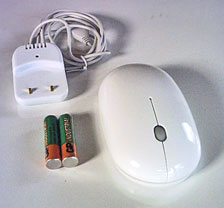
The MacMice Mouse BT II
For reasons articulated above, I had fully expected to like
MacMice's new rechargeable The Mouse BT II. Actually, the BT II is
the fourth generation MacMice BlueTooth mouse, the previous
iterations being the USB Charging/MicroScroll/800dpi models.
The BT
II has a new Bluetooth transceiver module incorporating the range
increases and power conservation benefits of the latest BT v1.2
standard and includes a mini-USB charging cradle that takes up
little desk space while making charging the included AAA NiMH
batteries quick and easy.
This latest iteration of the MacMice Bluetooth mouse also
incorporates the Danger Mouse's MicroScroll miniature scrollwheel
and also shares its styling with Danger Mouse. Consequently, it
seemed probable that I would be pleased with the BlueTooth
conversion as well, and I was was surprised to be completely
underwhelmed by the Mouse BT II.
Part of the problem with the BT II is its execution of
BlueTooth, which I find frustrating at the best of times - the
latency of response and waiting for the wireless connection to
reestablish itself upon waking the computer, the hassle of pairing,
the necessity for batteries, and so on. Especially when working on
a desktop, I'd rather just plug in a cable and have a nice,
positive, hard-wired connection.
As noted above, unlike its wired siblings, the BT II still
incorporates an 800 dpi LED optical sensor. That wouldn't
necessarily be a bad thing - the 800 dpi LED in my classic The
Mouse works just fine for my purposes, and I keep the resolution in
my The Mouse Laser and Danger Mouse at the 800 dpi preference most
of the time.
However, the LED in the be BTII doesn't seem nearly as positive
or responsive as the one in The Mouse. I have no idea why this
would be, other than that it might be accentuated by Bluetooth
latency. Whatever, it's annoying, and I really wouldn't recommend
the BT II for precision work like image editing. Get a The Mouse II
Laser or Danger Mouse for less than half the price, and use it at
1600 dpi for pinpoint accuracy.
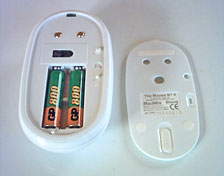 With
its two necessary 750-920 mAh AAA NiMH cells installed, the BT II
is advertised to be just 5 grams heavier than the wired Danger
Mouse (my postage scale says it's more like 9 grams heavier), but
it feels like a lot more than that. Perhaps it's partly weight
distribution rather than dead weight itself. The batteries live at
the back of the unit, which makes the BT II feel like it's dragging
its butt.
With
its two necessary 750-920 mAh AAA NiMH cells installed, the BT II
is advertised to be just 5 grams heavier than the wired Danger
Mouse (my postage scale says it's more like 9 grams heavier), but
it feels like a lot more than that. Perhaps it's partly weight
distribution rather than dead weight itself. The batteries live at
the back of the unit, which makes the BT II feel like it's dragging
its butt.
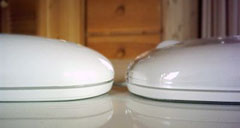
Then there is the wobbly-ness of the BT II's case housing. While
MacMice's original The Mouse and Danger Mouse have a nice, solid,
non-rattly feel to them, the upper case housing of both the BT II
and (to a lesser but still noticeable degree) The Mouse II Laser
are tactilely and audibly loose on their respective bases, with too
much vertical slack in the II laser and in both lateral and
vertical planes with the BT II. In short, it feels sloppy and is a
constant annoyance that would dissuade me from using this mouse
even if there were no other objections. Perhaps some quality
control improvement and greater consistency is in order.
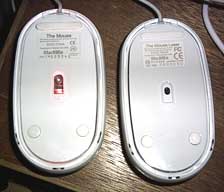
Battery compartment access is convenient enough - just slide the
latch and the bottom cover of the mouse housing lifts off.
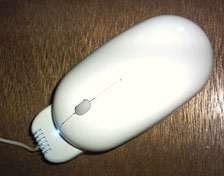 To charge, plug the charger
dock into a powered USB port on a computer and place the BT II on
the dock so that the metal contacts on both devices connect by
gravity. The blue indicator LED will flash while the batteries are
charging and glow steadily once they are charged.
To charge, plug the charger
dock into a powered USB port on a computer and place the BT II on
the dock so that the metal contacts on both devices connect by
gravity. The blue indicator LED will flash while the batteries are
charging and glow steadily once they are charged.
To activate the mouse connection, make sure Bluetooth is active
on your computer. In OS X, check the "Discoverable" check box
in the Bluetooth preferences panel and also "Show Bluetooth Status
in the Menu Bar". On the mouse itself, make sure batteries are
installed and charged and turn the bottom-located power switch on.
You may or may not have to press the pairing "Connect" button on
the bottom near the optical sensor for ten seconds.
From the Bluetooth menu, select "Set Up Bluetooth Device" and
then follow the instructions. When asked for "Device Type", select
"Mouse."
The mouse be BT II will put itself to sleep after a period of
not activity to help converse battery power. You wake it up by
clicking any button once, but it takes an annoying few seconds for
it to reestablish communication with the computer. This is a common
characteristic of Bluetooth mice and not unique to BT II.
The Mouse BT II sells for $69.99, the same price as Apple's
Wireless Mighty Mouse. I'm not crazy about the Mighty Mouse design,
but it does have the laser, which should make it more precise, and
I wouldn't anticipate build quality issues in the Apple
product.
If you're in the market for a BlueTooth mouse, you might also
want to check out RadTech's BT600 5-button mouse (also 800 dpi LED
technology), which includes in-mouse charging technology and sells
for $10 less. I found it to have a good standard of finish and
functionality in my Miscellaneous Ramblings review last year.
The Mouse BT II supports both Mac OS X or Win XP systems. With
OS X 10.2.6 or Windows XP SP2 or higher, the operating system
supplies the necessary drivers to enable both the left and right
buttons.
All three mice are available from The MacMice website or from
any of their worldwide retailers, such as Mac-Pro.
Links
Go to the Miscellaneous Ramblings Review index.