Less than two weeks after we published this review
of Name Munger 1.4, Sonoma Graphics released version 1.5, which
made the program far more user friendly and made the Mac version a
universal binary. Please see Name Munger 1.5 Makes Renaming Files Even
Easier to learn about the many improvements.
Posting files on the Internet can pose problems: Sometimes file
names need to be cleaned up (or "munged") to work correctly
on a server.
For instance, way back in the early years of Low End Mac, I
didn't know that you shouldn't include "&" in a file or
directory name. When we launched a new column called "Back & Forth", I put it in a
folder called "back&forth". Problem is, "&" is a special
symbol that automatically converts to "&" - so links to
files inside that folder failed.
I ended up renaming the directory "backnforth", fixed all of my
internal links, and hoped other sites that might have linked would
catch the change.
Other problems I've run into over the years involve case and
spaces.
Case
Some servers and operating systems are case sensitive; some are
not. Mac OS X is kind of in the middle; by default, "Folder"
and "folder" are the same thing to the OS.
Early on, I discovered that if files on our website included any
uppercase characters, links to them wouldn't work. Rather than
worry about that as we moved from host to host over the years, I
made the decision to eliminate the problem by making all directory
and file names lowercase.
Back then, it meant manually renaming each file (mostly images).
Later on, I skirted around the issue of having to type in
characters by copying the file name, pasting it into TextSoap, converting to
lowercase, copying, and then pasting onto the file.
It was better than typing, but it was tedious. Surely there had
to be a better way!
Space
Another problem you'll run into on a lot of servers is spaces in
file names or directory names being converted to "%20", since the
space is an illegal character in a URL. Again, my only recourse was
to rename the files and folders by deleting the space or replacing
it with a hyphen or underscore.
One. At. A. Time.
Surely there had to be a better way!
Name Munger
Enter Name Munger 1.4
(pronounced "name munjer"), a powerful, easy-to-use program for
renaming groups of files in Mac OS X 10.1 and later, Mac OS
9.1-9.2.2, and Windows 98-XP.
The easiest way to use Name Munger is to put it in your Dock and
drag the files you need to rename to its icon. Name Munger will
launch and give you several different tools for renaming files:
replace characters, add a prefix or suffix, remove characters,
strip characters, change case, and number files. And it lets you
preview the changes before you commit to them.
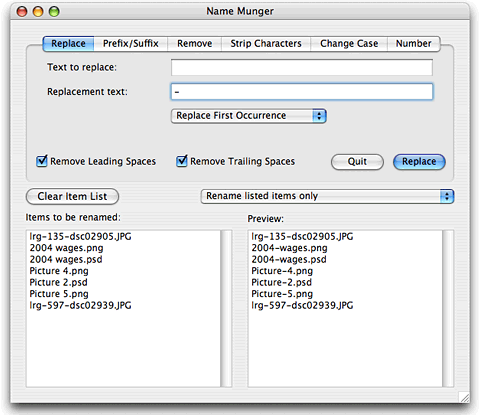
Replace
The biggest problems I run into are spaces and capital letters.
The Replace tab lets me choose what character(s) I want to replace,
what I want to replace them with, and whether to replace only the
first occurrence, the last occurrence, or every occurrence.
It's a simple thing to type a space into the first box, a hyphen
into the second, select "Replace Every Occurrence", and click the
Replace button. The image below shows how one group of files could
be renamed:
Change Case
The other problem, even more common, is having uppercase
characters in a file name. This shows up primarily with images sent
with press releases or copied from other websites for use with a
review or news roundup, and I've also run into it with stuffed
software files. Names may be all caps, have caps only in the file
extension, or have uppercase and lowercase characters mixed
together.
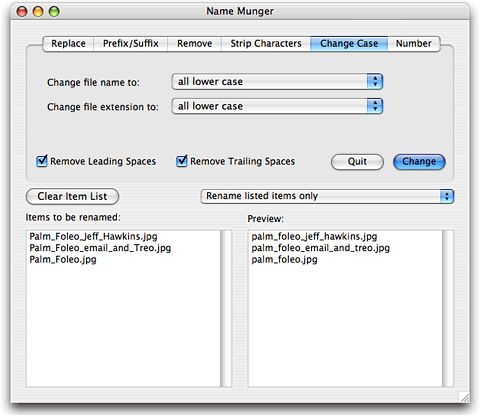
Name Munger gives you four options for changing the file name
(the part before the extension): no change, all lower case, all
upper case, and title caps (first letter capped, rest lowercase).
It also let you change file extensions to all lower case or all
caps - or leave them alone.
The default is title caps with lowercase extensions, so I have
to set Change File Name to "all lower case", as in the image
below.
Pros and Cons
First and foremost, this is the only Mac tool I've found that
does this kind of file renaming without going to the Terminal. It
works well, and it works quickly. It saves me enough time every
week to justify the $10 price.
That said, there is room for improvement.
For instance, Replace defaults to Replace First Occurrence and
Change Case defaults to Title Case for the file name. Every time I
use Name Munger, I want to replace every occurrence and change
everything to lower case. There is no option to change the default
behavior.
I'd love to see Name Munger add preferences, a feature of most
Mac software that's grayed out in the File menu. It would be much
more convenient to set my preferences to "Replace Every Occurrence"
and set file name to all lower case by default.
A second improvement that would make Name Munger substantially
more powerful would be the ability to remember and apply sets of
changes. With the current version, you have to Replace and Change
Case separately. It would be nice to be able to do both at once -
and to have Name Munger save a set of changes such as change every
space to a hyphen, every "&" with an "n", and all caps to
lowercase.
Name Munger does what it does flawlessly and quickly. If you
have to do bulk file renaming, it's the only OS X app I know
of that does it, and $10 is a very reasonable price considering the
time it can save you.
Yes, there is room for improvement - ways to make Name Munger an
even more efficient tool - but even without preferences or the
ability to change several things at once, it's a very useful tool.
With a few improvements, it would be perfect. 
Link: Name Munger
Manufacturers and distributors: Interested in having your product
reviewed? Please read our review policy.