Your Mac crashes. You start getting strange system errors. Bring
it down to your local Apple dealer? Nope. You may be able to fix
it
Often I hear about people bringing machines into computer stores
to have the OS reinstalled, the hard drive reformatted, or the
extensions sorted through. You can usually do these things
yourself.
If your computer crashes and won't start up again, what do you
do? Some might run around the room in hysterics, but fixing it
really isn't really all that hard. First you must start up your
computer from a startup diskette or CD-ROM. You need to find a
compatible version of the Mac system software. Any Power Macintosh with enough memory can use
versions up to 9.1. The Mac LC and
Mac II can use versions up to 7.5.5, and
mosat 68030-based Macs (aside from the IIx, IIcx, and
SE/30, which only support up to
7.5.5) can use systems up to 7.6.1. The 68040-based Macs, like the Quadra 650 and Performa 475, can use systems up to
8.1.
To start up from a floppy disk, insert the disk, turn on the
machine, and the computer should start from the floppy. To start
from a CD-ROM disk in an internal CD-ROM drive, turn on the
computer, insert the CD, and hold down the "C" key. If it does not
start up from the CD, turn the machine off (while leaving the CD
in) and then turn it back on again, immediately holding down the
"C" key. If you are using a non-Apple CD-ROM drive (especially
likely in Mac clones), you may have to hold down the
"command-option-shift-delete" keys instead.
Once you have started up from the CD or disk, you need to find
out if the hard disk mounted. You will see the hard disk icon right
below the icon of your startup disk. If you see it, you can skip
the next paragraph.
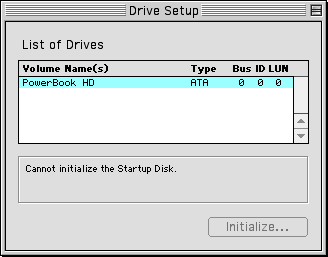
If you don't see the icon, you need to open "Drive Setup" or
"Apple HD SC Setup". If you are starting from the CD-ROM, the Drive
Setup program is in the "Utilities" folder. The Apple HD SC Setup
program is directly on your startup floppy disk. Drive setup or HD
SC Setup will give you a list of all of the hard drives and CD-ROM
drives installed in your system. If you see your hard drive (it
might be called "Macintosh HD" or "Hard Disk") listed, select it
and press command (Apple)-M or select "mount volume". The drive
will mount on the desktop - you will see the icon appear below the
icon of your CD or floppy.
To determine what happened to cause your machine not to start up
again, you will need to open the hard disk and find the System
Folder. Before you do this, you may want to set the view options to
"icon" in the View menu. Take a look at the System Folder icon. It
should look like a folder with a picture of a little Mac a happy
face Mac OS logo on it.
If it does not have this logo, open it and close it once again.
If the icon changes, restart the computer and see if it will start
from the hard disk. If it does not, you can always start again from
the CD or floppy.
If your system folder looks okay, run the Disk First Aid program
on your floppy disk or in the Utilities folder of your CD-ROM. Let
it repair any problems on the hard disk. If there were problems
found that it repaired, try starting from the hard disk again.
If there are no problems found or you couldn't successfully
start from the hard disk, you will need to reinstall your system
software. You have a number of options when it comes to this. Many
people don't realize that you can install Mac OS 9.1 on a Power Macintosh 6100/60 that shipped with
System 7.1.2,assuming you have enough RAM. [Editor's note: I don't
recommend running anything higher than Mac OS 8.1 on a 6100 because
of the high demans of Mac OS 8.5-9.1.]
You need to find a compatible system version that works with the
amount of RAM you have and fits on your hard drive. If you have an
LC 475, which will run Mac OS 8.1, but only have 8 MB of RAM
and an 80 MB hard disk, you may want to settle for 7.5 instead,
because 8.1 needs more hard disk space and more RAM than you have.
If you have a 6500 and are still
using System 7.5.5, you may want to upgrade to Mac OS 8.6, since it
is a lot more stable on those machines. If you are happy with the
version you were using before - and it was stable - you may want to
reinstall that.
To install the Mac OS, you need to insert the CD-ROM or Disk 1
install disk into your computer. If you're starting from a CD-ROM,
you will need to double click the "Mac OS Install" program. If you
are starting from a floppy, the installation program should start
automatically.
What you want to do is a clean installation. For Mac OS
versions before 7.6, hold down "command-shift-K" after you click
the "Continue" button on the welcome screen. It will ask you if you
want to do a clean installation - click okay. For versions 7.6 and
higher, select "Perform Clean installation".
When the installation finishes and your computer restarts, you
may notice that you don't have all of the things that you had
before your computer crashed. Don't worry, those things are all
here - in a folder called Previous System Folder. Open that and you
will find your old System Folder with all of its extensions,
control panels, and preferences. You may feel tempted to copy
things over to the new System Folder, although this is not the best
way to do things. It is best to reinstall the programs completely
(which means trashing the application program - if the extension or
control panel came with one - as well).
Your desktop will also be reset to the default setting (usually
some shade of blue, but it has varied throughout the different
versions of the Mac OS), and you will need to make new aliases on
the desktop, as well as set up your printer again by selecting it
in the Chooser (you may have to reinstall your printer software-
your printer should have come with a disk or CD-ROM).
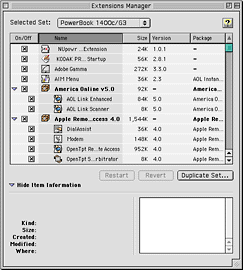
What if you are just receiving system errors? Often system
errors happen if you have an extension conflict. Extensions are the
add-ons to your system software that give you more features or
allow applications to access other parts of your system. You can
enable or disable the extensions that you have installed using the
Extensions Manager control panel. To access this, open the Control
Panels folder in the Apple menu and double click the Extensions
Manager. There are a number of ways you can view the extensions. I
like to view them as packages because then you can turn on or off
all of the extensions that an application installs - with one
click. You can adjust the view in the "View" menu, and your options
will depend on what version of the Mac OS you are using.
You also will have extension sets. There are two options that
come with the Mac OS. "Mac OS [version] Base" and "Mac OS [version]
All" are the two default sets. You then have your current set.
Before you change anything, click "duplicate set," and then type in
a name for your current set. Then you can feel free to adjust your
extensions as you want to, because you have saved the previous
set.
If you are getting frequent system errors, I suggest selecting
the "Mac OS [version] All" set and use it for a while to see if
your errors go away. Some applications may not function correctly
though - you can go back into the extensions manager and re-enable
these application sets. You will be asked to duplicate the "Mac OS
[version] All" set, just type in a new name and then you can edit
it as much as you want.
If your system errors still don't go away, you may want to
reinstall your system software as explained above.
If you continue having problems, I suggest you buy a hard disk
utility such as Alsoft's Disk Warrior, Symantec's Norton Utilities,
MicroMat's Tech Tool Pro, or another similar program. You can start
up from the utility's CD-ROM disc and run the program to check the
hard drive. If you do not have a CD-ROM drive, you may be able to
find an older version of Norton Utilities on floppy disks. These
versions came with an Emergency disk, which you can start up from
if you are having problems. I recommend checking out eBay
for older versions of software. If you haven't used eBay before,
you might want to read Andrew Hill's article, eBay: Standing up for yourself.
If there are problems found on your hard disk and they cannot be
repaired, you may have to reformat your hard disk. This erases all
of the data on your hard disk and installs new drivers. You can do
this by starting up your computer with the system software floppy
disk or CD-ROM. Next you will open the Drive Setup program or Apple
HD SC Setup program. The Drive Setup program will be in the
Utilities folder of your CD-ROM, the Apple HD SC Setup program will
be on your floppy disk. Select your hard disk, and click
"Initialize". You will be prompted with some options. You will want
to select "Low Level Format" if given that option. It will take a
while, but it erases everything to make sure that there is no
chance that your hard disk is still corrupted.
If you are using Drive Setup, you will also get the option to
choose what format you want your hard disk. You will want to choose
either HFS or HFS+. If you have a 68K Mac, you will want to choose
HFS. If you have a PowerPC Mac and are using Mac OS 8.1 or later -
and will not be using a previous version - you may want to choose
HFS+. HFS+ can provide some extra usable space from your disk, but
it is incompatible with any version of the Mac OS before 8.1.
Remember that reformatting your hard disk will erase all
data. Make sure you back up your hard drive before you initialize
it.
You can then run the utility program again. If it still reports
problems on your hard disk, you may need to replace the drive
itself. If you feel comfortable working inside your computer, you
can probably do this yourself. I will cover this and other things
in a future article.